
If you cannot right-click on the desktop on Windows 11/10, follow these troubleshooting tips to fix the issue. Whether it is caused by malware, adware, wrong settings, or anything else, you can get rid of this problem using these solutions.
Cannot right-click on the Windows desktop
If you cannot right-click on the desktop on Windows 11/10, follow these suggestions:
- Check the mouse
- Restart File Explorer
- Check Explorer addons
- Check File Explorer’s default context menu setting in GPEDIT
- Enable context menu using Registry
- Disable Tablet mode
- Install Touchpad drivers
- Disable mouse manager software.
1] Check the mouse
It is probably the first thing you need to confirm. If your mouse has issues with its buttons, you may end up wasting time trying to fix it on your computer. It doesn’t matter if you have a wired or wireless mouse; you can connect it with another computer or open another program on your PC and check if right-click is working or not.
If it is working, only then follow other solutions. Otherwise, you need to fix your mouse and not your computer. You need to check the trackpad if you are using a laptop and unable to right-click on the desktop.
2] Restart File Explorer
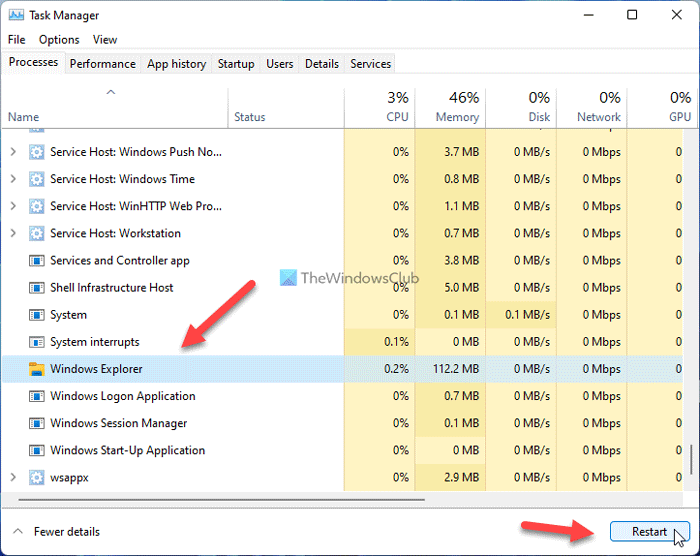
If there is a bug causing this issue on your Windows 11/10 PC, you can restart the Windows Explorer process using Task Manager. For that, do the following:
- Press Win+X to open the menu.
- Select Task Manager from the list.
- Select the Windows Explorer process in the Task Manager.
- Click on the Restart button.
After that, close the Task Manager and check if it resolves your issue or not.
3] Check Explorer addons
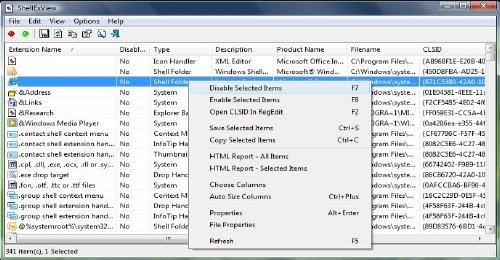
Installed Add-ons are usually the culprit! Check if you have installed any helpers or add-ons to your explorer. Uninstall or disable them. Often, even 3rd-party shell extensions can cause Explorer to crash on particular actions. Several programs add items to the right-click context menu. To see them in detail, you may download the freeware utility ShellExView.
It will let you view & disable suspect 3rd party shell extensions. Using the trial & error method, you can disable or enable extensions to see if any are causing a problem. ShellExView can also be used to solve context-menu problems in Explorer, such as slow right-clicks.
Read: Right-click menu stuck on screen in Windows
4] Check File Explorer’s default context menu setting
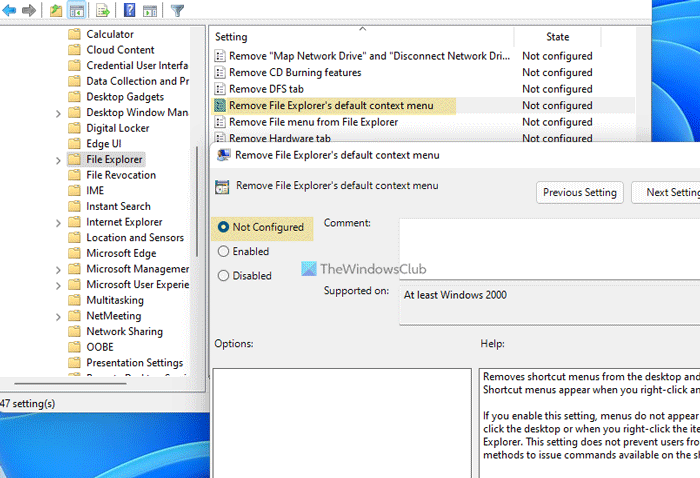
In Local Group Policy Editor, this particular setting lets you enable or disable the context menu in Explorer. If you disabled it mistakenly, there is a chance of getting this problem on your computer. Therefore, you need to verify this GPEDIT setting using these steps:
- Press Win+R to open the Run dialog.
- Press gpedit.msc and press the Enter button.
- Go to User Configuration > Administrative Templates > Windows Components > File Explorer.
- Double-click on the Remove File Explorer’s default context menu setting.
- Choose the Not Configured option.
- Click the OK button.
Next, close all windows and try right-clicking on the desktop.
5] Enable context menu using Registry
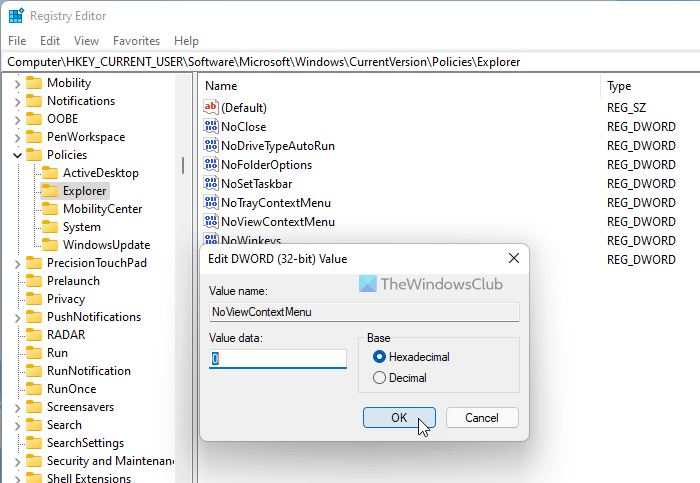
It is possible to turn on or off the context menu in File Explorer using Registry Editor as well. If you have changed the setting in the past, you will confront the right-click issue on your PC. Therefore, follow these steps to verify the Registry value:
Press Win+R to open the Run prompt.
Type regedit > hit the Enter button > click on the Yes option.
Navigate to:
HKEY_CURRENT_USER\Software\Microsoft\Windows\CurrentVersion\Policies\Explorer
Double-click on the NoViewContextMenu DWORD value.
Set the Value data as 0.
Click the OK button.
Restart your computer.
In case you cannot find the NoViewContextMenu DWORD value, you need to create it manually. For that, right-click on the Explorer key, select the New > DWORD (32-bit) Value, and name it as NoViewContextMenu.
Close Registry Editor and restart your computer.
Related: Right-click not working or slow to open on PC.
6] Disable Tablet mode
If you have enabled Tablet mode in Windows 10, you might face this problem on your PC. At times, the right-click doesn’t work in the Tablet mode. Follow this detailed tutorial to disable or turn off Tablet mode.
7] Install Touchpad drivers
If you get this problem on a Windows 11/10 laptop, you need to install the touchpad driver. If you have already installed it, ensure you have the latest version.
8] Disable mouse manager software
There are mouse manager tools available in the market that help you manage the keys or functions of your mouse. If such a tool creates issues on your PC, you may encounter these problems. If you have installed such software earlier, it is an excellent time to get rid of it. You can temporarily disable it and check if it resolves your issue.
Hope these solutions worked.
Why can’t I right-click on my desktop?
There could be several reasons why you can’t right-click on your desktop. It may happen due to a wrong setting in Group Policy, wrong value in Registry Editor, third-party software, etc. You need to follow all the aforementioned guides to get rid of this problem.
How do I enable right-click on my desktop?
To enable right-click on the desktop, you need to check two settings. First, open the Group Policy, go to File Explorer in the User Configuration, double-click on the Remove File Explorer’s default context menu setting. Choose the Not Configured option and save the change. Second – Open the Registry Editor, go to Explorer in HKCU, double-click on the NoViewContextMenu, and set the Value data as 0.
Read: Fix Unclickable Taskbar; Can’t click on Taskbar in Windows.
