
If Bluetooth Speaker Volume Control not working and you cannot adjust the volume of a Bluetooth speaker on your Windows 11/10 computer, this article will show you how to fix this problem. According to users, the volume of their Bluetooth speakers remains at a fixed level, and moving the volume slider does not change it. At the same time, some users reported that they could not hear any sound from their Bluetooth speakers, regardless of the volume slider position.
Bluetooth Speaker Volume Control not working in Windows 11/10
If your Bluetooth Speaker Volume Control is not working, restart your computer and see if the problem persists. If you still cannot adjust the volume of a Bluetooth speaker on your Windows 11/10 computer, the following fixes will help you get rid of the problem.
- Run the Bluetooth Troubleshooter
- Make sure that your Bluetooth speaker is set as the default device
- Roll Back or reinstall your Bluetooth Adapter
- Uninstall the latest Windows Update
- Remove and add your Bluetooth device again
- Check the status of the Bluetooth Support Service
- Disable Absolute Volume
Let’s see all these fixes in detail.
1] Run the Bluetooth Troubleshooter
The first thing that you should try is to run the Bluetooth Troubleshooter. The Bluetooth Troubleshooter helps resolve Bluetooth-related problems on a Windows computer. You can access and run it via Windows 11/10 Settings. Soon users with Windows 11 version 22H2 and later will be able to run the Bluetooth Troubleshooter via the Get Help app.
2] Make sure that your Bluetooth speaker is set as the default device
Some users reported that they were unable to hear sound from their Bluetooth speakers. This issue occurs when the connected Bluetooth speaker is not set as the default device. The steps to check this are provided below:
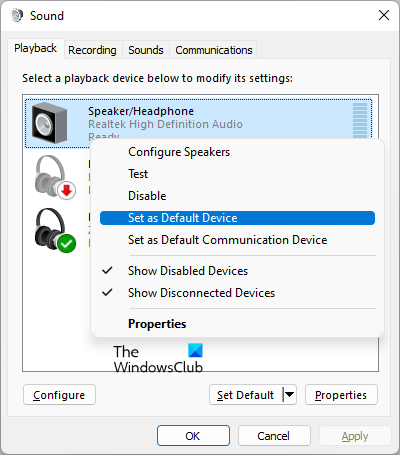
- Open the Control Panel.
- Search for sound in the Control Panel search bar.
- Click Sound from the search results.
- In the Sound dialog box, select the Playback tab.
- Right-click on your Bluetooth speaker and select Set as Default Device.
- Click Apply and then click OK.
3] Roll Back or reinstall your Bluetooth Adapter
A Bluetooth Adapter is responsible for the proper functioning of Bluetooth devices on a Windows computer. Open the Device Manager and see if the roll back option is available for your Bluetooth Adapter. If yes, roll back your Bluetooth Adapter.
If rolling back the Bluetooth Adapter does not work, uninstall it via the Device Manager and then restart your computer. Windows will automatically install the missing drivers on restart.
4] Uninstall the latest Windows Update
Some users were facing this issue after installing a Windows Update. Windows comes with a feature that lets users uninstall problematic Windows Updates. If you recently updated your computer and the problem started after that, uninstalling that Windows Update can help.
5] Remove and add your Bluetooth device again
You can also try removing and adding your Bluetooth device to your computer. To do so, follow the instructions provided below:
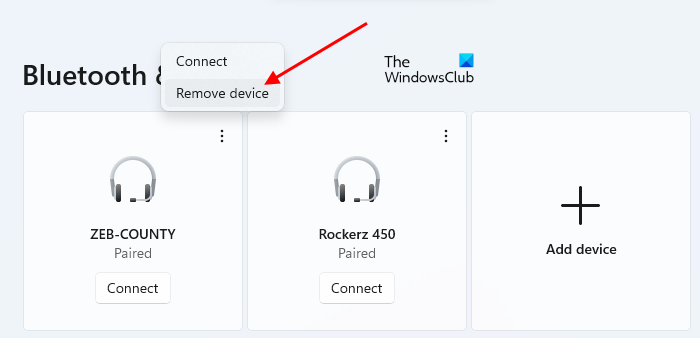
- Open Settings on your Windows PC.
- Go to Bluetooth & devices.
- Select your Bluetooth device and then select Remove device.
- Restart your computer and then add your Bluetooth device again.
6] Check the status of the Bluetooth Support Service
The Bluetooth Support Service handles the remote Bluetooth devices. If this service is stopped or disabled, the already installed Bluetooth devices may fail to operate properly and you may not be able to connect new Bluetooth devices. Check if this service is running or not. If not, start it. If it is already running, restart it.
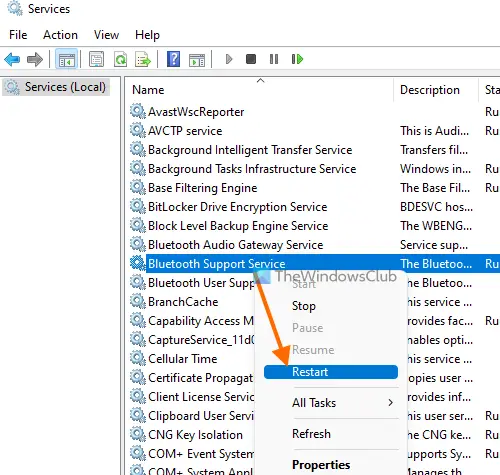
Go through the following instructions:
- Open the Services Manager.
- Locate the Bluetooth Support Service.
- If it is stopped, right-click on it and select Start. If it is already running, select Restart in the right-click context menu.
- Now, double-click on it to open its Properties.
- Select the General tab.
- Set the Startup type to Automatic.
- Click Apply and then click OK.
7] Disable Absolute Volume
Absolute Volume is a feature in Windows 11/10 that gives users better control over the volume of their Bluetooth speakers or headphones. This is a useful feature. However, it may cause problems on certain Bluetooth devices and prevent users from adjusting the volume for the left and the right channels individually. Therefore, if you are experiencing issues with your Bluetooth speaker or headphone, disabling this feature can help.
To disable Absolute Volume on your computer, you have to modify Windows Registry. Therefore, we recommend you create a System Restore point and backup your Registry before proceeding.
How do I adjust Bluetooth volume on Windows 11?
You can easily adjust the Bluetooth volume on Windows 11 by moving the volume control slider. Click the Sound icon on the right side of your Taskbar, then move the slider left or right to decrease or increase the Bluetooth volume, respectively.
Does Windows 11 have Bluetooth issues?
Windows 11 does not have Bluetooth issues. However, problems can occur on any machine. If you experience Bluetooth issues on Windows 11, you can try some effective fixes, such as removing and adding your Bluetooth device, running the Bluetooth Troubleshooter or replacing the device’s battery if required.
Read next: Bluetooth keeps disconnecting randomly in Windows 11.
