
BlueStacks is among the popular Android emulators that let users install and run Android apps on their computers. The app is completely free and available for both Windows and Mac. You can download it from its official website. After installing BlueStacks, you can access the Google Play Store directly from your Windows device and install all the Android apps and games on your Windows PC. Sometimes, BlueStacks gets stuck on Starting the Engine screen. If you are experiencing such an issue with BlueStacks on your computer, the solutions listed in this post may help you fix it.
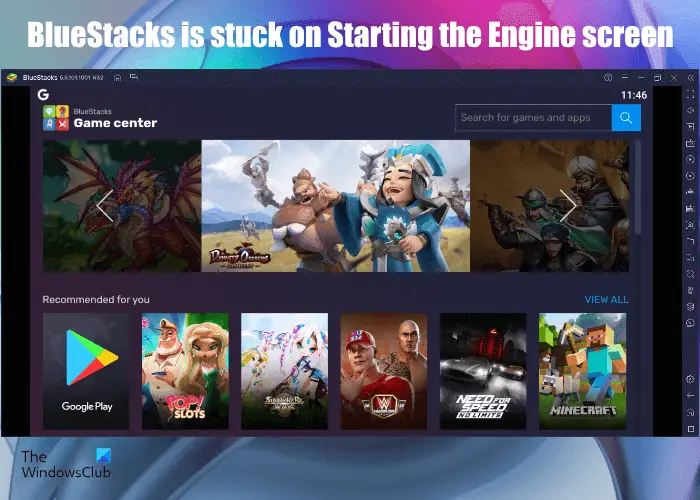
To run a particular software on your Windows computer, it must meet all hardware requirements. You will also experience this problem if your system is not compatible with BlueStacks. Therefore, before you install BlueStacks on your system, it will be better if you check the hardware requirements for BlueStacks from the official website.
BlueStacks is stuck on Starting the Engine screen
If BlueStacks gets stuck on the Starting the Engine screen and does not proceed, try the solutions in this article to resolve the issue. Before you proceed, we suggest you try the following quick fixes and see if they help:
- Restart your computer.
- Kill unwanted background processes and applications to free up some RAM.
- Check if your system is running on the latest version of Windows 11/10. If not, install the latest Windows 11/10 updates.
- Repair the corrupt system files by running the SFC and DISM scans.
If, after trying the above quick fixes, you still experience the same issue again, you can proceed towards the troubleshooting methods described below.
- Enable Virtualization
- Allocate more CPU cores and RAM to BlueStacks
- Disable your antivirus temporarily
- Update your graphics card driver
Let’s see all these solutions in detail.
1] Enable Virtualization
To use BlueStacks, your Windows computer should support the Virtualization technology. If your computer supports Virtualization, you have to enable it. Computers of different brands have different methods to enable Virtualization. After enabling Virtualization, launch BlueStacks and check if it gets stuck on Starting the Engine screen this time or not.
2] Allocate more CPU cores and RAM to BlueStacks
If your system supports Virtualization and despite enabling Virtualization, you are still experiencing the same issue with BlueStacks, allocating more CPU cores and RAM to BlueStacks may fix the problem.
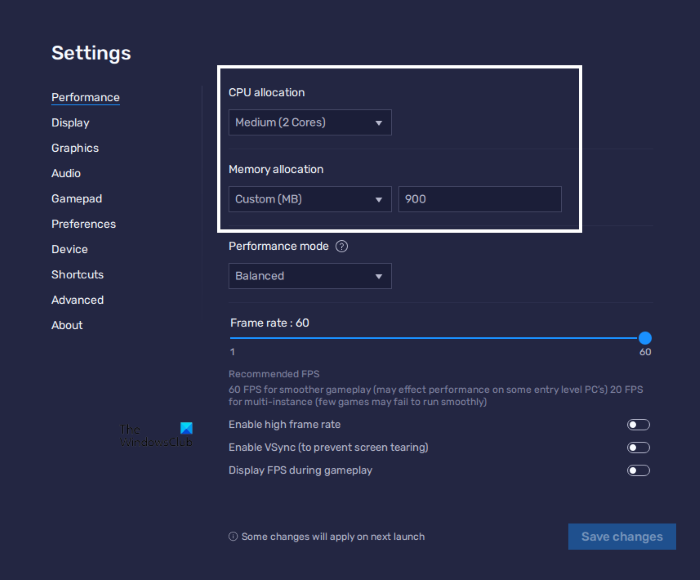
The following steps will guide you on how to allocate more CPU cores and memory to BlueStacks:
- Launch BlueStacks 5.
- Click the gear-shaped icon in the bottom-right corner of the interface. This will open its Settings.
- Select the Performance category from the left side.
- Click on the CPU allocation drop-down menu and select a higher number of CPU cores.
- Now, click on the Memory allocation drop-down menu and select a higher value to allocate more memory to BlueStacks. You can also select the Custom option to assign a custom memory value to BlueStacks.
Allocating more CPU cores and memory to BlueStacks will boost the performance of apps and games running inside It. But this will also increase pressure on your CPU and RAM. This may affect the performance of laptops with low configurations, such as 4 CPU cores and 4 GB of RAM. In this case, if you run another application in parallel to BlueStacks, your system may hang or freeze. On the other hand, increasing the number of CPU cores and RAM for BlueStacks will not affect laptops with a good configuration, such as those with 8 or more CPU cores and 8 GB or more RAM.
Do not allocate all CPU cores and all available memory to BlueStacks. When increasing CPU cores and RAM for a particular app, always select values lower than the total number of CPU cores and RAM your system has.
3] Disable your antivirus temporarily
Your antivirus might be interrupting BlueStacks’ operation. To check this, first disable your antivirus software temporarily, then launch BlueStacks. If BlueStacks does not get stuck on Starting the Engine screen, your antivirus is preventing BlueStacks from working properly. In this case, you can disable your antivirus while using BlueStacks and enable it again after exiting BlueStacks.
4] Update your graphics card driver
You may also experience this issue with BlueStacks if your graphics card driver is not up to date or corrupted. In such a case, updating the graphics card driver fixes the problem.
When it comes to updating the graphics card driver, Windows 11/10 users have the following options:
- Installing the latest version of the graphics card driver via Windows Optional Updates feature.
- Visit the official website of the graphics card manufacturer, download the latest version of the graphics card driver, and install it manually on the system.
- Update the graphics card driver without uninstalling it using Device Manager. In this case, you have to follow the steps listed below:
- Right-click on Start and select Device Manager.
- In the Device Manager, expand the Display adapters node.
- Right-click on your graphics card driver and select the Update driver option.
- Now, select the Search automatically for drivers option to let Windows install the latest version of the driver automatically.
This should fix the problem.
If BlueStacks is not starting when Hyper-V is enabled, you should check and configure the settings of Hyper-V.
Hope this helps.
How do I fix BlueStacks stuck on Startup?
The problem of BlueStacks getting stuck on Startup or on Initializing screen might be occurring due to a minor bug in the software. In such a case, uninstalling and reinstalling the latest version of BlueStacks may fix the problem. Apart from that, you can also try running BlueStacks in compatibility mode and checking its administrative privileges.
Why is BlueStacks not working on Windows 11?
If BlueStacks is not working on your Windows 11/10 system, first check whether your computer meets the minimum hardware requirements for BlueStacks. If, despite having compatible hardware, BlueStacks does not work on your system, you can try a few more things, such as enabling Virtualization and updating your graphics card driver. If nothing helps, uninstall and reinstall BlueStacks after downloading the latest version from its official website.
