
Battlefield 2042 is one game that’s filled with a lot of errors. The game is being played and loved by many, however, this can not hide the fact that a big chunk of those players and lovers get unhappy from time to time because of random issues. As of late, a lot of gamers are complaining that Battlefield 2042 settings keep resetting are not saving and they want an instant fix. Well, in this article, we are going to talk about just that and see what you can do to resolve the issue.
Battlefield Settings keep resetting and not saving
If Battlefield 2042 Settings keep resetting and not saving, here are some suggestions to fix the problem on your Windows 11/10 PC.
- Allow the game through Firewall
- Run Battlefield 2042 as an administrator
- Delete Temporary Files
- Verify the integrity of game files
- Troubleshoot in Clean Boot
Let us talk about them in detail.
1] Allow the game through Firewall
Windows Defender Firewall or a third-party antivirus can block some functioning of your game and as a result, chances are your Battlefield 2042 settings won’t save. What you need to do is allow the game through the Windows Firewall. If you are using a third-party antivirus, then try whitelisting it, hopefully, this will do the job for you.
2] Run Battlefield 2042 as an administrator
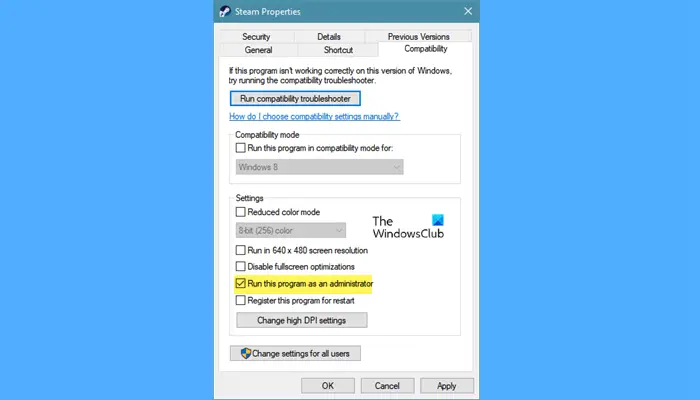
If Battlefield 2042 is not launching as an administrator, it won’t get the privileges required to create folders and save files on your computer. What you need to do is either open the launcher aka Steam as an administrator or change the settings of the Launcher such that it will launch with the required permissions. To just open the game in elevated mode, just right-click on the Launcher and click Run as administrator.
You can also configure Battlefield 2042 to always run as an administrator. Follow the given steps to do the same.
- Right-click on Steam and select Properties.
- Go to the Compatibility tab.
- Tick Run the program as an administrator and click Apply > Ok.
Hopefully, this will do the job for you.
3] Delete Temporary Files
Sometimes, the previously saved game files get corrupted, which as a result will stop the new files from forming. We need to remove the temporary file or at least rename it (for backup). So, open File Explorer, go to Documents, and then to Battlefield 2042. Now, open the Settings folder, right-click on PROFSAVE_tmp, select Rename, and remove “_tmp”.
Finally, restart the computer and the game. Hopefully, it will do the job for you.
4] Verify the integrity of game files
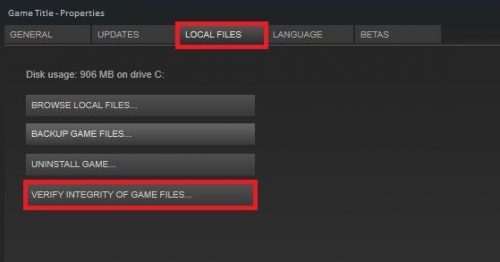
Usually, corrupted files will stop the game from launching on your computer, but sometimes, they do trigger these peculiar issues. You can use the launcher to scan and repair the files. Follow the given steps to do the same.
- Open Steam.
- Go to LIBRARY.
- Right-click on the game and click Properties.
- Go to the LOCAL FILES tab and click VERIFY THE INTEGRITY OF GAME FILES.
Wait for the process to complete, as it will scan and repair your game.
5] Troubleshoot in Clean Boot
If a third-party application, such as OneDrive, is interfering with your game, issues like the one in question may occur. We need to perform Clean Boot and find out what is causing the issue. Once you know what is causing the problem, just delete it and your issue will be resolved.
Hopefully, these issues will be resolved with the solutions we mentioned earlier.
Read: Fix Battlefield DirectX Errors
Are they fixing Battlefield 2042?
As mentioned earlier, Battlefield 2042 has a lot of errors. The game has been crashing, freezing, experiencing FPS Drops, etc, however, this doesn’t mean that developers are not updating the game. They are releasing game patches to resolve these issues. You sometimes wouldn’t know, but the Steam installs the latest patches of your game. So, yes, they are trying to fix the game, hopefully, the game will be perfectly refined in some time.
Read: Battlefield keeps crashing or freezing on PC
Is BF2042 a failure?
According to some sources, EA has admitted that the game has failed to meet players’ expectations. There are a ton of issues in BF2042, and they have made a dent in the game’s sales and reviews.
Also Read: Fix Battlefield Launch Error 0xC0020015.
