
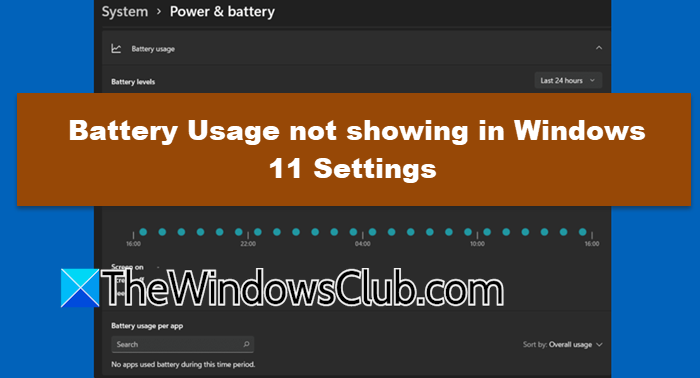
The Battery usage feature in Windows 11 provides a detailed breakdown of power consumption by applications and services over the last 24 hours or week. It is a crucial tool for laptop users to identify battery-draining apps. However, users sometimes encounter an issue where the Battery usage is not showing in Windows 11 Settings.
Fix Battery Usage not showing in Windows 11 Settings
This problem typically arises due to software glitches rather than hardware failure. It can be caused by corrupted system files that disrupt the power reporting function. These outdated or malfunctioning battery drivers prevent accurate data communication, or essential background services related to power management being disabled or stuck. Often, a recent Windows update or a third-party application conflict can interfere with the normal operation of this feature.
If Battery usage is not showing in Windows 11 Settings, unplug your laptop and use it on battery power until it drops by at least 10-20%. After you plug it back in, check the Battery Usage section again. The system often needs a discharge cycle to populate the report. In case, this doesn’t work, follow the solutions mentioned below.
- Reinstall the Battery Device Drivers
- Reset the Power Data Cache and Generate a Report
- Check for System Corruption
Let us talk about them in detail.
1] Reinstall the Battery Device Drivers
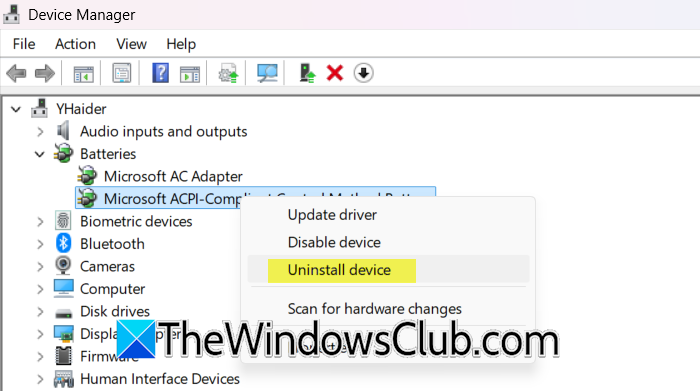
Battery drivers can become corrupted or stuck in an improper state, preventing them from accurately communicating battery usage data to the Windows operating system. Uninstalling them forces Windows to remove these faulty driver instances. Upon restarting, the system’s hardware detection mechanism runs anew, reinstalling fresh, default drivers, which re-establish a clean communication channel for power reporting and often restore the missing functionality. Follow the steps mentioned below to do the same.
- Open Device Manager.
- Expand Batteries, right-click on Microsoft ACPI-Compliant Control Method Battery, and click on Uninstall device.
- Do the same for any other listed battery driver.
- Restart your computer.
Windows will automatically reinstall the correct drivers upon reboot.
2] Reset the Power Data Cache and Generate a Report
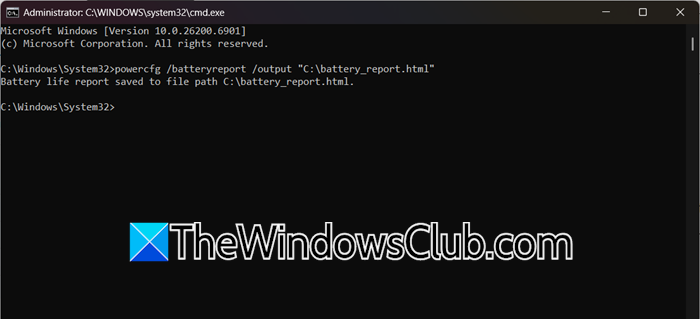
In this solution, we will force Windows to clear its cached power data and create a new Battery Health report, which can kick-start the tracking functionality. To do the same, you need first to open the Command Prompt as an administrator and then run the following command.
powercfg /batteryreport /output "C:\battery_report.html"
This command generates a detailed battery health report. Navigate to C:\battery_report.html and open it in your web browser. Check the “Usage history” and “Battery capacity history” sections. If this report shows usage data but the Settings app does not, it confirms a software glitch specific to the Settings interface, and the following steps are crucial.
3] Check for System Corruption
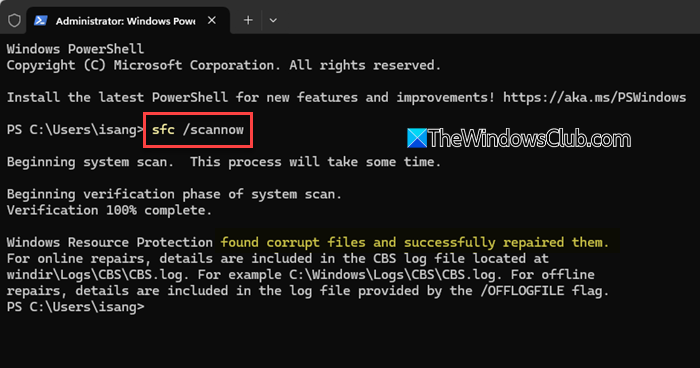
We need to check and make sure that the underlying system files are not corrupt. To do this, we will run SFC and DISM commands.
Open the Command Prompt as an administrator and run the following command.
sfc /scannow

DISM /Online /Cleanup-Image /CheckHealth
Finally, check if the issue is resolved.
Hopefully, with the help of these solutions, you will be able to resolve the issue.
Read: How to fix Battery drain issues in Windows 11
How to see battery usage in Windows 11?
To view your battery usage in Windows 11, open the Settings app, navigate to System > Power & battery, and then select the Battery usage section. Here, you will see a breakdown of power consumption by apps and services over the last 24 hours or 7 days, allowing you to identify which applications are draining your battery the most.
Read: Windows 11 not showing remaining battery time
Is a 76% battery health good?
A battery health of 76% indicates significant wear and is generally not considered good for long-term reliability. This means your battery can only hold 76% of its original designed capacity, leading to noticeably shorter usage times between charges. While the device is still functional, you should plan for a replacement in the near future, as the battery is approaching the end of its useful life.
Also Read: Batteries not showing in the Device Manager of Windows 11.
