
If when you try launching an application like Outlook, etc. it fails with the error message Bad Image, Error status 0xc0000020, then this post will help you. In this post, we will identify potential causes and provide possible solutions to help you address this issue. It could occur when launching Outlook or another program.
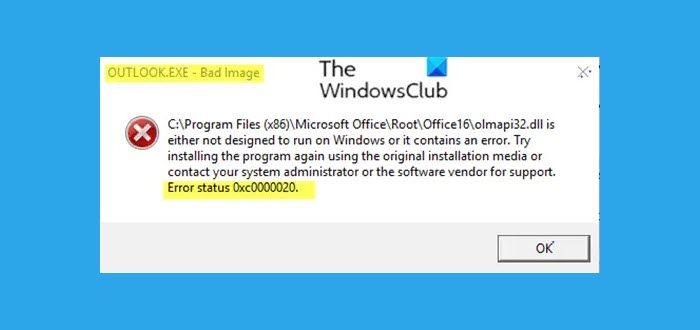
Typically, depending on the software or application you’re trying to launch, an instance of the error message reads thus;
Software.exe – Bad Image
C:\Windows\System32\XXXX.dll is either not designed to run on Windows or it contains an error. Try installing the program again using the original installation media or contact your system administrator or the software vendor for support. Error status 00xc0000020.
This error occurs when you launch an application and it fails due to the corruption of some system files required to run the application flawlessly. As system files are program files, anything that modifies them may cause corruption. You might encounter the Bad Image, Error Status 0xc0000020 error message due to one or more (but not limited to) of the following known causes;
- Incomplete installation or uninstallation of software.
- Installation of defective Windows updates.
- Malware attack.
- Improper shutdown of the system.
Regardless of the software in question, the fix applies to all.
Outlook.exe Bad Image, Error Status 0xc0000020
If you’re faced with this Bad Image, Error Status 0xc0000020 issue, you can try our recommended solutions below in no particular order and see if that helps to resolve the issue.
- Re-register the DLL file
- Run SFC/DISM scan
- Uninstall & reinstall the particular program
- Run System Restore
- Run the Windows Fresh Start or Reset This PC process
Let’s take a look at the description of the process involved in relation to each of the listed solutions.
1] Re-register the DLL file
As you can see, the file extension of the software that’s throwing up this error is a Dynamic Link Library (dll) file. A dynamic-link library (DLL) is a module that contains functions and data that can be used by other modules (applications or DLL). DLLs provide a way to modularize applications so that their functionality can be updated and reused more easily. DLLs also help reduce memory overhead when several applications use the same functionality at the same time because although each application receives its own copy of the DLL data, the applications share the DLL code.
So if a DLL file like say, olmapi21.dll, wininet.dll, etc, file can be identified, you can try re-registering the DLL file and see if the issue is resolved.
Related: Fix MSTeams.exe Bad Image 0xc0000020 Error.
2] Run SFC/DISM scan
If the error message is been triggered by corrupt or damaged system files, running the SFC/DISM scan can help resolve the issue.
For the purposes of ease and convenience, you can run the scan using the procedure below.
Open Notepad – copy and paste the command below into the text editor.
@echo off
date /t & time /t
echo Dism /Online /Cleanup-Image /StartComponentCleanup
Dism /Online /Cleanup-Image /StartComponentCleanup
echo ...
date /t & time /t
echo Dism /Online /Cleanup-Image /RestoreHealth
Dism /Online /Cleanup-Image /RestoreHealth
echo ...
date /t & time /t
echo SFC /scannow
SFC /scannow
date /t & time /t
pause
Save the file with a name and append the .bat file extension – eg; SFC_DISM_scan.bat.
Repeatedly run the batch file with admin privilege (right-click the saved file and select Run as Administrator from the context menu) until it reports no errors – at which point you can now restart your PC and see if the issue has been resolved. If still unresolved, proceed with the next solution.
3] Uninstall & reinstall the particular program
In this solution, if this error started appearing after installing any software, you can uninstall the program and see if that helps.
Once you finish uninstalling the software, restart your system and reinstall the program and see if this issue is resolved.
4] Run System Restore
You could restore your computer to a good point and see if it helps fix the problem for you.
5] Run the Windows Fresh Start or Reset This PC process
Back up your data externally and then run Reset This PC. Reset this PC is a recovery option that lets you reinstall the operating system to fix problems or start fresh.
NOTE: Fresh Start has been moved starting from Windows 10 v2004. For version 2004 and later. Fresh start functionality has been moved to Reset this PC.
Hopefully, one of these solutions will fix the issue for you!
