
Some users have reported that Back 4 Blood keeps crashing on their Windows 11/10 computers. Therefore, in this article, we will review all the solutions to resolve the issue easily.
Why does Back 4 Blood crash on my computer?
Usually, any software crashing in the background is related to the corruption of its files. This can be the case here. However, demanding games such as the one in question may crash if you don’t have an updated Graphics driver or an incompatible system configuration. Therefore, ensure that your computer has sufficient power in both its CPU and GPU to run the game.
Back 4 Blood keeps crashing on Windows 11/10
First of all, you should check for updates; sometimes updating alone can resolve the issue, but even if it doesn’t, there is no harm in keeping your system up-to-date. So, check for updates, install them if available. If the issue persists, continue reading.
If Back 4 Blood keeps crashing on Windows 11/10, use the following methods to resolve the issue.
- Verify Integrity of game files
- Check for conflicting programs
- Update your Graphics driver
- Disable NVIDIA DLSS
Let’s get started and know these fixes concisely.
1] Verify Integrity of game files
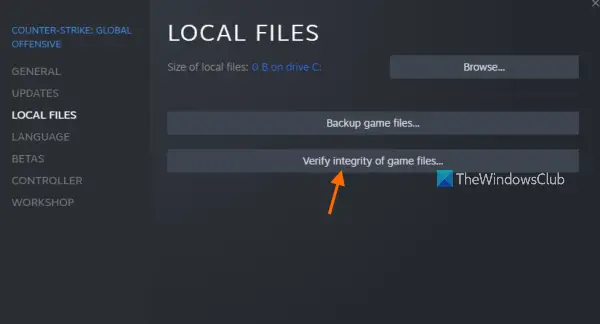
The most common reason for a game to crash is outdated or corrupted game files. The first step is to check the Integrity of your game. Corrupted game files and sometimes even missing ones could be the reason behind crashing.
Follow the steps to verify file Integrity on Steam.
- Open Steam, go to the LIBRARY.
- Click on the Properties option after right-clicking on the Back 4 Blood game.
- Now click on LOCAL FILES from the left pane.
- And to start verifying, tick Verify Integrity of game files.
After the process is completed, restart the game. You won’t have the same complaints, but if the issue persists, try the next fix.
2] Check for conflicting programs
Another common reason is conflicting programs, mainly hardware tuning utilities, that can make the system a bit unstable, resulting in crashing 3D programs. These obstacles can be cleared by simply doing a clean boot.
Steps are written for doing so.
- Click Win+R to open the Run box. Now type ‘MSConfig’ and then press the Ok button.
- Click the Services tab.
- Tick Hide all Microsoft services.
- Untick every service except hardware manufacturers’ services. Some of them are Realtek, AMD, NVIDIA, Logitech, Intel, and so on.
- Now, click the Ok button.
- For opening Task Manager, press Ctrl+Shift+Esc and then move on to the Startup tab.
- Now disable programs that may interfere.
- Lastly, restart your PC for results.
Repeat the steps till you find the exact culprit and then remove it to enjoy your game.
3] Update your Graphics Driver
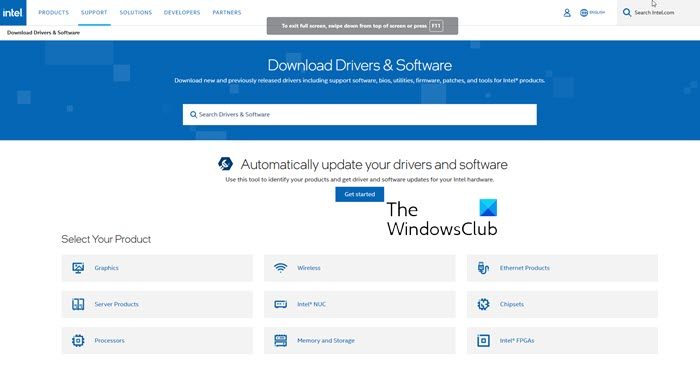
Have you checked your Graphics drivers? If not then do it as it can also cause the game to crash. If your graphics driver is not updated then update your graphics driver. This will eradicate crashing.
4] Disable NVIDIA DLSS
Users have reported that they are experiencing crashing after enabling NVIDIA DLSS so you can turn it off to stop the Back 4 Blood from crashing.
Here are the steps.
- Navigate to OPTIONS after opening Back 4 Blood.
- Open the GRAPHICS tab and then turn off the Anti-Aliasing option.
Hopefully, this will work and there will be no hindrance during game sessions.
System Requirements to run Back 4 Blood
To run the game, please check the system requirements listed below and ensure your computer meets all of them.
- Operating System: Windows 7 64-bit or above
- Processor: Intel Core i5-6600 or AMD Ryzen 5 2600
- Memory: 8 GB
- Graphics: NVIDIA GeForce GTX 1050 Ti or AMD Radeon RX 570
- Storage: 40 GB
How to fix Back 4 Blood crashing on Windows?
The very first thing you need to do is to verify the integrity of game files in order to fix the crashing issues of Back 4 Blood. Additionally, you should update to the latest version of the graphics driver to ensure smooth operation. However, if you use an NVIDIA graphics card, you must disable NVIDIA DLSS.
Read Next: Fix Red Dead Redemption crashing on PC.
