
If the Audio inputs and outputs option is missing from Device Manager in Windows 11, here is how you will get it back. Here, we have discussed almost all the possible reasons so that you can relate them and find the solution accordingly.
Audio inputs and outputs missing from Device Manager
If the Audio inputs and outputs option is missing from Device Manager in Windows 11/10, follow these solutions:
- Show hidden devices
- Reinstall audio driver
- Run Audio Troubleshooter
- Restart Windows Audio service
- Unplug and plug in audio devices
- Enable audio devices
To learn more about these solutions, continue reading.
1] Show hidden devices
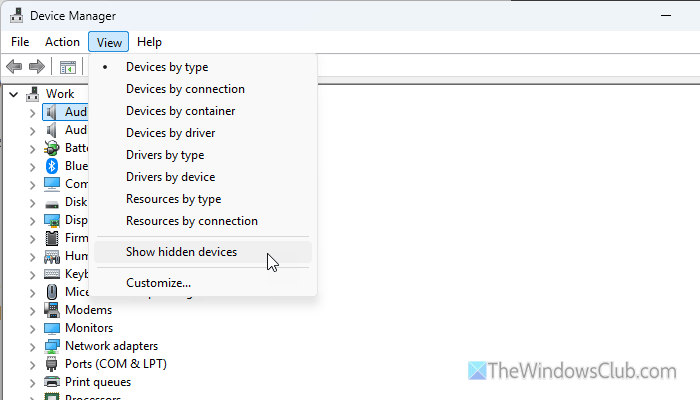
Device Manager allows you to show or hide various devices according to your requirements. On the other hand, it hides a few devices at times when that is not in use for general purposes. That is why it is suggested to enable the hidden devices in Device Manager.
For that, do the following:
- Press Win+X and select Device Manager from the list.
- Go to View and click on the Show hidden devices option.
After that, check if the Audio inputs and outputs option is available or not.
2] Reinstall audio driver
If your computer was attacked by malware, adware, trojan or something else that removed your audio driver or corrupted it, there is a high chance of getting this problem in Device Manager. That is why it is suggested to reinstall the audio driver.
If you cannot find the audio device in the Device Manager, you can certainly find and uninstall the existing version of your audio driver if you use a software uninstaller tool.
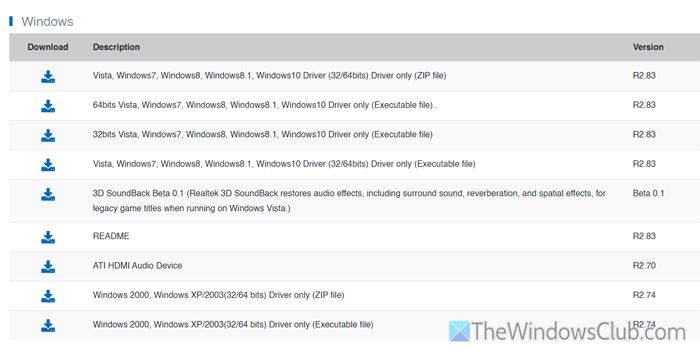
Once you uninstall it, it is time to download the original driver from the official website only. It is highly recommended NOT to use any third-party resource unless or until it is very trusted.
If you want to download the Realtek audio driver, visit Realtek.com. Similarly, if you have another audio driver, visit the respective official website only.
Read: How to download and reinstall Realtek HD Audio Manager in Windows 11
3] Run Audio Troubleshooter
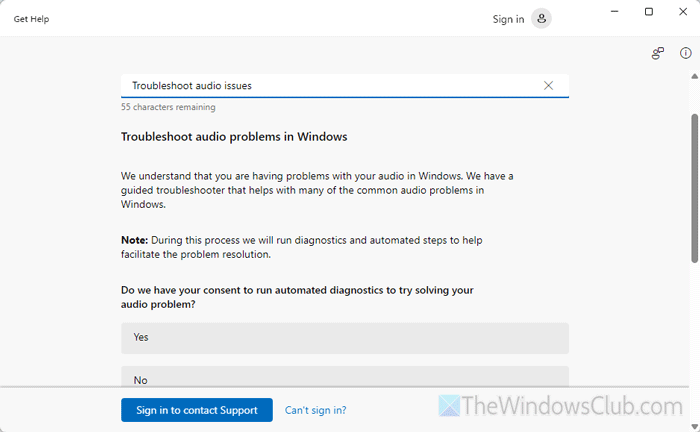
You can use the Get Help app to runt he Audio Troubleshooter in Windows 11 PC. For that, open the Get Help app first. Then, type Troubleshoot audio issues and hit the Enter button.
It will ask you this question:
Do we have your consent to run automated diagnostics to try solving your audio problem?
Click on the Yes button to go ahead. Next, go through the screen options until it finishes the process.
Once done, restart your computer and check if the Audio inputs and outputs option is back in the Device Manager or not.
Read: How to run Audio Troubleshooter in Get Help app of Windows 11
4] Restart Windows Audio service
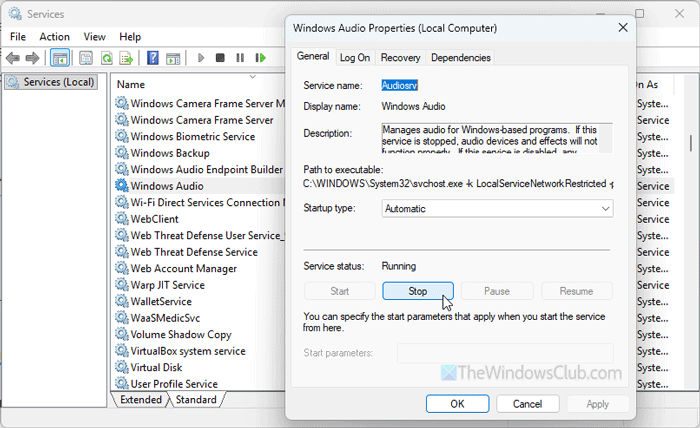
Windows Audio service is responsible for all the audio-related work in the Windows programs. If this service has some issues, it may reflect on the Device Manager as well. Therefore, restart the Windows Audio service to get it resolved.
For that, do the following:
- Press Win+R, type services.msc, and hit Enter.
- Double-click on the Windows Audio service and click the Stop button if it is already running.
- Choose the Automatic option from the Startup type list.
- Click the Start button.
- Click on the OK button.
Read: The Audio Service is not running on Windows 11
5] Unplug and plug in audio devices

At times, this problem may arise due to faulty hardware. Therefore, you can unplug your audio device and re-plug it in. However, as you can do it only if you have an external device, follow it only if you have a desktop computer.
Read: Audio services not responding error in Windows 11
6] Enable audio devices
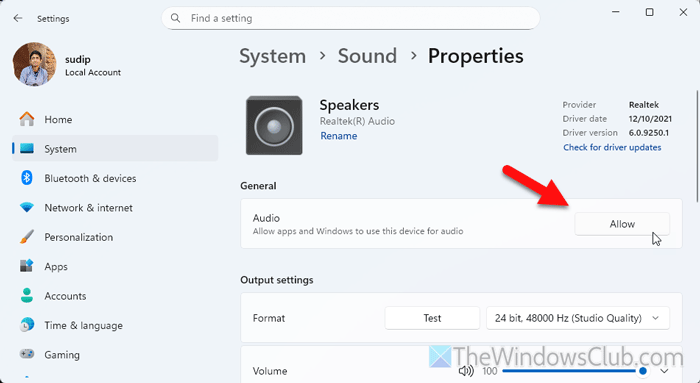
If the audio device is not enabled, there is a chance of getting this problem in Windows 11. Therefore, follow these steps to enable the audio device in Windows 11:
- Press Win+I to open the Windows Settings panel.
- Go to System > Sound.
- Head to the Output section and click on Speakers.
- If you find the Allow button, click on it.
However, if the Don’t allow option is visible, there is nothing to do.
Read: How to Enable or Disable Sound Output Device in Windows 11
Why is no audio output device installed in Device Manager?
Some of the possible reasons why Windows 11 shows No Audio Output Device is installed error are:
- Buggy Windows 11 update.
- Lack of audio driver.
- Faulty hardware.
- Restriction set in the BIOS.
Why are there no ports in my Device Manager?
The main reasons why there are no ports in your Device Manager are an incorrectly set BIOS, a corrupt driver, etc. Apart from that, if you have some issues with the system image, you may find the same problem.
Read: No Audio Output Device is Installed error in Windows 11.
