
In this post, we will see how to enable, show and view Hidden Devices as well as Non-present Devices in Device Manager of Windows 11/10. When you do this, the Device Manager will show old, unused, previous, hidden nd Non-present devices.
What are Non-present devices?
Non-present devices are those old, unused, previous, devices that were once installed, but are now no longer attached to the computer. Eg. If you plug in a USB device, Windows installs its driver. Later, when the device is unplugged, the driver remains installed but the device is “non-present”.
What are Hidden devices?
Hidden devices are drivers that Device Manager does not show by default, and include Non-present devices as well as certain system devices or software components that Windows hides.
How to enable Hidden devices in Device Manager in Windows 11
The Windows Device Manager helps you uninstall, disable, roll back, update Device Drivers in Windows. It displays details about the currently installed and connected Plug and Play devices.
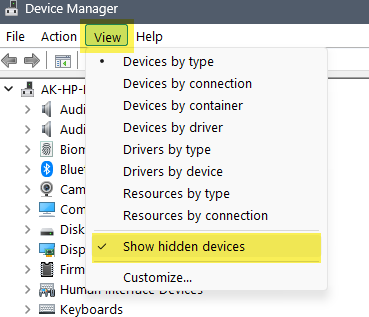
To show Hidden devices, ress Win + R to open the Run dialog.
Type devmgmt.msc and press Enter to open the Device Manager.
In Device Manager, click on the View menu at the top and select Show hidden devices.
Device Manager will now display:
- Non-present drivers.
- Other system drivers that Windows normally hides.
How to show Non-present devices in Device Manager in Windows 11
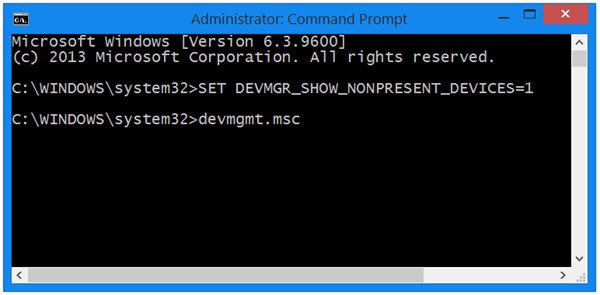
To show non-present devices in Windows 11/10, using Device Manager, open an elevated command prompt window, type the following and hit Enter:
SET DEVMGR_SHOW_NONPRESENT_DEVICES=1
Next, type devmgmt.msc and hit Enter to open the Device Manager.
Having done this, from the View tab, select Show hidden devices. You will see some additional devices get listed here.
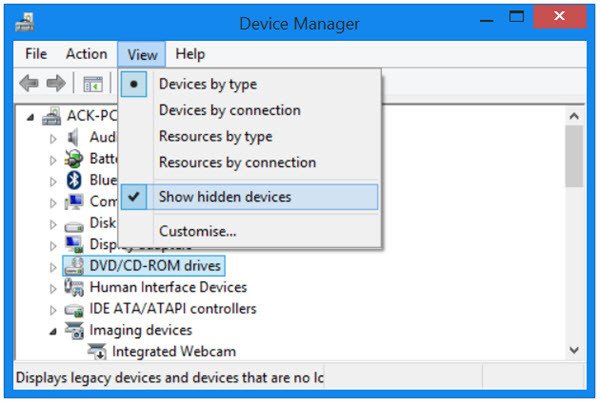
This is pretty useful if you need to troubleshoot and fix problems caused by leftover drivers. Right-clicking on them and selecting Properties will give you additional information about them.
You can also type the following in an elevated CMD and hit Enter:
set devmgr_show_nonpresent_devices=1
Alternatively, you can list non-present drivers with PowerShell by executing the following:
Get-PnpDevice -PresentOnly $false | Where-Object { $_.Status -eq "Unknown" }
Read: How to remove Unwanted, Unnecessary and Non-present Devices
Useful tips:
- The Device Cleanup Tool will help you remove multiple or all old, non-present devices from your Windows computer.
- In case you have issues with Unknown Drivers, then this post will help you identify & troubleshoot Unknown Devices.
- See this post if your Device Manager is empty & and not showing anything.
How to see all connected devices on PC?
To see all connected devices on your PC, click the Start button and go to the Settings menu. From there, select Devices, then click on either Printers & Scanners or Connected devices. Under Related Settings, choose Device Manager to view all connected devices.
Read: How to clean up DriverStore filerepository in Windows 11
Why is my Device Manager not showing other devices?
If Device Manager is not showing other devices, it could be due to them being hidden. To reveal them, open Device Manager, click on the “View” menu, and select “Show hidden devices.” This will display any devices that might not be visible initially, allowing you to identify and manage them effectively.
Additional resources:
