
BSOD or Blue Screen of Death is awful. We all have experienced it at least once or more. What happens with this error is that you are working on your Windows computer and suddenly, it displays a blue screen with an error message and other information, and then reboots. You can not do anything here. You have no choice but to lose your unsaved work and then wait for the computer to reboot.
Fix imfilter.sys Blue Screen
One such error is ATTEMPTED EXECUTE OF NOEXECUTE MEMORY, What failed: imfilter.sys. The bug check code for this is 0x000000FC, and the usual cause is faulty or outdated drivers. Or sometimes due to an error in the RAM (Random Access Memory). This error in the RAM can be physical, driver-related, or caused by some form of unwanted malware. There is no one reason for this. Hence, there is no one solution to this. We will review five suggestions to address this error.
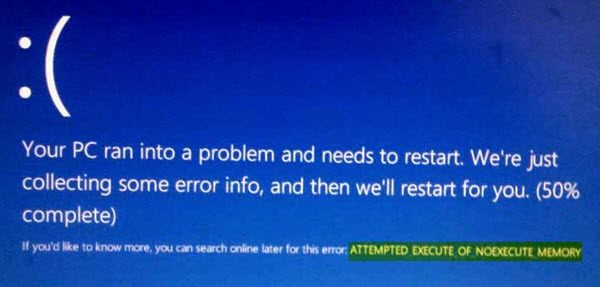
ATTEMPTED EXECUTE OF NOEXECUTE MEMORY Blue Screen error in Windows 11/10
First of all, I would recommend creating a System Restore point just in case you can roll back to the current state if something goes wrong.
1] Update Windows with all your security patches and updates
Head into Windows Update to install all the latest offerings from Microsoft. For this, just head into Windows Updates section inside of Settings > Update & Security > Windows Update and then click on Check for Updates. It will find and install all the latest patches and feature updates from Microsoft.
2] Update all your drivers
We will start by following the most basic method. Updating your drivers is not difficult. Use Windows Update > Optional updates or visit the Downloads section of your manufacturer’s website. Get all the drivers that are newer than the ones currently installed on your computer.
3] Run a Virus and Malware Scan Check
As mentioned above, this error can be caused by some malware or virus. Therefore, you will need to access the anti-virus protection available on your computer and scan your PC.
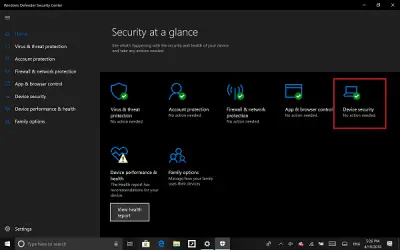
Personally, I would recommend using Windows Defender Security Center. Just open the Dashboard. Now perform a Quick Scan first. Then perform a Full Scan. And finally, if available, perform a Boot-time scan. This will eradicate all the possibilities of exploits surviving on your computer.
4] Run Memory Check
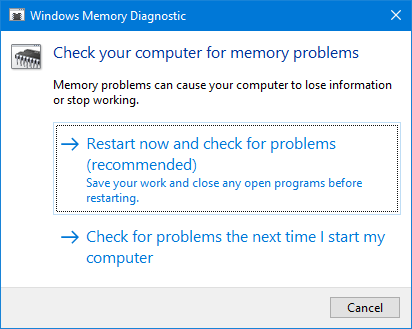
We have already mentioned that some memory errors could cause this error. To fix this, you will have to run the Memory Check on your computer. Start by hitting the WINKEY + R button combination to launch the Run utility. Then type in, mdsched.exe and then hit Enter. It will not launch Windows Memory Diagnostic and will give out two options. These options will be given as,
- Restart now and check for problems (recommended)
- Check for problems the next time I start my computer
Now, according to the option you selected, the computer will restart and check for memory-based problems upon restart. If you encounter any issues, it will be fixed automatically. Otherwise, if no issues are detected, this is probably not the cause of the issue.
5] Using the System File Checker using Command Prompt
Start by pressing WINKEY + X button combo or right-click on the Start button and click on Command Prompt (Admin) or just search for cmd in the Cortana search box, right-click on the Command Prompt icon and click on Run as Administrator. Click on Yes for the UAC or User Account Control prompt that you get. Then, the Command Prompt window will finally be open. Now, type in the following command to run System File Checker–
sfc /scannow
And then hit Enter.
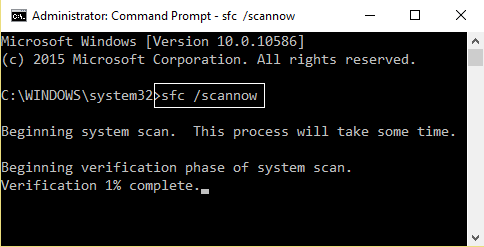
Now, keep the Command Prompt window open until the scanning is completed.
After the scanning is completed, if the computer says, “Windows Resource Protection did not find any integrity violations”, then there are no issues found with your computer. See this post if you receive a Windows Resource Protection found corrupt files but was unable to fix some of them message.
All the best!
What is Non-executable memory?
Non-executable memory, or NX, is a security feature designed to prevent attackers from executing code in certain memory areas. Also known as Data Execution Prevention (DEP), it enhances system security by marking these areas as non-executable, effectively thwarting exploits like stack-based buffer overflows and reducing the risk of code injection attacks.
What is the BSOD on Shutdown Memory Management?
The Memory Management BSOD on shutdown is a Windows error signaling issues with memory management, often caused by faulty hardware, corrupted system files, or outdated drivers. This error can lead to system crashes and may appear during the shutdown process on Windows 11/10, affecting system stability.
