
In this guide, we show you what you can do if you have accidentally deleted the Desktop folder on your Windows 11/10 PC.
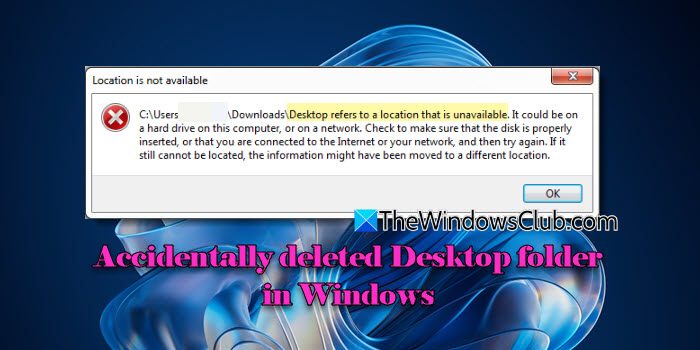
The Desktop folder is a special user folder that stores the files, folders, and shortcuts that appear on your desktop screen. Several users have reported accidentally deleting this folder. Some have also reported that they inadvertently clicked ‘Yes’ when asked to permanently delete the folder. If you’re one of them, and the Desktop Location is not available on your PC, this post will walk you through the steps to recover both the folder and any lost files inside it.
Accidentally deleted Desktop folder; What do I do?
If you have accidentally deleted the Desktop folder and you’re not sure how to recover it, use these solutions:
- Check the Recycle Bin
- Check OneDrive’s Recycle Bin
- Use File History
- Modify Folder Properties
- Use a data recovery software
Let us see this in detail.
1] Check the Recycle Bin
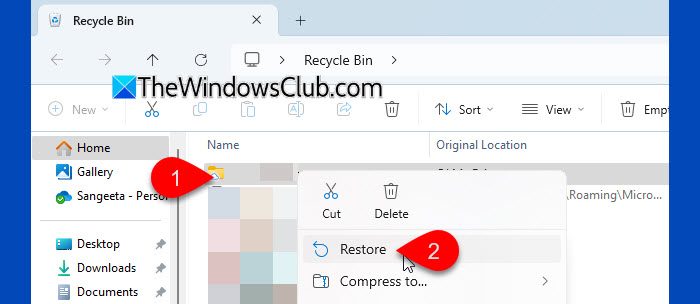
If you didn’t permanently delete the Desktop folder, chances are it’s still on your system, in the Recycle Bin. Windows sends deleted folders there by default, so you might be able to restore it quickly with just a few clicks.
Double-click the Recycle Bin icon on your desktop. Look for a folder named Desktop. You can Sort items by Date Deleted to locate it faster. If found, right-click the Desktop folder and choose Restore. This will return the folder to its original location.
If the folder isn’t in the Recycle Bin, move to the next solution.
2] Check OneDrive’s Recycle Bin
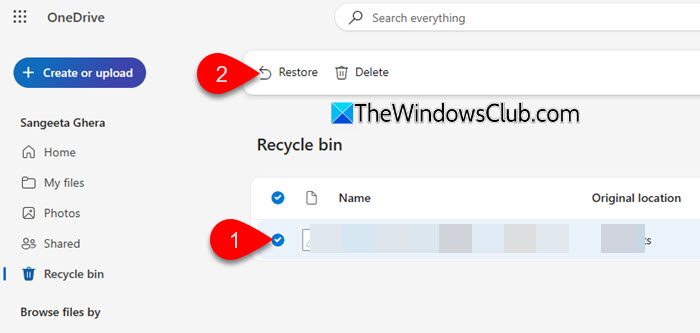
If your PC is signed in with a Microsoft account and OneDrive syncing was turned on, there’s a good chance your Desktop folder was being backed up to the cloud. To check if OneDrive still has it in its Recycle Bin, follow these steps:
Go to onedrive.live.com and sign in with the same Microsoft account you use on your system. Look at the left sidebar and click on Recycle bin. Scroll through the list or use the search bar to look for the Desktop folder.
If you find it, select the folder, then click Restore at the top. OneDrive will make it reappear on your PC.
3] Use File History
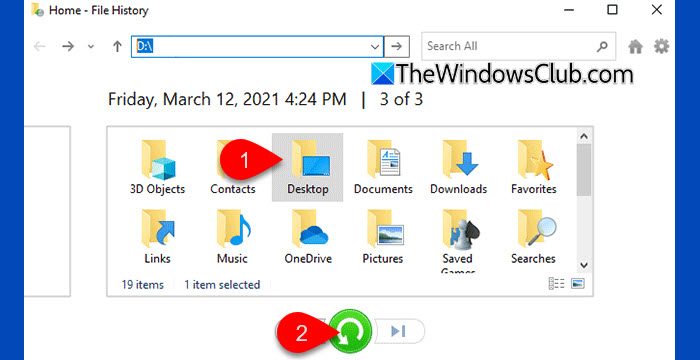
File History captures periodic snapshots of your files, including system folders like the Desktop. If you’ve set up File History on your system, Windows might have automatically backed up your Desktop folder. To recover the folder from an earlier version, follow these steps:
Click the Start button and type ‘restore’. Select Restore your files with File History from the search results.
When the File History window opens, look for the Desktop folder in it. If you find the folder, select it and click the green Restore button. You may also use the left/right arrows to browse different backup versions if available.
Note: You won’t be able to recover the Desktop folder using File History if it was previously added to the Excluded folders list. To check this, click the Exclude folders link. If Desktop is listed there, it was never backed up.
4] Modify Folder Properties
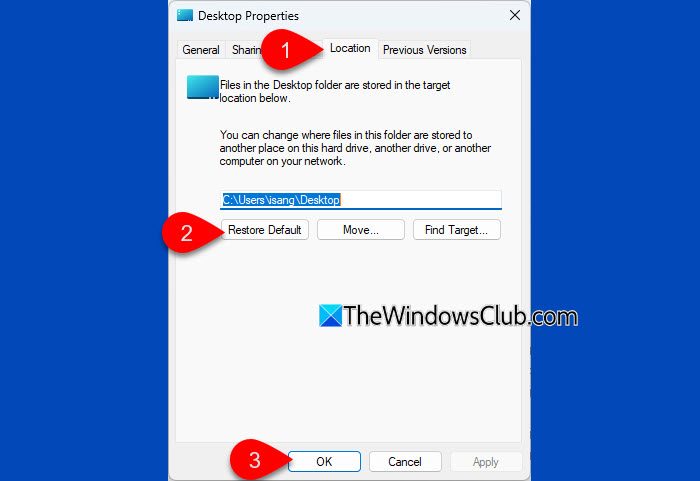
If your Desktop folder seems to be missing, it might not be deleted. It could simply be hidden, moved, or misconfigured. In such cases, you can restore it to its original location using the folder’s Properties tab.
Note: If OneDrive backup for Desktop is enabled, temporarily turn it off to prevent OneDrive from re-routing the folder. You can turn it back on after restoring the Desktop.
Press Win + R, type explorer %userprofile% and press Enter. This opens your user profile folder. Look for the Desktop folder.
If you don’t see the Desktop folder inside your user profile folder, open Registry Editor (Win +R > regedit) and navigate to the following location:
HKEY_CURRENT_USER\Software\Microsoft\Windows\CurrentVersion\Explorer\User Shell Folders
Double-click Desktop in the right pane and note down the Value data. It shows the actual folder path (even if it was redirected).
Once you locate the Dektop folder, right click it and select Properties. Click the Location tab, then click Restore Default > OK.
Click Yes when prompted to create a new Desktop folder at the default location and move all files from the old location to the new one.
5] Use a data recovery software
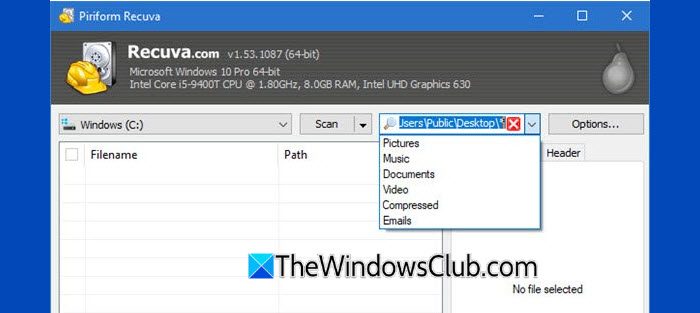
If the Desktop folder was permanently deleted (Shift+Delete or emptied Recycle Bin), you can use a third-party data recovery software to restore it.
When you delete a folder in Windows, the data isn’t immediately erased from the disk. Instead, the space is marked as “free”, and file recovery tools can scan the drive to locate and restore those deleted files as long as they haven’t been overwritten.
Some popular options include Recuva, Windows File Recovery Tool from Microsoft, MiniTool Power Data Recovery Free Edition, and EASEUS Data Recovery Wizard Free Edition.
I hope this helps.
Read: Accidentally deleted Graphics card driver in Windows.
What happens if I delete a desktop folder?
If you delete the Desktop folder, all the files, folders, and shortcuts on your desktop will disappear. If it’s a normal deletion, it goes to the Recycle Bin and can be restored easily. However, if you permanently delete it, recovery may require the use of third-party tools.
Read: Change desktop icon size and view to Details and List view in Windows
How to recover the deleted folder in Windows 11?
To recover a deleted folder, look in the Recycle Bin and restore it if available. If you use File History or Windows Backup, you can restore it from there. For permanently deleted folders, use recovery tools like Recuva or EaseUS.
Read Next: Accidentally deleted Microsoft Authenticator app; Now, I can’t sign in.
