
Were you making an online payment and were interrupted with a 3D Secure authentication failed error message? If yes, you are not alone; there are other people in your situation. This common issue can be frustrating, especially when trying to complete a purchase quickly. In this article, we will explore practical solutions to get our payment back on track.
How do I fix 3D Secure authentication failed?
If 3D secure authentication is failing, execute the solution mentioned below.
- Check your card details
- Clear the browser’s cache
- Use the incognito or private browsing method
- Ensure 3D Secure is enabled
- Disable VPN or change the network
1] Check your card details
Sometimes, a simple typing mistake in the card information can trigger a 3D Secure authentication failure. Re-enter the card number carefully, and double-check the expiry date and CVV. If the card is expired or blocked, it will fail even before 3D Secure kicks in. Move to the next solution if all the information is entered correctly, but the issue remains.
2] Use Incognito or Private browsing method
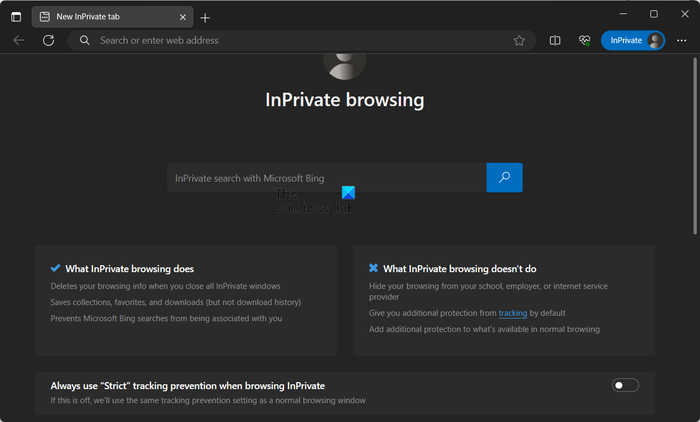
Regular browsing stores temporary data that may interfere with the payment security pop-ups. In such cases, using the browser’s incognito or private browsing mode is recommended. Incognito mode ensures a clean session without storing any credentials and bypasses problematic extensions. So, click Ctrl+ Shift + N to open Incognito mode, and then manually type the merchant’s URL, log in fresh without saved passwords, and complete checkout. Slide to the next solution if the issue persists.
3] Clear the browser’s cache
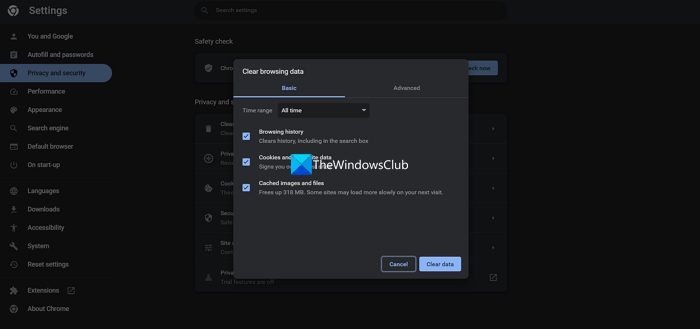
If the issue persists even after using Incognito mode, clearing the cache, or adjusting the extension is the next step. Over time, cache data accumulates and becomes corrupted, causing issues and conflicts with the new security protocols. Moreover, outdated browser data can prevent 3D Secure pop-ups from loading properly. It is necessary to clear them out to prevent such a malfunction from happening.
- Launch the browser, click on the three dots menu, and select Settings from the drop-down menu.
- Go to the Privacy and Security tab, and click on Delete browsing data. Alternatively, press Ctrl + Shift + Delete keys to directly open the Delete browsing data menu.
- Choose All the as the range, and then check the boxes for Cookies and other site data, Cache images and files, and then select the Clear Data button. Restart the browser to apply the changes.
- Open Edge, click on the three-dot menu, and go to Settings.
- Click on Privacy, search, services tab, and navigate to Clear browsing data.
- Select Choose what to clear, and then click the boxes for Cached images and files, and Cookies and other site data. Set the time range to All time and click on Clear now.
Brower’s issue causes authentication failures; however, move to the next solution if this isn’t the case.
4] Ensure 3D Secure is enabled
Some institutions disable this feature by default or turn it off after suspected fraud incidents without notifying customers.
- Launch the bank’s mobile app, log in, and look for Card Controls or Security settings as well as the Manage Debit/Credit Card section.
- Now, find 3D Secure Settings, which may be labeled as Online Payments, Secure Online Transactions, or Verified by VISA/ Mastercard SecureCode.
- Once found, toggle it on, and then set references at either Always require verification or Set transaction limits that trigger authentication. Alternatively, users can also navigate to the Online banking portal and perform the same function.
Moreover, if the setting is unavailable, users are required to call the number on their card and reach out to the bank directly. Test with a small transaction, and if it is still failing, see the next solution.
5] Disable VPN or change the network
Although VPNs protect privacy, they are often misinterpreted as potential fraud indicators, which can restrict transactions. Disable VPN or change the network, and then see if it’s successful.
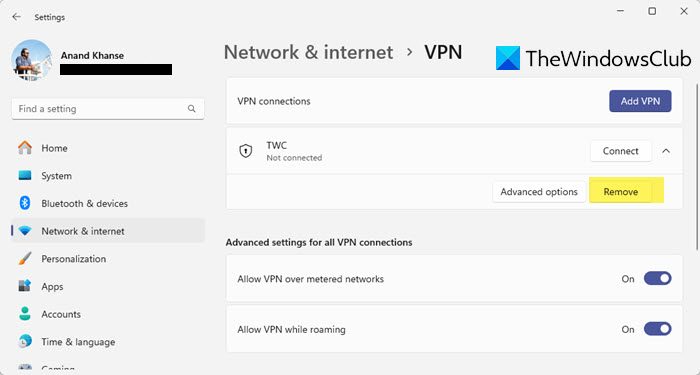
- Click Win + I to open Settings, and go to the Network and Internet tab.
- Select VPN from the list, and then click on the VPN you want to disable.
- Click Remove to completely remove it. You can also turn the Allow VPN toggles Off to disable it, instead.
- Now, open the browser and check if the public IP has changed.
Apart from disabling the VPN, a slow network connection is another reason that stops users from doing their online transactions. Go to the Network icon and select a different Wi-fi network or connect to the Ethernet connection. Once done, wait for the new connection to establish before trying again. Hopefully, this will do the trick.
That’s it!
Read: How to add Work/School accounts to Microsoft Authenticator app
The browser or embedded browser is not compatible with the 3-D secure authentication
The error “The browser or embedded browser is not compatible with the 3D secure authentication” occurs when the browser lacks support for the security protocols required for the payment verification. This often happens with outdated browsers, in-app browser interference, or strict privacy settings.
Read: Avoid online banking and other cyber frauds – Safety Tips for PC users
What does unsuccessful 3DS authentication mean?
An unsuccessful 3DS authentication indicates that the bank or card issuer has rejected the verification process required for the online payment. This typically happens due to incorrect card details, expired 3DS enrollments, and so on.
Also Read: Best Banking and Investments apps for Windows PC.
