
Windows 8 explorer will have several new shortcuts. And since this was one of the requests from advanced power users, Microsoft has introduced some new shortcuts in the Windows 8 explorer. While all the existing keyboard shortcuts will continue to work in it, these are approximately 200 commands in the explorer ribbon that will now also have keyboard shortcuts as well.
To see the tool tips showing the keyboard shortcuts for every action that appears in the ribbon, hold the ALT key. To perform any of the actions, can release the ALT key, and just press the appropriate keyboard shortcut sequence.
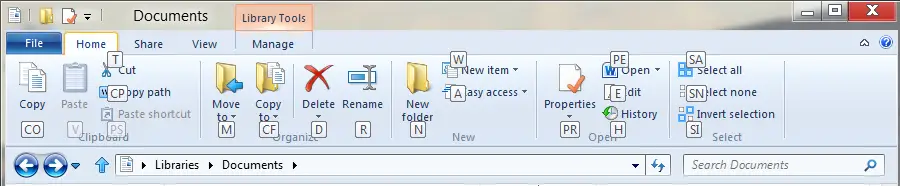
Here is a list of some of them:
A : Open Easy access
CO : Copy selected items
CP : Copy Path of the selected item
CF : Copy to folder, using the drop-down menu
D : Delete selected items
E : Edit selected item
H : Show History of the document revisions
M : Move files to location using the drop-down menu
N : Create New Folder
PS : Paste Shortcut in the location
PR : Open Properties box
PE : Open new document, choose from drop-down menu
SA : Select All items
SN : Select None
SI : Invert Selection
R : Rename selected items
T : Cut selected items.
V : Paste copied items
W : Create New Item
Ctrl+F1 : Minimize / maximize ribbon in Windows Explorer
The post will be updated as more Windows 8 explorer keyboard shortcuts are found.
You might also want to check out this list of global Windows 8 Keyboard Shortcuts.
Some of you may want to have a look at these posts too:
