
Windows 11 and Windows 10 support the sideloading of apps. This feature allows users to download their favorite apps outside the Microsoft Store. There are a lot of apps that are not available in the Microsoft Store and using this method, users can now install and run those apps easily on Windows 11/10.
What is SideLoading of applications?
Installing and running any non-certified software on a Windows device is known as sideloading apps. Sideloading of applications gives users the freedom to download any app from different stores. Earlier, Microsoft did not allow Windows users to install any third-party applications and blocked such installs when users tried to install them.
How to Sideload apps in Windows 11
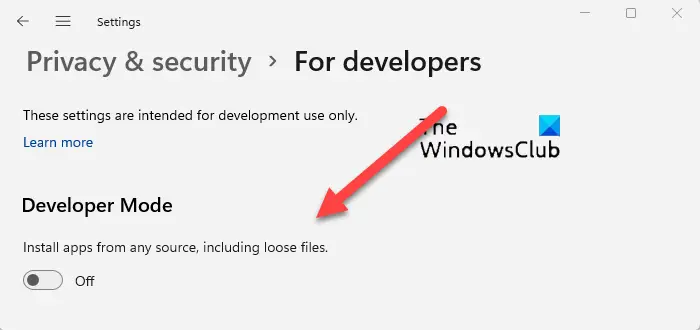
How to download apps outside the Microsoft Store
To sideload apps in Windows 11:
- Open Windows 11 Settings.
- Scroll down to Privacy & security.
- Switch to the Security Section.
- Expand For Developers menu.
- Locate Developer Mode heading.
- Toggle the switch to On position.
The Developer Mode in Windows 11 will let you install apps from any source, including loose files.
Related: How to sideload Android apps using WSA on Windows 11.
How to sideload apps on Windows 10
Let us see how to side-load applications on a Windows 10 computer.
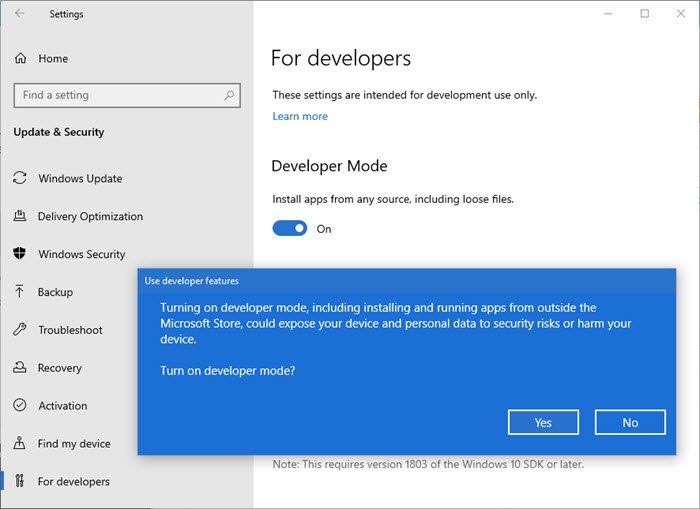
To download non-Store apps, first enable the ‘For Developer’ mode of Windows. The ‘For Developer’ mode will not only allow users to download uncertified apps but also allow them to test their own developed apps before launching them officially.
With this Developer mode, a user can test or install apps without tweaking the Registry or the Group Policy Editor, as was required on Windows 8.1 [This part has been explained at the end].
To enable this option follow these steps:
- Launch the ‘Start’ menu.
- Open the ‘Settings’.
- Select ‘Updates and Security’
- Go to the ‘For Developer’ section and select the checkbox of ‘Sideload Apps’
- Windows 10 will send a warning message saying ‘Sideloading of apps is potentially dangerous’
- If the user is ready to take the risk, he/she can select ‘Yes’ and proceed.
After changing these settings, the user can download any application from different app stores.
Risks of sideloading apps
Technically, it is wrong to download any application outside of the official stores. It poses many security risks, and malware can infect your system. Hackers can send ransomware or users can be targeted by identity thieves, and so on. Therefore, before enabling the ‘sideload apps’ option, Microsoft sends out a warning message.
Windows 11/10 includes many built-in security features and tools that can easily detect unwanted software. Moreover, many controversial games, software, emulators, and BitTorrent clients are restricted by Microsoft. It is always better to download the application from trusted platforms. But if you do need to run or test outside apps, this is the way to go in Windows 11/10.
Although this feature carries many risks, users like me are very excited about it. Now they are free to use and run various apps, themes, and games on their Windows PCs, laptops, and phones, just like Android users do.
Read: How to generate Direct Download Links for Microsoft Store apps
SideLoad Non-Microsoft Store Apps
Microsoft has made it easy to SideLoad apps on Windows 11/10 as explained above. Earlier, to SideLoad Non-Microsoft Store Apps on Windows 8.1, one had to follow this method, which incidentally will work on Windows 10 and Windows 11 too.
Please remember that this method will only work for Windows Enterprise Edition or Windows Server when the PC is joined to a domain. If you have a standalone Windows Enterprise Edition, make sure you have activated Windows Enterprise with the product key.
According to TechNet, theSideLoad Requirements are:
- Windows Runtime-based apps must be cryptographically signed and can only be installed on a computer that trusts the signing certificate
- You must activate a sideloading product key or join the PC to an Active Directory domain that has the Allow all trusted applications to install Group Policy setting enabled.
- Until the PC meets all of the sideloading requirements, app tiles on the Start menu will show an “X” in the bottom-right corner to indicate that a problem is preventing the app from running.
Here is how to do it:
We need to enable the Group Policy that allows sideloading of non-store applications.
- Hover the mouse to Left end corner and right-click on Start
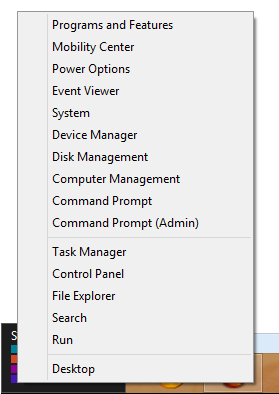
- Click on Run and type in gpedit.msc to open Group Policy Editor.
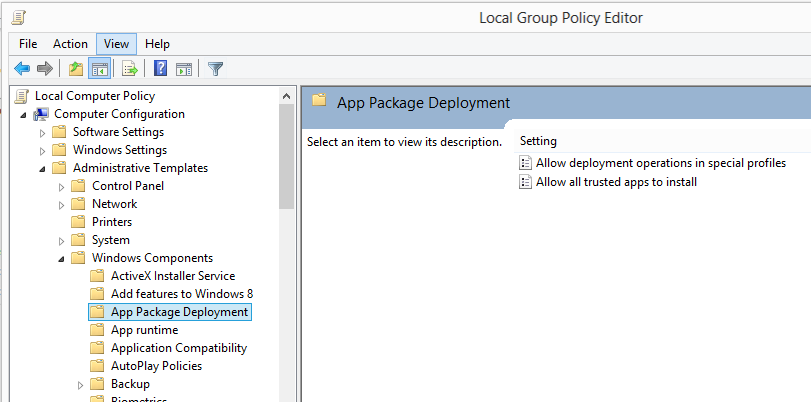
- Go to Computer Configuration – > Administrative Template – > Windows Components – > App Package Deployment
- Double-click on “Allow all trusted apps to install”.
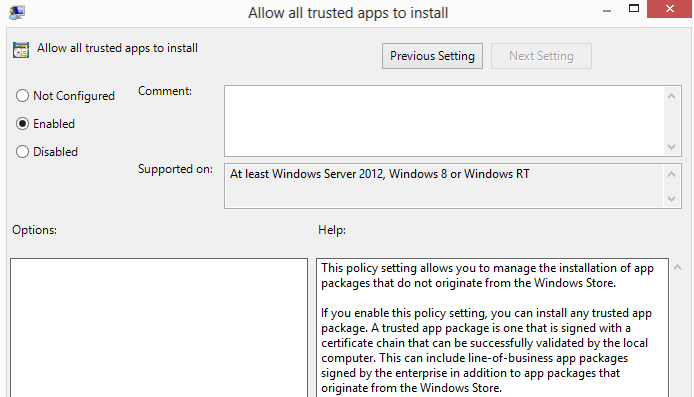
- Click on “Enabled” then click OK
Now you are ready to install non– Store applications on Windows 8.1.
Now we’ll install the application using an elevated PowerShell prompt.
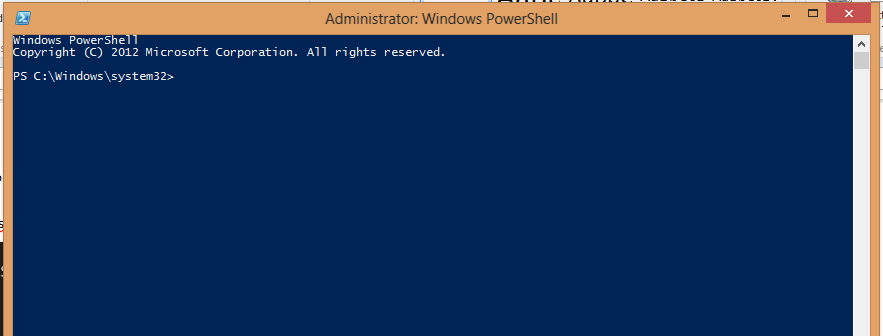
Execute the following command:
add-appxpackage C:\app1.appx –DependencyPath C:\winjs.appx
You are all set!
You should now have the application installed. This method is for IT professionals for deployment on a large scale. I couldn’t test this method because I couldn’t find a non-store application.
Read next: How to run Google Play Store Android apps on Windows 11.
