
This tutorial is designed for Windows 11/10 beginners who want to learn how to install or uninstall UWP apps downloaded from the Microsoft Store. The process is quite simple, so let us take a look at it.
How to install Microsoft Store apps
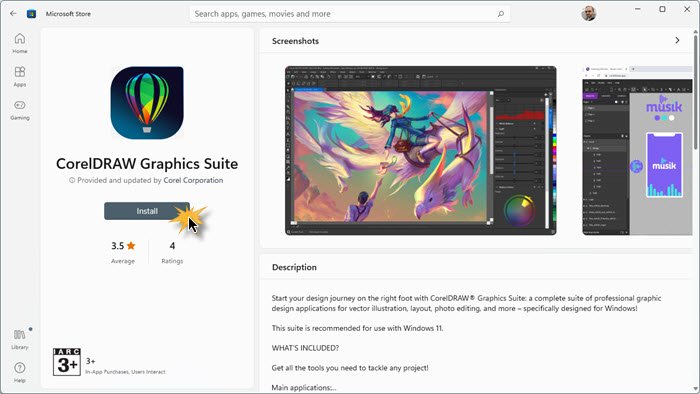
To install Microsoft Store Apps on your Windows 11/10 PC, visit the official Microsoft Store, search for the app, and then download and install it.
Type ‘store‘ in the taskbar bar search and click open the Store app. Using the search bar, search for the app. Once the Store app is found, click on the Install button.
If the app is free, you will see Free written on the button. The process is rather simple, and the installation is quick and straightforward too.
How to uninstall Microsoft Store Apps
To remove or uninstall a Windows Apps which you installed from the Microsoft Store, you have the following options:
- Uninstall it from the Start Menu
- Uninstall it via Settings
- Use a PowerShell command
- Use a PowerShell script
- Use a third-party freeware.
1] Uninstall it from the Start Menu
Windows 11
The easiest way to uninstall Windows 11 apps is to type the name of the app in the taskbar search. Once its icon is displayed in the search result, right-click on it, and select Uninstall.
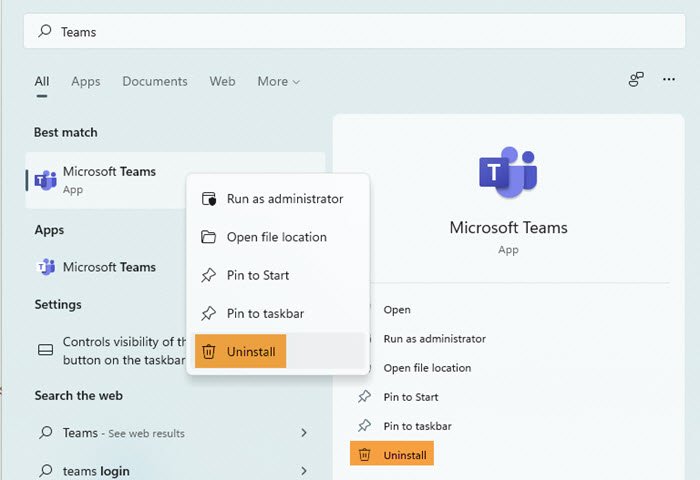
The app will be uninstalled in a few moments.
Windows 10
For Windows 10 apps too, type the name of the app in the taskbar search. Once its icon is displayed in the search result, right-click on it, and select Uninstall.
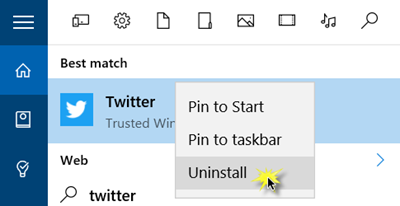
That is all! The app will be uninstalled in a few moments.
2] Uninstall it via Settings
Windows 11
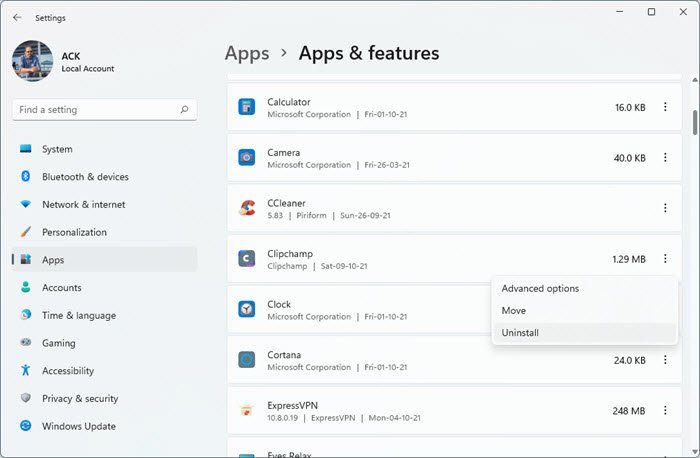
Open Windows 11 Settings > Apps > Apps and features > Locate the app > Click on the 3 vertical dots and select Uninstall.
Windows 10
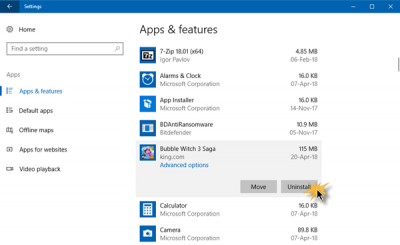
In Windows 10, you can remove the Store apps via the Settings, as follows:
- Click on Start Menu to open it
- Click on Settings to open the Settings window
- In the Settings Window, click on System
- Click on Apps and Features. The right panel will be populated with the list of preinstalled Windows 10 apps that you can remove
- Click on an app to see the options Move and Uninstall. Click on Uninstall to remove the application.
The Uninstall feature is not available for all Windows 10 apps. Some of them, which Windows thinks, are essential to you, and hence you will not see the Uninstall button next to them.
Read: How to Remove Look For An App In The Store option, from Choose Default Program menu.
3] Use a PowerShell command
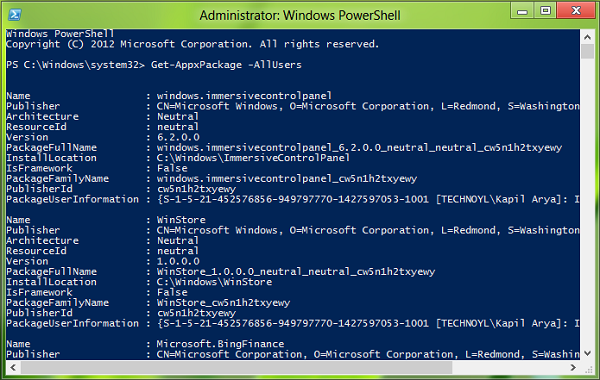
You can use PowerShell or Windows Terminal with an administrator account. Follow the steps below:
- Use Windows+X and choose the “Windows PowerShell (Admin)” option from the Power User menu.
- After an interactive confirm dialogue, PowerShell will complete permission will load up.
- Next, copy-paste one of the following commands, and hit return.
- After this, the app will be uninstalled for all users.
- You may have to install the app again from the store.
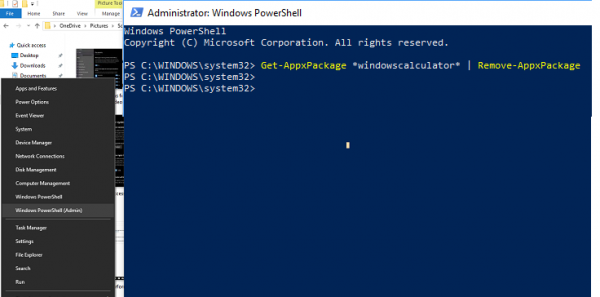
Uninstall Calculator:
Get-AppxPackage *windowscalculator* | Remove-AppxPackage
Uninstall 3D Builder:
Get-AppxPackage *3dbuilder* | Remove-AppxPackage
Uninstall Calendar and Mail:
Get-AppxPackage *windowscommunicationsapps* | Remove-AppxPackage
Uninstall Alarms and Clock:
Get-AppxPackage *windowsalarms* | Remove-AppxPackage
Uninstall Camera:
Get-AppxPackage *windowscamera* | Remove-AppxPackage
Uninstall Get Office:
Get-AppxPackage *officehub* | Remove-AppxPackage
Uninstall Get Started:
Get-AppxPackage *getstarted* | Remove-AppxPackage
Uninstall Get Skype:
Get-AppxPackage *skypeapp* | Remove-AppxPackage
Uninstall Groove Music:
Get-AppxPackage *zunemusic* | Remove-AppxPackage
Uninstall Maps:
Get-AppxPackage *windowsmaps* | Remove-AppxPackage
Uninstall Microsoft Solitaire Collection:
Get-AppxPackage *solitairecollection* | Remove-AppxPackage
Uninstall Money:
Get-AppxPackage *bingfinance* | Remove-AppxPackage
Uninstall Movies & TV:
Get-AppxPackage *zunevideo* | Remove-AppxPackage
Uninstall News:
Get-AppxPackage *bingnews* | Remove-AppxPackage
Uninstall OneNote:
Get-AppxPackage *onenote* | Remove-AppxPackage
Uninstall People:
Get-AppxPackage *people* | Remove-AppxPackage
Uninstall Phone Companion:
Get-AppxPackage *windowsphone* | Remove-AppxPackage
Uninstall Photos:
Get-AppxPackage *photos* | Remove-AppxPackage
Uninstall Sports:
Get-AppxPackage *bingsports* | Remove-AppxPackage
Uninstall Store:
Get-AppxPackage *windowsstore* | Remove-AppxPackage
Uninstall Voice Recorder:
Get-AppxPackage *soundrecorder* | Remove-AppxPackage
Uninstall Weather:
Get-AppxPackage *bingweather* | Remove-AppxPackage
Uninstall Xbox:
Get-AppxPackage *xboxapp* | Remove-AppxPackage
The good thing is that even if you remove Built-in apps from Windows using PowerShell, they can always be installed back from the store.
This post will show you how you can completely remove even the preinstalled Microsoft Store apps using PowerShell commands.
4] Use a PowerShell script to remove the apps from the ISO file
This solution works on Windows 11/10 machines, where you will install it fresh. We will need to remove the apps from the ISO file and then install them, ensuring none are installed directly.
This PowerShell script takes a simple list of Apps and then removes the Apps from the default install.wim. Afterward, the WIM image can be used for distribution with Configuration Manager or similar solutions. When the script starts, WIM-Image is automatically mounted to a temporary directory. Afterward, all preinstalled apps are read out and subsequently uninstalled.
Note: This method is only for power users who understand the technical intricacies.
Example Commands:
.\removeapps.ps1 -pathtowim c:\10\install.wim

.\removeapps.ps1 -pathtowim c:\10\install.wim -selectapps $true

.\removeapps.ps1 -pathtowim c:\10\install.wim -select $true -index 2
There is one significant drawback, though. After OS installation or when adding a new user, the start menu will contain invalid shortcuts with only the name of the removed app in a square. It will look like “P~Microsoft.SkypeApp_kzf8qxf38zg5c!App”. This bug remains unanswered, but it’s there and annoying.
You can download the PowerShell script from TechNet Gallery.
TIP: You can also remove default Microsoft Store app packages using Group Policy.
5] Windows Store Apps Uninstaller
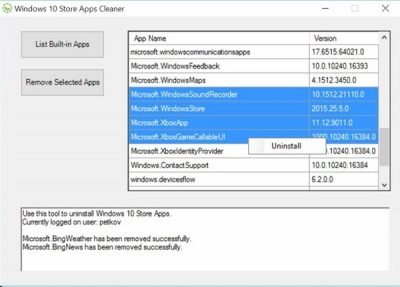
Windows Store Apps Uninstaller is another PowerShell app available in the Technet Gallery. If you no longer need an app, then you could use Windows Store Apps Uninstaller to remove it and free up space on the drive.
Read: How to open Microsoft Store apps from Command Prompt.
6] Use a third-party freeware
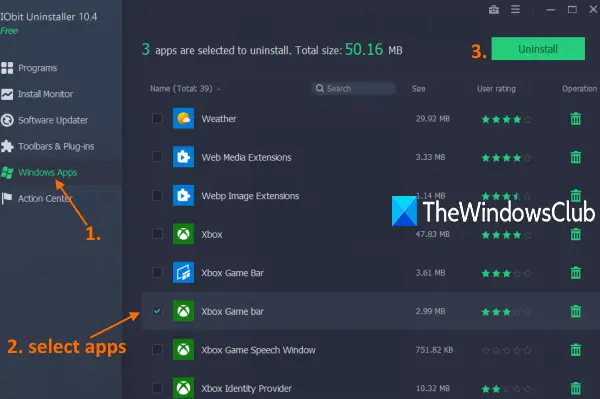
If you need to uninstall programs or apps in bulk, you can use the IObit Uninstaller to remove the regular apps or the apps which you downloaded from the store or came preinstalled. It will also remove any leftovers. Check out our detailed guide on how to use it.
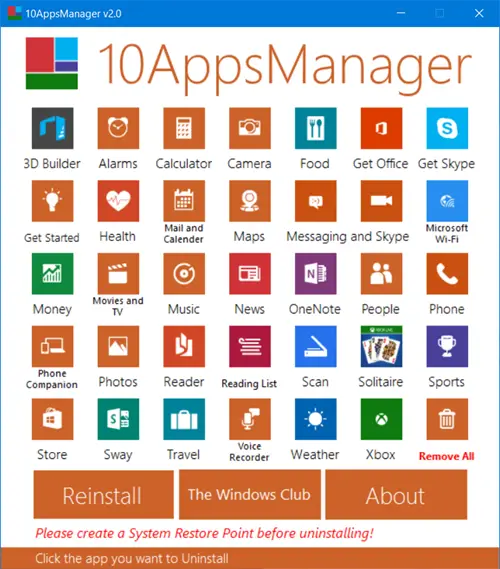
Our freeware 10AppsManager will let you easily uninstall and reinstall Microsoft Store apps.
You can also use CCleaner, Store Applications Manager, or AppBuster to uninstall multiple Windows Store apps at once in Windows 11/10.
Specific posts that may interest you:
What apps should I remove from my PC?
If you have any apps that came preinstalled on the PC when you bought it, you don’t use them, they can be uninstalled. It includes apps such as PC cleaners, toolbars, extensions, and any program you feel is bloatware and has been installed as part of the OEM deal. You can always reinstall the apps if you think you need them back.
Read: Hide or Remove apps from the Microsoft Store Library
How do I manually uninstall Microsoft Store apps?
Go to Settings > Apps > Apps and features. Here you can see a list of all the apps that are installed on your PC. Locate the one you want to uninstall, click on the three-dot menu, and choose to uninstall it. You can also search for the app using the app search box.
Read next:
- How to use Install on my devices feature of Microsoft Store
- How to reinstall ALL preinstalled Microsoft Store apps.
