
If you want to remove default Microsoft Store packages or apps from the system using Local Group Policy Editor, here are the steps you need to follow on Windows 11. Having said that, Windows 11 comes with an in-built option that lets you delete or uninstall unused or unwanted Microsoft Store apps on your Windows 11 PC.
Apps you can remove using GPEDIT
Here is a comprehensive list of apps or packages that you can remove from Windows 11 using the Local Group Policy Editor:
- Feedback Hub
- Microsoft 365 Copilot
- Microsoft ClipChamp
- Microsoft Copilot
- Microsoft News
- Microsoft Photos
- Sticky Notes
- Teams
- Microsoft To Do
- Paint
- Quick Assist
- Windows Terminal
- Windows Notepad
- Windows Camera
- And so on.
It is also possible to remove Xbox Gaming App, Gaming Overlay, Identity Provider, etc.
Remove default Microsoft Store app packages in Windows 11 using GPEDIT
To remove default Microsoft Store packages from the system using GPEDIT, follow these steps:
- Press Win+R to open the Run prompt.
- Type gpedit.msc and hit the Enter button.
- Navigate to App Package Deployment in Computer Configuration.
- Double-click on the Remove Default Microsoft Store packages from the system setting.
- Choose the Enabled option.
- Tick the apps you want to remove.
- Click the OK button.
Remove built-in Microsoft Store apps using Group Policy in Windows 11
To get started, open the Local Group Policy Editor first. For that, press Win+R to open the Run prompt. Then, type gpedit.msc and hit the Enter button.
Next, navigate to the following path:
Computer Configuration > Administrative Templates > Windows Components > App Package Deployment
Find the Remove Default Microsoft Store packages from the system setting and double-click on it. Choose the Enabled option.
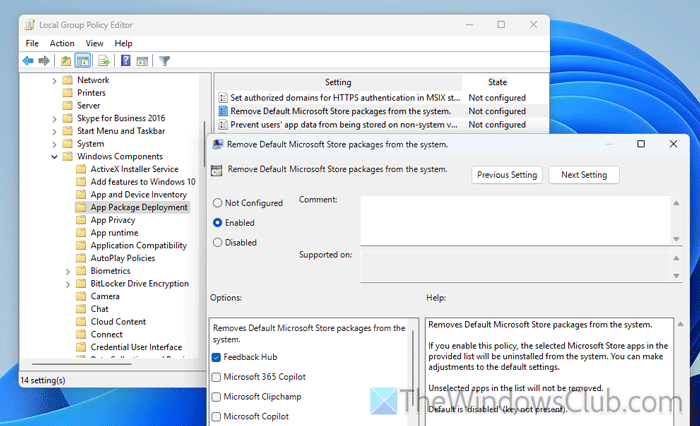
Then, you can find a list of Microsoft Store packages or apps that you can remove. To remove an app, tick its respective checkbox and then click the OK button.
It may take a few moments to complete the job. At times, you might need to restart your computer.
To reinstall all the uninstalled apps, open the Microsoft Store and download them accordingly.
Read: Uninstall Pre-Installed Microsoft Store Apps using PowerShell
How to disable the Microsoft Store through Group Policy?
As of now, there is no option to disable Microsoft Store entirely through the Local Group Policy Editor. However, you can turn off the Store apps at once. For that, navigate to the Computer Configuration > Administrative Templates > Windows Components > Store in the GPEDIT and double-click on the Turn Off the Store application. Choose the Enabled option and click the OK button.
Read: How to install or uninstall Microsoft Store Apps in Windows 11
How do I uninstall Microsoft Store apps from the command line?
To uninstall Microsoft Store apps using PowerShell, you need to open PowerShell with administrator privileges and enter this command:
- To uninstall Calculator:
Get-AppxPackage *windowscalculator* | Remove-AppxPackage - To uninstall 3D Builder:
Get-AppxPackage *3dbuilder* | Remove-AppxPackage - To uninstall Calendar and Mail:
Get-AppxPackage *windowscommunicationsapps* | Remove-AppxPackage
Read: Hide or Remove apps from the Microsoft Store Library
