
Microsoft has taken Windows 11/10 security and privacy to a new level by implementing a feature that blocks third-party apps from installing on Windows 11/10 computers. Although users previously needed tweaks and third-party software to prevent other users from installing software on Windows 11/10 computers, that app blocker is no longer required with the latest Windows version. Here is how to block third-party app installations on Windows 11/10.
How to block third-party app installations in Windows 11
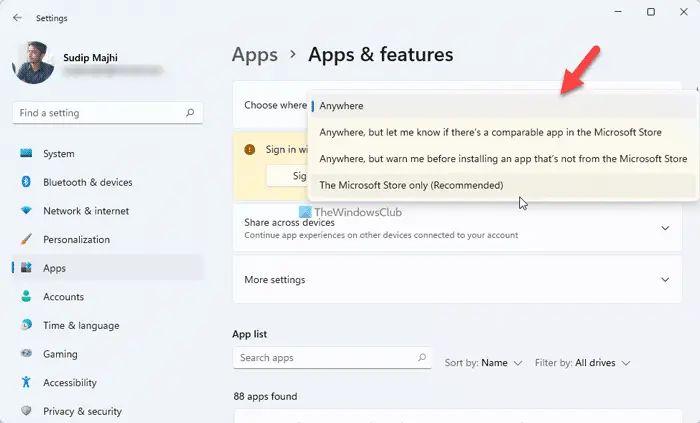
To block third-party app installations in Windows 11, follow these steps:
- Press Win+I to open Windows Settings.
- Go to the Apps tab.
- Click on the Apps & features menu.
- Expand the Choose where to get apps drop-down menu.
- Choose The Microsoft Store only option.
Block third-party app installations on Windows 10
Before getting into this, you should know how Application Installation Control feature works. Many times, users try to install third-party software from unknown or untrustworthy sources and end up being a Ransomware victim. To prevent that and some other issues, Microsoft has included this feature. When you enable this function, all users with access to your computer will be unable to install any apps from third-party sources and will instead see an error message. You will be able to install apps only from Microsoft Store, which is probably the safest place to get apps from.
To enable this feature, head over to Settings > Apps > Apps & features.
On the right-hand side, you can find an option called Installing apps. By default, it should be set to Allow apps from anywhere.
You will see two other options –
- Warn me before installing apps from outside the Store
- Allow apps from the Store only.
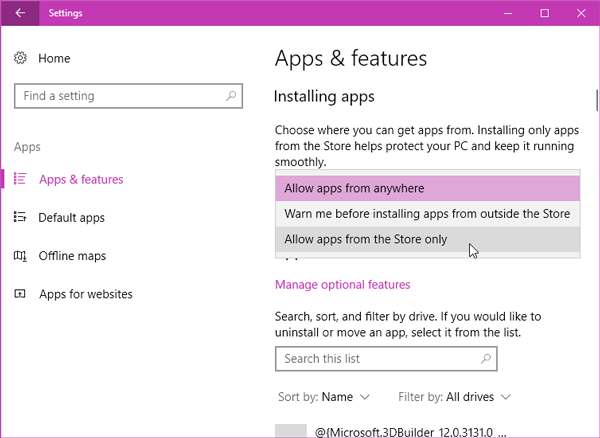
Choose Allow apps from the Store only if you want to block any user from installing other software on your machine.
If you choose Warn me before installing apps from outside the Store in the settings, every time you go on to install an app from outside the Windows Store, you will see two buttons – Get apps from Store and Install anyway.
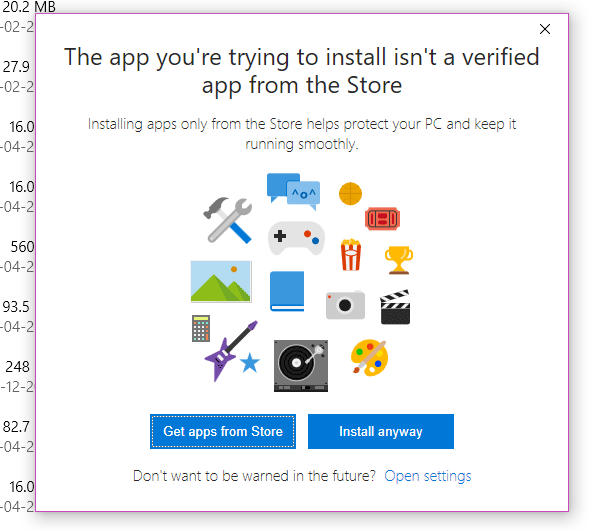
In other words, you can install third-party apps, but you need to confirm it before installing. At the same time, if you have chosen Allow apps from the Store only, you will get the following window with a message – Your PC’s settings only let it install verified apps from the Store.
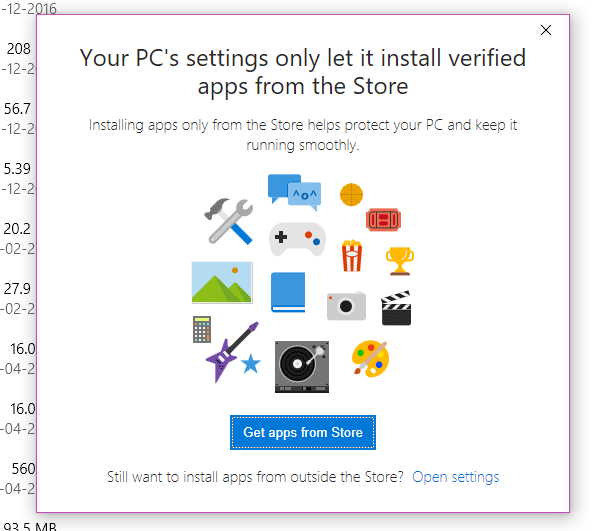
If you click the Open settings link, you will end up opening Apps & features settings in the Settings panel.
For your information, this feature doesn’t work with any portable app. That implies that only if someone tries to install software would the error messages pop up.
Do note that you need to enable this feature in every account if you want the same prevention across all the accounts on your machine.
This post will show you how to block users from installing or running programs in Windows 11/10.
How do I block third party apps in Windows 11?
To block third-party app installations in Windows 11/10, follow the steps above. You need to open Windows Settings and go to Apps > Apps & features. Then, expand the Choose where to get apps menu and select the “The Microsoft Store only” option.
How do I restrict apps to install on Windows 11?
To restrict apps from installing on Windows 11 and Windows 10, the above-mentioned guides are there. In you use Windows 10, you can find the option named Allow apps from the Store only. However, if you use Windows 11, you can find the option called The Microsoft Store only.
