
Windows 11/10 brings many new features to the table. All of them, to an extent, have been a product of users’ feedback program. We have covered some of them in detail. Today we will cover the Application Installation Control feature, that lets you block third-party app installations.
Application Installation Control in Windows 11
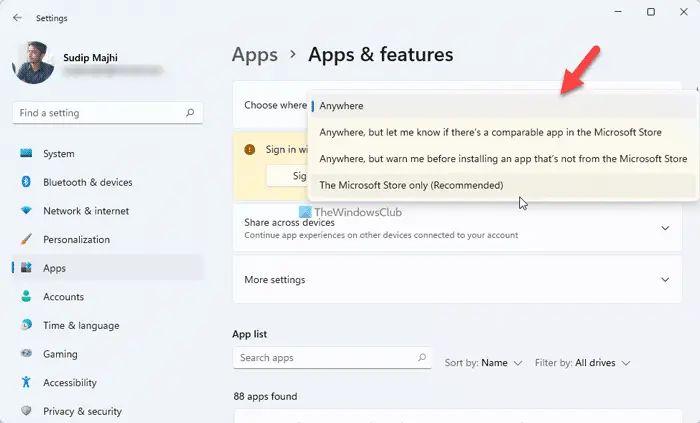
To change the application installation control setting in Windows 11, follow these steps:
- Press Win+I to open the Windows Settings.
- Switch to the Apps section.
- Click on the Add & features menu.
- Find the Choose where to get apps drop-down list.
- Choose an option as per your requirements.
For your information, you have the following options:
- Anywhere
- Anywhere, but let me know if there’s a compatible app in the Microsoft Store
- Anywhere, but warn me before installing an app that’s not from the Microsoft Store
- The Microsoft Store only.
Here is a quick comparison of the options:
| Setting Option | Security Level | Flexibility | Best For |
|---|---|---|---|
| Anywhere | Low | High | Developers, advanced users |
| Anywhere + Suggest Store | Medium | High | Balanced users |
| Anywhere + Warn | Medium-High | High | Cautious users |
| Store Only | Highest | Low | Beginners, S Mode devices |
Application Installation Control in Windows 10
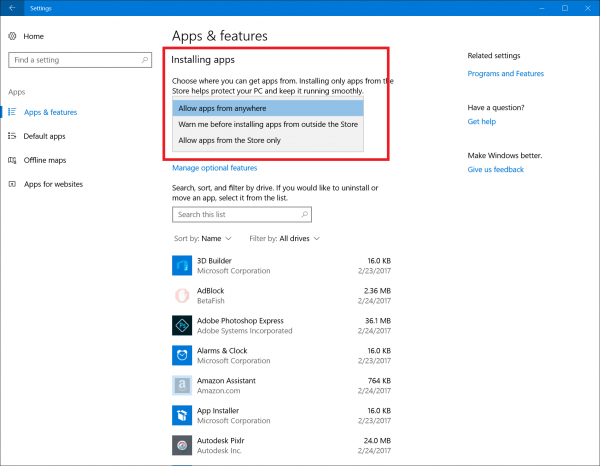
Application Installation Control is a feature that prevents installation of unnecessary applications. The feature can be managed via ‘Settings’ app, specifically in the ‘Apps & features’ section that appears in all versions of Windows 10 Builds. The latest build displays a new entry that allows the user to permit certain apps
- To be installed from anywhere
- To only allow apps from the Windows Store.
- To “prefer apps that are outside Windows Store but allow them to be installed from anywhere.
To manage apps, click on ‘Start’ button, choose ‘Settings’. Next, select the ‘Apps’ Windows setting. It allows you to uninstall apps, set some as defaults and configure optional features related to them.
Then, under ‘Apps & Features’ look for ‘Installing Apps’ section. When found, hit the drop-down arrow and select anyone of the given options. When you choose either of the Store options, you’ll see a warning cautioning you to install a non-Store app. Instead, the warning will direct you to the Store where you can download an alternate app if available.
In some cases, when there’s already an equivalent app in the Store, the warning will provide you the link to that app.
Please note that the feature to allow installation of apps from anywhere is disabled by default but you can enable it anytime. Basically, the objective is to limit the system to running only Universal Windows Apps or desktop apps authenticated by the Windows Store.
Moreover, for using the latter option, administrator rights are required. Therefore, a user with a standard account cannot effect the changes and has to install apps from the Microsoft Store. That said, all existing desktop apps installed before changing the settings will still run.
How do I control software installation?
To control software installation on Windows 11 or Windows 10, you can follow the guides mentioned above. You can choose a source from which to download apps to your PC. You can allow or block your computer from downloading apps from any source except the Microsoft Store.
How do I stop Windows 11 from installing unwanted Apps?
To stop Windows 11/10 from installing unwanted apps, you need to go through the aforementioned settings. In the Windows Settings panel, navigate to Apps > Apps & features. From here, choose The Microsoft Store only option.
That’s all! Hope this guide helped.
