
You may have noticed that in some cases, your folders in Windows 11/10 may become unresponsive and take quite a bit of time to display their contents, and the green progress bar in the address bar loads slowly. At times, it may even display a Working on it message along with the green bar.
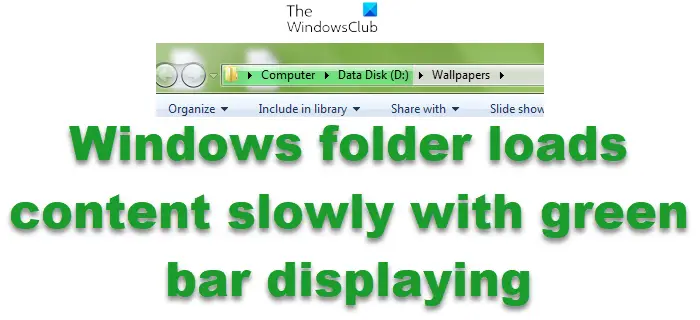
This happens when your folder may have a lot of large documents or images or music or video files.
Windows folder loads content slowly with Green bar displaying
To fix the slow loading of folders with the Green loading bar indefinitely in Windows 11/10, you need to optimize Explorer folders, so that they load and display the contents faster. Follow these suggestions:
- Restart Explorer
- Switch to full-screen and back
- Customize the folder for items
- Clear the Automatic Destinations folder contents
- Delete File Explorer History.
- Select List View.
Let us look at these suggestions in detail now.
Fix Slow loading of folders with Green loading bar indefinitely in Windows 11/10
1] Restart Explorer
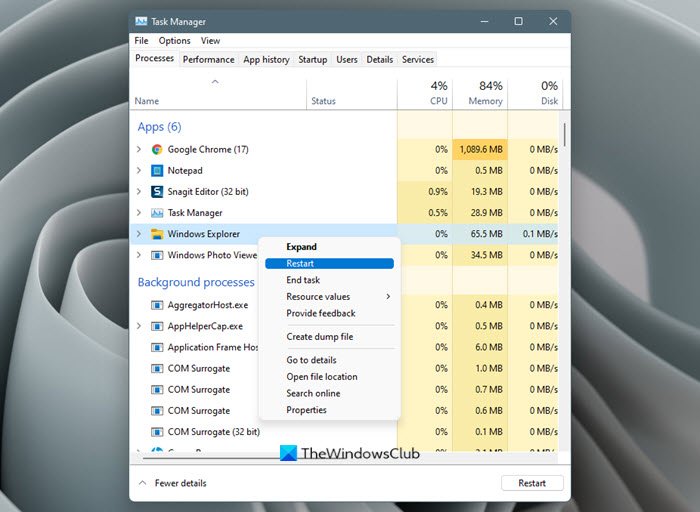
Open Task Manager and restart the Explorer process and see if that helps.
2] Switch to full-screen and back
Press F1 to switch to full-screen mode, and then press F11 again to exit it. See if this small trick helps.
3] Customize the folder for items
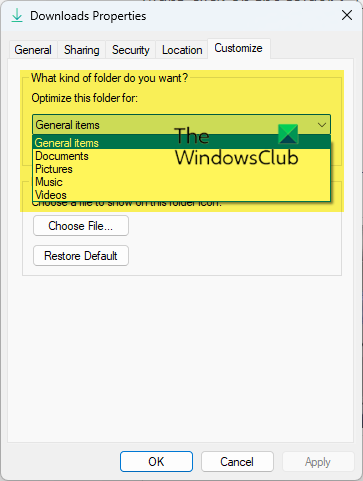
You can better optimize to display specific kinds of items as follows:
- Right-click on the folder
- Click Properties
- Select Customize tab
- Now under What kind of folder do you want? Optimize the folder for, select from the drop-down menu the type of files the said folder predominantly holds.
- You may select from
- General items,
- Documents,
- Pictures,
- Music or
- Videos.
If you wish to apply this template to all the folders, also select the Also apply this template to all subfolders check box and click OK.
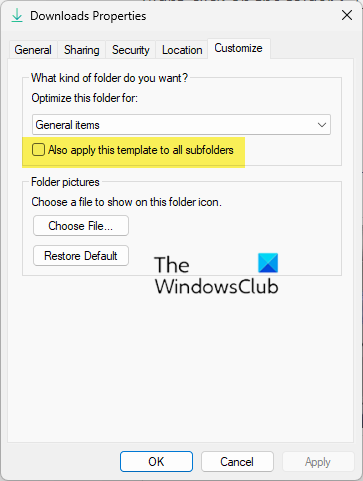
It is better to optimize the folder for the majority of the items it contains. For example, it is better to select Music for the Music folder, Pictures for the Pictures folder, and General for the folder which contains a mix.
4] Clear the Automatic Destinations folder contents
Open File Explorer Options and under the General tab, press the Privacy – Clear button.
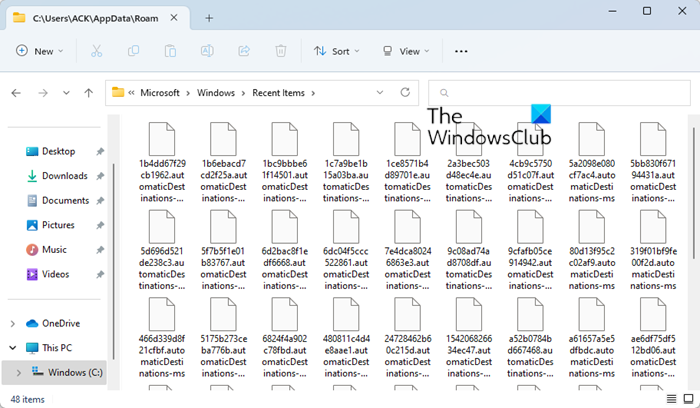
You may also delete the File Explorer cache which is located here:
C:\Users\<username>\AppData\Roaming\Microsoft\Windows\Recent\AutomaticDestinations
You will now see that the contents of your folder will load and display faster.
5] Delete File Explorer History
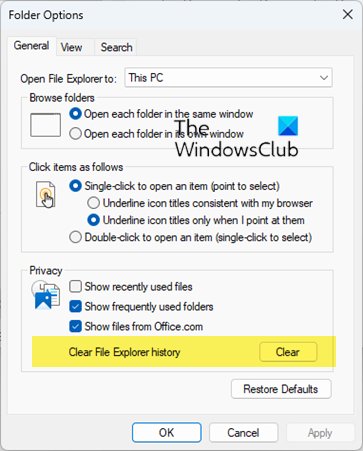
You can also do to delete the Explorer History:
- Open Explorer Options
- Under the General tab, locate Privacy
- Click on the Clear button against Clear File History history
- Click OK and exit.
6] Select List View
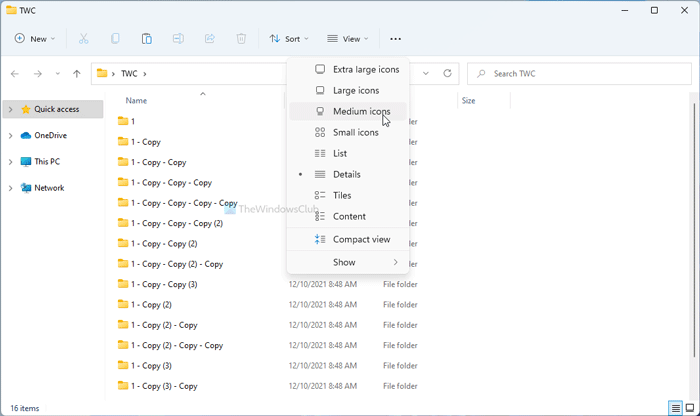
If nothing helps, then selecting the List view can as in this view, Explorer loads the fastest.
Click on the View button in File Explorer and choose List.
PS: Some users have reported that disabling Cortana helped them. You may create a system restore point first and then try to disable Cortana and see if it helps you.
How to fix Explorer is slow to open?
If your File Explorer is slow to open in Windows, take these steps:
- Restart File Explorer
- Disable Quick Access
- Disable Preview Pane
- Change the default Explorer opening location
- Run System File Checker
- Scan your PC with your antivirus software
- Troubleshoot in Clean Boot State.
How to fix a slow loading Downloads folder?
To fix a slow loading Downloads folder:
- Right-click the folder for which you are facing this issue. In this case the Downloads folder.
- Now click on Properties.
- Go to the Customize tab.
- Click on the drop-down that says Optimize this folder for. And select General items from the drop-down. It must have been set to Pictures or Video by default.
- You can also select Also apply this template to all subfolders if the folder contains any subfolders.
- Apply the settings and restart Windows Explorer.
Also read: Downloads Folder not responding in Windows.
