
If you’re in a workplace where you often need to connect different systems, like in a computer class, exam center, etc., you need to share one system with another one. However, sometimes sharing may not be easy and you may see the error message Logon Failure, Unknown username or bad password while connecting machines. If you cannot access a Shared folder on Windows 11/10, from a Windows 8/7 machine, that is a different issue. But if you are unable to connect to a Shared Computer, this post may help you troubleshoot the problem.
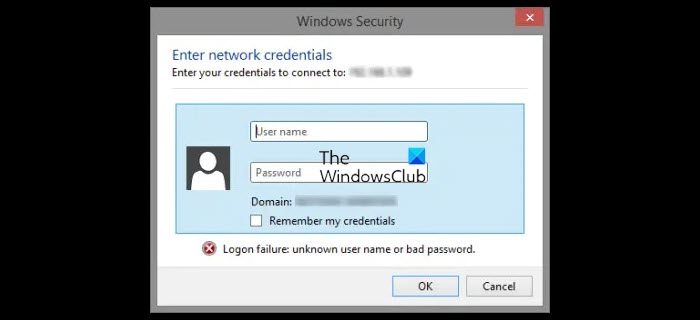
Consider a scenario – you fixed the sharing for a system to “everyone”. When you go on to enter your network credentials to connect to the shared computer, even when you submit the correct credentials, you receive a message Logon Failure Unknown user name or bad password. When you try to join that system from another machine, you’re kept asking for the credentials again and again. When you enter the system username and password, you get a logon failure message. So basically, invalid credentials are causing the issue, even though you have set the shared system’s permissions to ‘without requiring credentials’.
This Logon Failure: Unknown username or bad password error in Windows 11 usually indicates that the credentials are incorrect, the account is misconfigured (domain vs. local), or the user profile is corrupted. The quickest fixes are to check Caps Lock, reset your password, and try Safe Mode if normal login fails. If this does not help, read on.
Logon Failure Unknown username or bad password error in Windows 11
If you are facing this problem, here is a simple method to resolve this issue:
Making mistakes while editing the Windows Registry can adversely affect your system. So be careful while editing registry entries and create a System Restore point before proceeding.
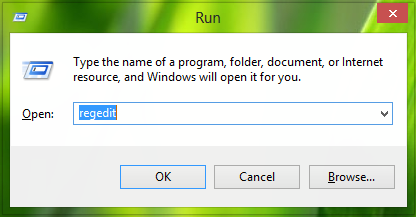
1. Press Windows Key + R combination, type put regedit in Run dialog box and hit Enter to open the Registry Editor.
2. In the left pane of Registry Editor, navigate here:
HKEY_LOCAL_MACHINE\SYSTEM\CurrentControlSet\Control\Lsa
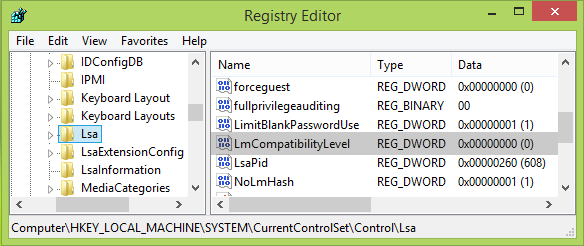
3. In the left pane of this registry location, highlight the Lsa key, and come to its right pane. Then, right-click in a blank space and select New -> DWORD Value.
Give the newly created DWORD (REG_DWORD) as LmCompatibilityLevel name, double click on it to get this:
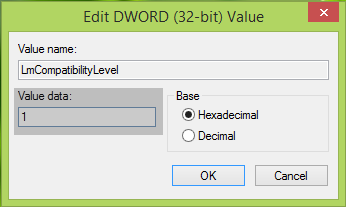
4. In the above-shown Edit DWORD Value box, put the Value data equals to 1. Click OK. You can now close Registry Editor and reboot the machine. After restarting your computer, you’ll be easily able to join the shared system.
Let us know if this works for you. If it did not, you may reverse the changes or restore your Windows computer.
Related: Fix Windows login and password problems.
