
In this post, we will see how to clean install Windows 11/10 using a USB flash drive, on a separate partition. This process can even be used if you want to dual-boot it with another operating system. For this, you will have to first create bootable USB media from ISO for Windows 11/10. You will also have to create a separate partition with at least 16 GB space, using the built-in Disk Management tool, if you plan to dual-boot it. This is one of its system requirements.
NOTE: Read this post Install Windows 11/10 after upgrading first.
After doing this, you will have to set your computer to boot from a USB device. Please be very careful when changing the settings here, lest they make your computer unbootable.
To do this on my Dell laptop, I have to restart it and keep pressing the F2 key to enter the Boot Options Setup. Here, you will have to change the boot order. If your device uses Secure Boot / UEFI, you must change it to Legacy. This is how the default setting looked on my laptop.
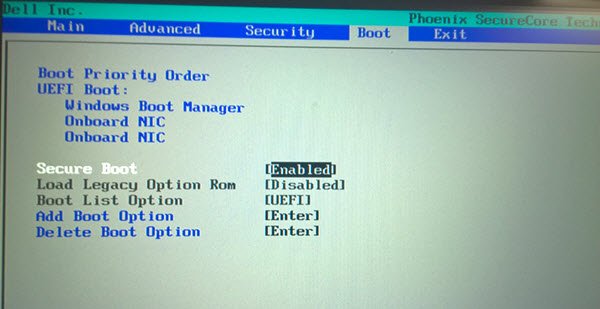
Use the 4 arrow keys of your keyboard, navigate to the Boot tab, and change the settings. Disable Secure Boot, enable the Legacy option, and set Boot List option to Legacy. Next, move USB Storage Device to the first position and set it to be the first device to boot from. After making the changes, the settings on my Dell laptop looked as follows. It may be a bit different in your laptop.
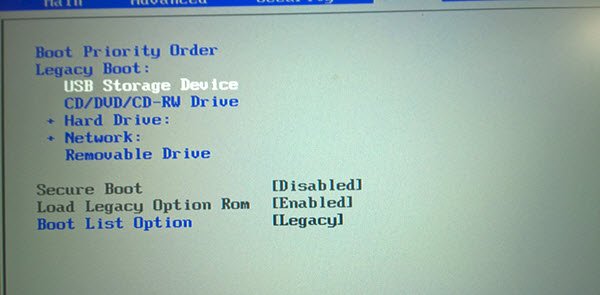
Once you have done this, with your USB connected to your laptop, restart the laptop.
Note for Windows 11/10 users: If you upgrade to Windows 11/10, the new OS will take the product key and activation details from your earlier OS. These are then saved on Microsoft servers, along with your PC details. If you clean-install Windows the first time, you may face activation problems. If you performed an upgrade the first time, activated Windows 10, and then clean installed Windows 11 on the same PC, there will be no activation issues, as the OS will pull activation details from Microsoft servers. So, if your Windows isn’t activated, we suggest you not perform a clean install the first time. First Upgrade the first time, Activate it, and then Clean Install.
Apart from that, your computer must meet the hardware requirements for Windows 11. Although Microsoft allows users to install Windows 11 on non-compatible devices, some features may not work or work with some limitations.
Install Windows 11 from USB
To install Windows 11/10 from USB, follow these steps:
- Plug in your bootable USB drive and restart your computer.
- Open the Boot Manager by clicking the designated button.
- Choose language, time format, keyboard format, etc., and click the Next button.
- Click the Install now button.
- Accept the terms and choose the Custom Install option.
- Format the hard disk and click the Next button.
- Let is restart to complete installation.
- Follow the screen instructions to create user account, connect to internet, etc.
On restart, your computer will boot from the USB and display the following screen. If you need to see a larger version of any image, please click on the image.
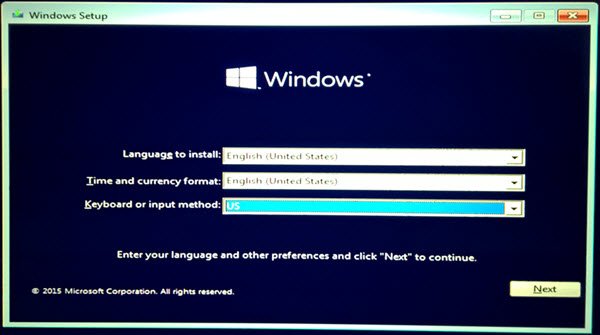
Choose the Language to install, the Time & Currency format and the Keyboard or Input method, and click on Next. You will see the following screen. Click on Install now.
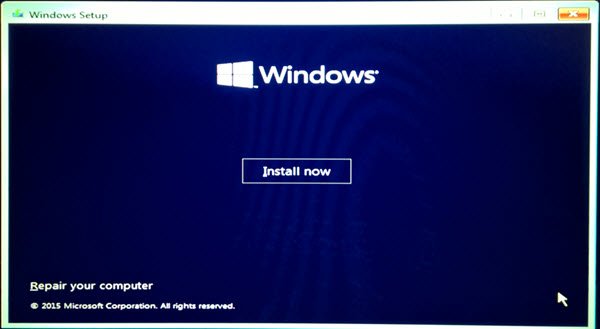
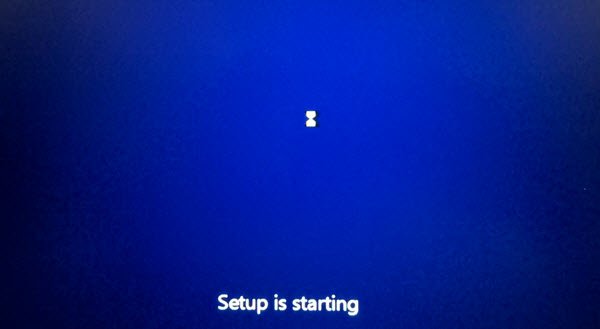
The setup will start.
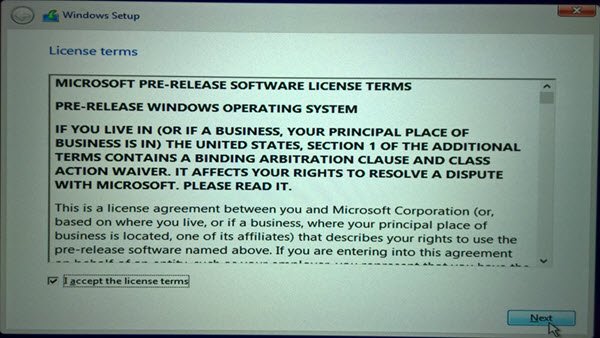
You will be presented with the License terms. Accept it and click on Next.
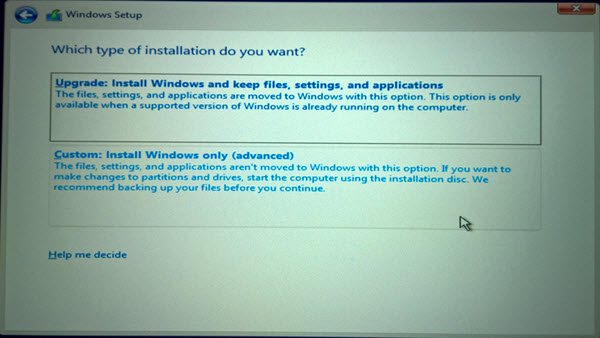
You will be asked the type of installation you want. Do you want to upgrade your existing Windows installation and keep the files and settings, or do you want to Custom install Windows. Since we want to go in for a fresh or clean install, select Custom Install.
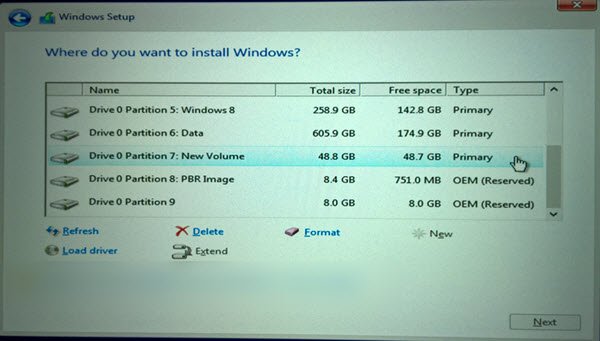
Next you will be asked the Partition where you want to install Windows. Select your partition carefully and click Next. If you did not create a partition earlier, this setup wizard also lets you create one now.
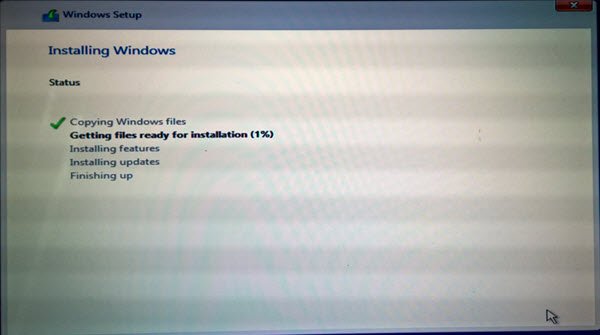
Windows 11/10 installation will start. It will copy setup files, install features, install updates, if any, and finally clean up the residual installation files. Once this is done, your PC will restart.
On the restart, you will see the following screen.
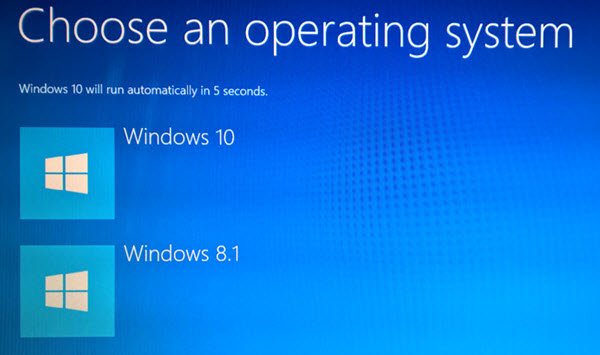
You will be greeted with the following screen if you are dual-booting it. If Windows 11/10 is the only operating system on your computer, you may be taken to the login screen directly.
Windows 11/10 will ask you a few basic questions about your preferences before completing the installation and taking you to the Windows 11/10 desktop.
Once the installation is completed, remember to reverse the changes in the Boot Option setup.
Read:
I hope it helped!
This post will show you how to install any version of Windows from one USB flash drive.
See this post if you receive Windows cannot be installed to this disk. The selected disk is of the GPT partition style while installing Windows. However, you must convert your hard disk to GPT to install Windows 11.
How to directly clean install Windows without upgrading first may also interest you.
Windows OEM computer users always have the option to Restore Factory Image.
How to install Windows 11 on Windows 10?
To install Windows 11 on Windows 10 or dual-boot Windows 11 and Windows 10, follow this detailed guide. However, to upgrade from Windows 10 to Windows 11, use the Windows Upgrade Assistant. Alternatively, you can use the Windows Settings panel to get the latest build of Windows 11.
How can I install Windows 11 for free?
You do not need to do anything extra to install Windows 11 for free. Microsoft allows users to install Windows 11 at no additional cost as long as they have an old and valid Windows 10 product key. You can follow any method to install Windows 11 for free.
