
In simple terms, Hardware Acceleration means using the computer’s hardware to perform a task faster than would be possible with software alone. It also enables smooth graphics rendering. In most processors, instructions execute sequentially (one by one), but you can execute them faster by slightly modifying the process with a technique. The idea is to move all graphics and text rendering from the Central Processing Unit to the Graphics Processing Unit to improve performance.
Sometimes loosely called as Graphics accelerators or Floating-point accelerators, Hardware accelerators can improve the performance of an application significantly. The term Hardware Accelerator has now been loosely replaced by more common and less descriptive terms such as graphics cards and video cards.
While the settings are best left at their default values in Windows, you can, if you wish to, turn off or disable Hardware Graphics Acceleration or reduce Hardware Acceleration – especially if you see Graphics error in your software. Turning off the Hardware Acceleration completely will run the application in software rendering mode.
Before you proceed, you should know that not all computer systems support this. Most new computers with NVIDIA or AMD/ATI graphics cards cannot change the acceleration level. These options are available on older systems and those that use the onboard video.
Disable Hardware Acceleration in Windows 11
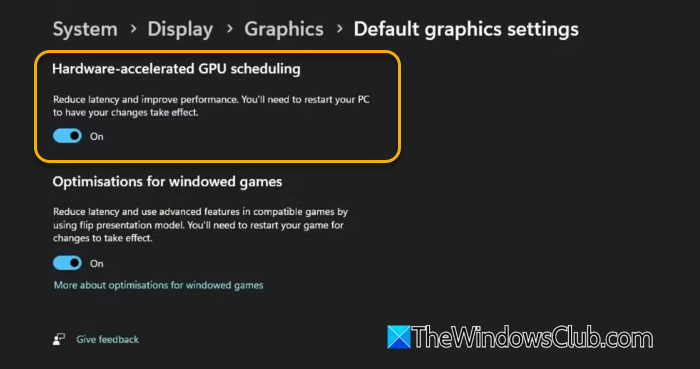
To disable Hardware-Accelerated GPU Scheduling (HAGS) in Windows11, you can follow these steps:
- Press Win + I to open Settings.
- Go to System > Display.
- Scroll down and select Graphics.
- Next, click on Change default graphics settings.
- Now, you have to toggle Hardware-accelerated GPU scheduling to Off position.
- Restart your PC for the changes to take effect.
TIP: AMD and NVIDIA now allow you to enable or disable hardware acceleration. You need to toggle Hardware-accelerated GPU scheduling On or Off.
Enable or disable Audio Hardware Acceleration for Sound via Windows Settings app
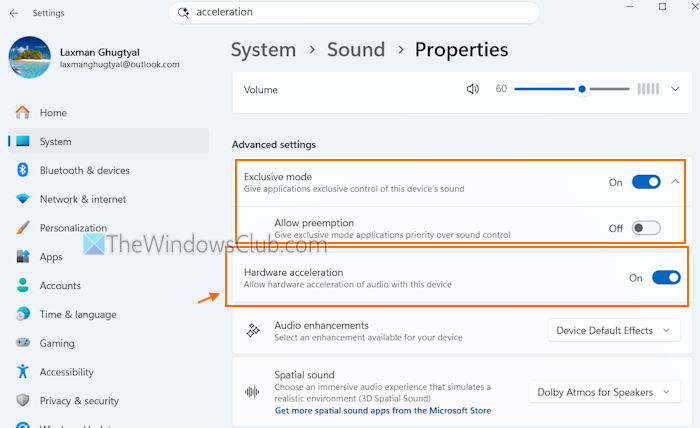
The steps to enable or disable Audio Hardware Acceleration for Audio using the Settings app in Windows 11 are as follows:
- Press the Win+I hotkey to open the Settings app
- Select the System category
- Access the Sound page
- Select the active playback device (in the Output section). This will open the Properties page of that device within the Settings app
- Scroll down to the Advanced settings section
- Use the Hardware acceleration toggle to enable or disable it.
The Advanced settings section also lets you enable Exclusive mode and the Allow preemption settings (as highlighted in the image above) to give applications exclusive control of the device’s sound. Previously, we had to access the Classic Sound panel to change this setting. Now, you can do this directly from the Settings app in Windows 11.
Disable Audio Hardware Acceleration in Windows 11
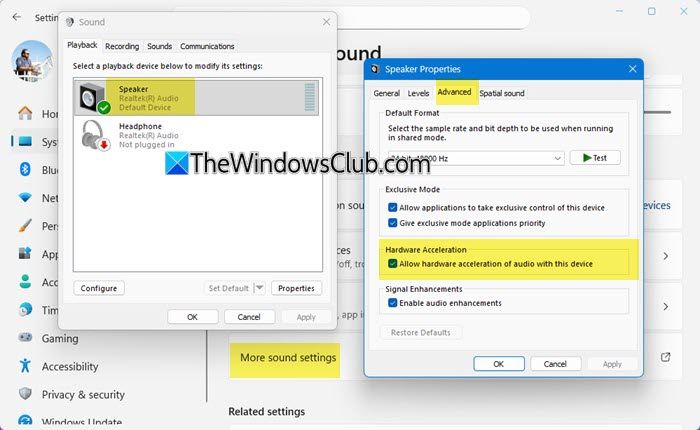
To disable audio hardware acceleration for playback devices in Windows11:
- Open Windows Settings > System > Sound.
- Scroll down and click More sound settings.
- Select your active playback device (e.g., Speakers) and click Properties.
Now go to the Advanced tab. - Uncheck Allow hardware acceleration of audio with this device.
- Click Apply and restart your PC.
Disable Hardware Acceleration in Windows 10
To disable hardware acceleration in Windows 11, follow these steps:
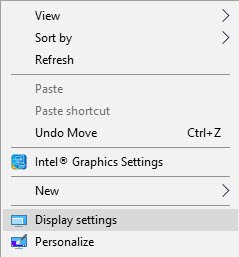
- Right-click on the Desktop and select the Display settings option.
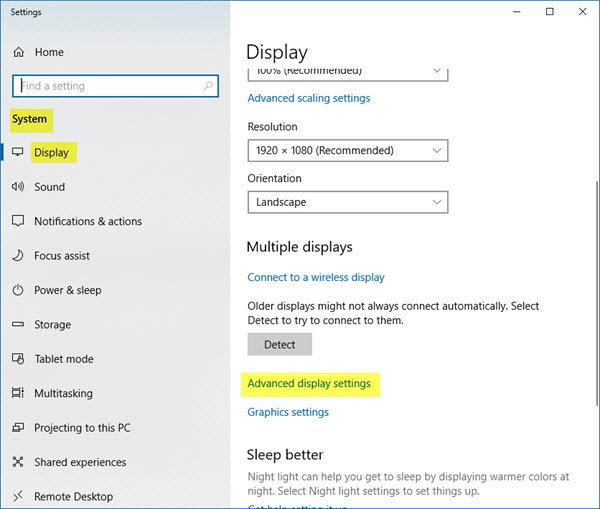
- Click the Advanced display settings option.
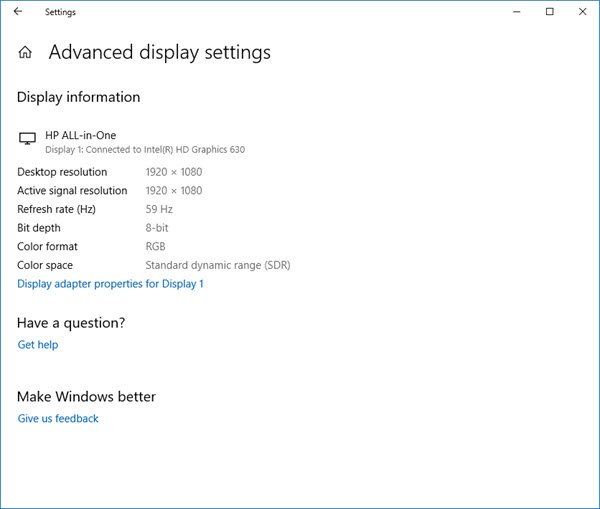
- Select the Display adapter.
- Switch to the Troubleshoot tab.
- Click the Change settings button.
- Click the bar and move it to the None.
- Click the OK button.
Let’s check out these steps in detail.
The Hardware Acceleration tab in Windows allows you to specify the performance of the graphics hardware present on your PC. In Windows 10 right-click on the desktop, select Display settings.
The Display Settings will open. Scroll down a bit, and you will see Advanced display settings.
Click on Display adapter properties link.
This will open the Graphics Properties box. Now open the ‘Troubleshoot’ tab. If your current display driver prevents you from changing the settings, the Change settings button will be grayed out and you will not be able to change them. If you do not see this tab, update your graphics driver and see.
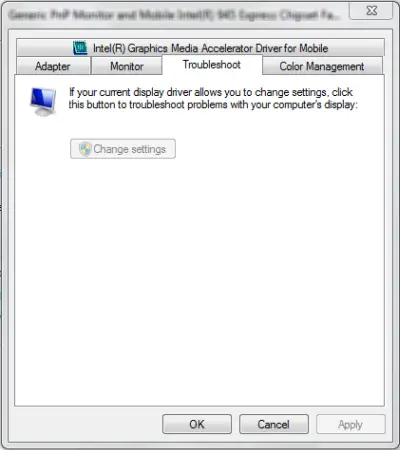
If your current display driver allows you to change the settings, you will be able to see the Change settings button. Click on it.
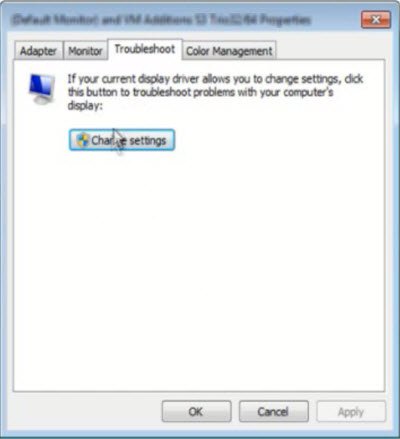
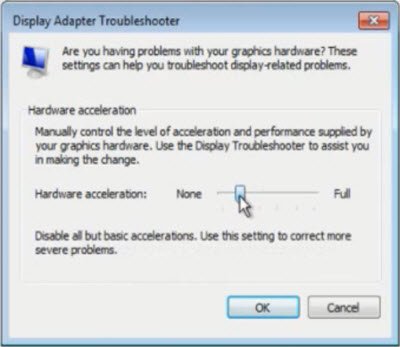
Now, the Display Adapter Troubleshooter will appear on your computer screen. Move the pointer to the extreme left to disable or reduce the hardware acceleration and click on OK. If you are having problems with your graphics hardware, these settings can help you troubleshoot display-related problems.
That’s it!
Disable or reduce Hardware Acceleration in Windows 8/7
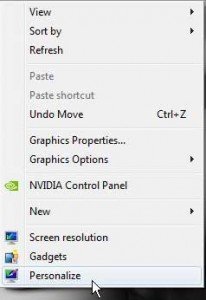
To disable or reduce Hardware Acceleration in Windows 8/7, first, right-click on the Desktop and from the context menu, choose the Personalization option.
Then, select Display from the left panel of the window and click on ‘Change display settings’.
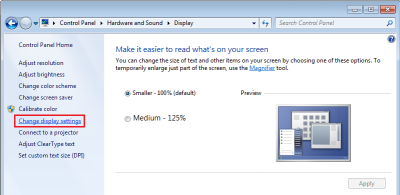
Next, click on ‘Advanced settings’.
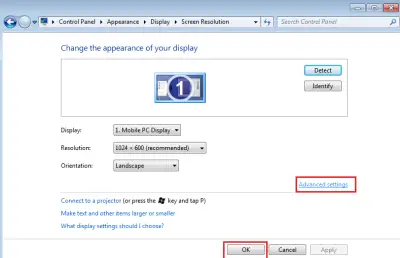
This opens the Monitor and Graphics Properties box. Then follow the latter part of the instructions above via the Troubleshoot tab.
This lets you enable, disable, or change the level of hardware acceleration in Windows.
Disable hardware acceleration button greyed out
If the option is grayed out, check whether your hardware supports it and ensure your drivers are updated. You may also see if DWORD DisableHWAcceleration exists in the following registry key and that it has a value of 0.
HKEY_CURRENT_USER\SOFTWARE\Microsoft\Avalon.Graphics\
If it does not exist, create a new DWORD DisableHWAcceleration. A value of 1 disables hardware acceleration. A value of 0 enables hardware acceleration, provided the system meets hardware acceleration requirements.
You can use the method above to disable hardware acceleration in Windows 11/10.
The new settings could not be saved to registry
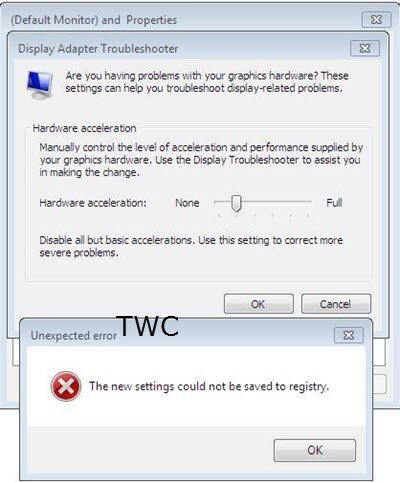
If you receive an Unexpected error, The new settings could not be saved to registry message box; then you may try the following:
- Visit the manufacturer’s website to download and install the latest drivers
- Run Display Quality Troubleshooter
- Run Hardware and Devices Troubleshooter.
How do I disable hardware acceleration?
To disable hardware acceleration in Windows 11, open Windows Settings> System > Display > Graphics > Change default graphics settings and then toggle Hardware-accelerated GPU scheduling to Off position.
How to disable Hardware Acceleration in Discord?
To disable Hardware Acceleration in Discord, open User Settings > Advanced. Here, toggle off Hardware Acceleration.
Related reads:
- How to disable Hardware Acceleration in Microsoft Edge
- How to disable Hardware Acceleration in Firefox and Chrome
- How to disable Hardware Acceleration in Brave browser
- How to turn off Hardware Graphics Acceleration in Office.
Does Windows 11 have hardware acceleration?
Yes, Windows 11 and Windows 10 both support hardware acceleration, which you can enable or disable easily. Whether it is the sound or video card, you can turn hardware acceleration on or off in Windows 11/10 using the guide above.
Should I disable hardware graphics acceleration?
It depends on your situation. Hardware acceleration is supposed to improve your user experience. However, if you experience any crashes or lag issues while using a certain application on your computer, turning off hardware acceleration might be handy for you.
