
If while working on your Windows 11/10/8/7, you often get the message Your system is running low on virtual memory, then you may want to try this, to resolve the low memory error problem.
Your system is low on virtual memory. To ensure that Windows runs properly, increase the size of your virtual memory paging file.
Or
Your system is low on virtual memory. Windows is increasing the size of your virtual memory paging file. During this process, memory requests for some applications may be denied.
Your system is running low on virtual memory
When there are too many programs open, like say, like Word or PowerPoint and when your computer feels the shortage of RAM or Random Access Memory, then your PC uses a space called the Virtual Memory. When virtual memory starts running out, you may find your program taking, forever to open, close, or perform.
To resolve this issue, especially if it is a frequent occurrence, you might want to consider increasing your RAM.
Alternatively, you can also increase the virtual memory size on your PC.
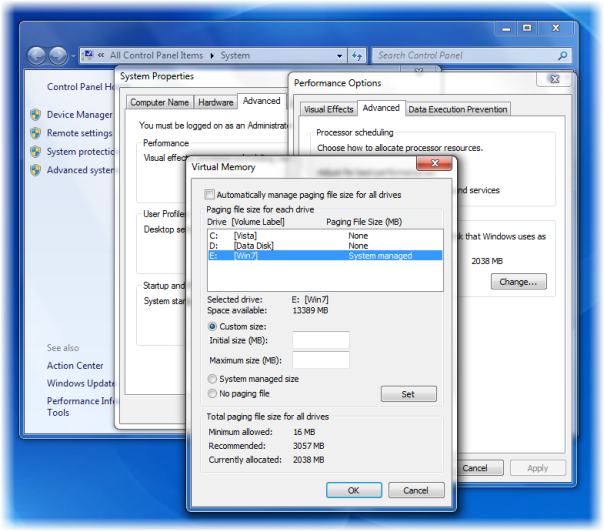
To do so, Click Start > Control Panel > System. In the left panel, click Advanced system settings. Next, in System Properties box, select the Advanced tab, and under Performance, click Settings.
Again here, in Performance Options box, click the Advanced tab, then under Virtual Memory select Change.
Now, un-check the check-box: Automatically manage paging file size for all drives
Select the drive (system drive) that contains the paging file and click on Custom size.
Here you may either choose and type a new size in the Initial size (MB) or you may choose Maximum size (MB) box, click Set > OK.
Close all earlier boxes by clicking Apply > OK, where required.
Hope this helps!
Read next:
- How to create RAM Drive in Windows
- Your computer is low on memory in Windows 11/10.

