
If you want to extract audio from a video file in Windows 11/10, then use Clipchamp, PowerToys or any of these free software or online tools. In this post, you will see how to capture audio from a video. You can add MP4, MOV, MPEG, FLV, WMV, AVI, or other video formats and extract audio from that file. When you have the audio, you can create a ringtone or use audio for other purposes.
How to extract Audio from Video in Windows 11
This post covers free software and online services for extracting audio from a video file. They are:
- Clipchamp
- PowerToys
- Online Audio Converter
- Online Converter
- Audacity
- Any Audio Converter
- Pazera Free Audio Extractor.
Each option supports multiple video formats. Also, you can set the audio quality for the output. Let’s check them.
1] Clipchamp app
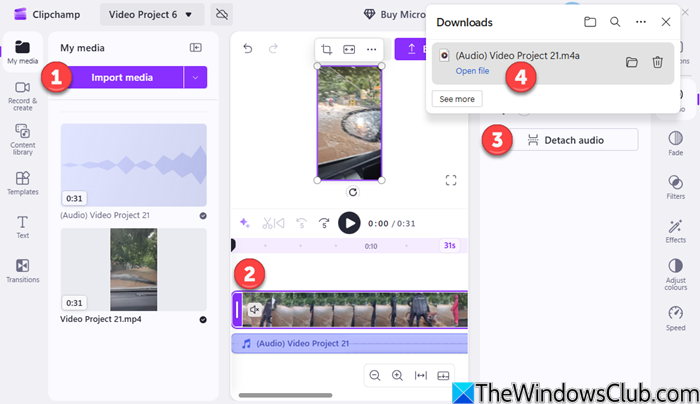
Clipchamp is built into Windows 11 and is very easy to use for extracting audio from a video file. So launch Clipchamp and take these steps:
- Click on Import media and select your video file
- Then drag it to the Timeline.
- Now right-click on the video and from the panel that appears, select Detach audio
- Clipchamp will start extracting the audio and save it to your Downloads folder.
You can now open and play the extracted audio file.
2] PowerToys
PowerToys is a free, open-source tool developed by Microsoft that features a bunch of utilities to enhance Windows users’ productivity. It can help you with things like remapping keys or shortcuts, text extraction, and audio extraction. However, in this post, we will specifically discuss how to extract audio using PowerToys on Windows.
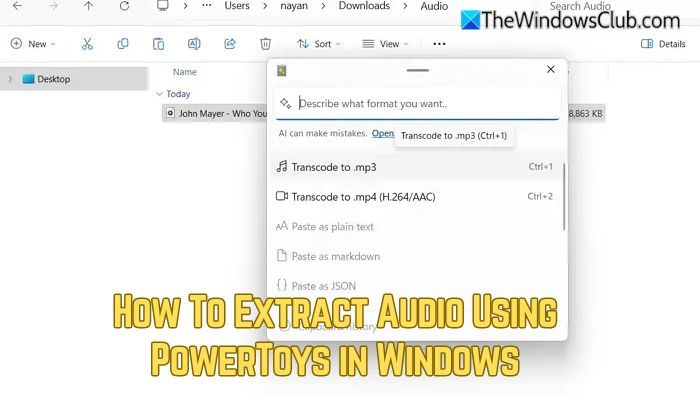
Using PowerToys, you can extract audio from a video file with just a shortcut, and if you are a content creator, it is a must-have tool.
In case you don’t have PowerToys installed already, then open Microsoft PowerShell and run the following command: winget install --id Microsoft.PowerToys
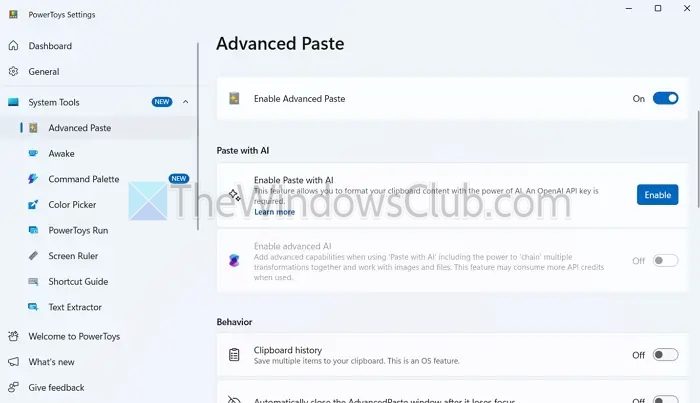
- First, open PowerToys.
- Click on System Tools from the sidebar to expand it.
- Select Advanced Paste and make sure to toggle on the Enable Advanced Paste option, then close the PowerToys app.
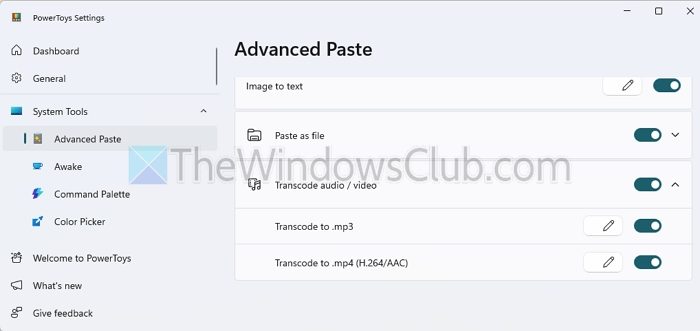
- Scroll a little, and you can enable the Transcode audio/video along with the option to transcode to MP3 and MP4.
- Now, select the video file from which you want to extract the audio and press CTRL + C.
- Next, press the Windows Key + SHIFT + V shortcut.
- Select the Transcode to .mp3 option.
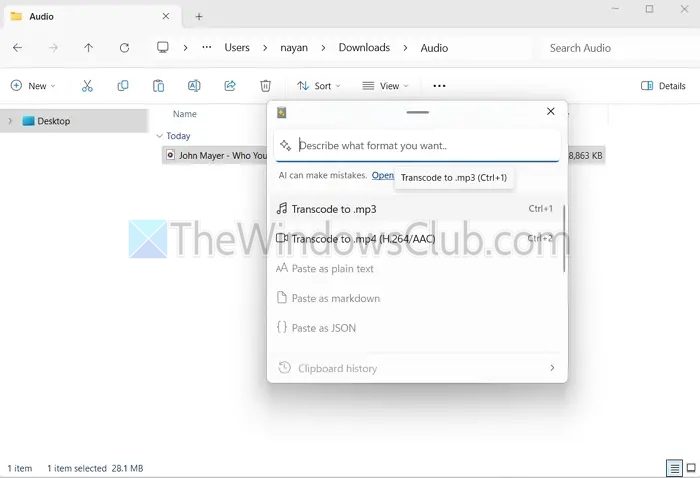
- That’s it—PowerToys will now extract the audio and save the file in the same directory.
So, that was a straightforward way to extract audio from a video using PowerToys.
TIP: If you want to extract audio from multiple videos at once, you need to look for alternative tools like FFmpeg.
3] Online Audio Converter
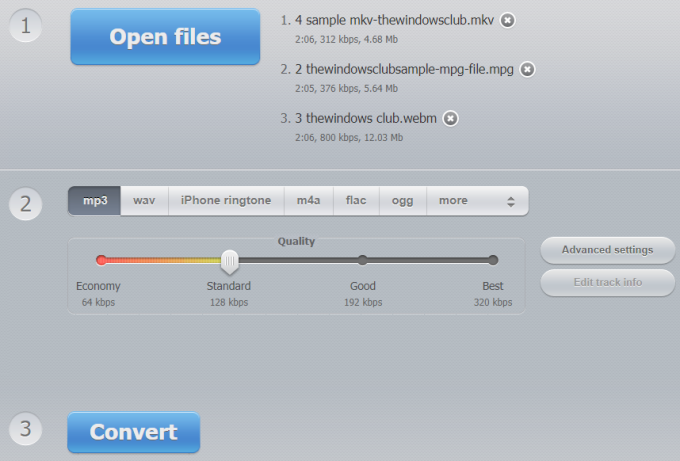
This Online Audio Converter service lets you extract audio from video files in batch. It supports 300+ video formats and it can provide output in MP3, OGG, M4A, AMR, WAV, and other audio formats. It has some other interesting features that make it a good audio extractor service. You can set audio quality (192 kbps, 320 kbps, 128 kbps, etc.), audio channels, reverse audio, add fade in and fade out effect, etc. It doesn’t mention the video size limit so you can try to capture audio from large video files.
Open the homepage of this audio converter using this link. On that page, you can add multiple video files from your Dropbox account, Google Drive, or PC. An online video can also be converted by adding the video URL. When the video files are added, set the output audio format. You can also use its Advanced settings feature to set bitrate, channels, audio quality, etc. The feature to add track info is also available to set the audio title, genre, year, artist name, etc., but it is only available when you have added a single video file.
When everything is set, use Convert button. Finally, you will get the extracted audio that you can download to desktop, Google Drive, and Dropbox.
4] Online Converter
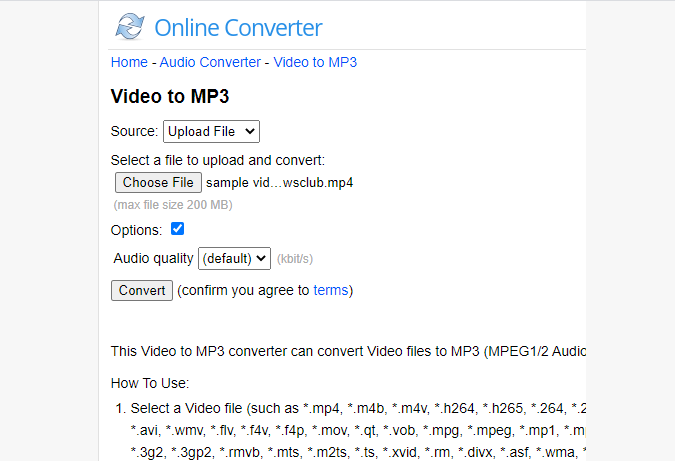
Online Converter is one of the popular file converter services. It has so many conversion tools like eBook converter, image, document, video, audio, unit converter, etc. You need to use its video to MP3 tool under the video converter page to capture audio from video. It supports only one video file and MP3 as an audio format but it gives a good output.
Open its video to MP3 page using this link. You can add an online video or upload a video (up to 200 MB) from the desktop. MOV, M4V, FLV, WMV, MPEG, XVID, 3GP, RMVB, MP4, and other video formats are supported. After that, you can either set audio quality using the drop-down menu or keep the default audio quality. Click on Convert button and then you can get the audio file.
5] Audacity
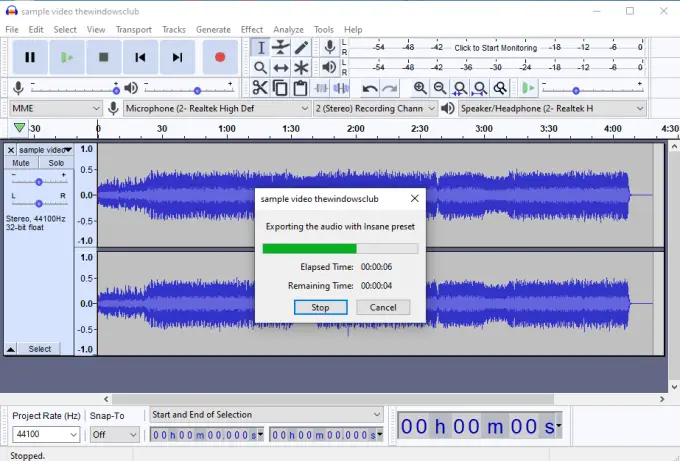
Audacity is a very popular cross-platform and open source audio software. It has features like edit audio, remove background noise, record audio, etc. To capture audio from video, you can either use the Record button visible on its interface to manually record the video playing on a PC or simply export audio from the input video. Recording audio from video manually is time-consuming, so you can choose the second option. It lets you save audio in MP3, OGG, MP2, FLAC, or other audio formats.
On its interface, add a video file. After that, you can extract the entire audio or audio from the selected part of the video. To capture audio from a specific part, you can drag the mouse cursor on audio waves visible on its interface. This will mark the start and end parts of the output. Additionally, you can use the Effects menu to add fade-in and out effects, change pitch, speed of audio, add echo, and more.
When you have done everything, use Export Audio or Export Selected Audio option under the File menu. Finally, in Save As window, you can select audio quality and audio format to fetch audio from video.
You also need to install FFmpeg (if not already) so that you can import any video format file on Audacity to extract audio from that video.
TIP: Take a look at Avidemux too.
6] Any Audio Converter and Audio Extractor software

Any Audio Converter is a multipurpose program available for free for personal use only. It comes with DVD creator, online video downloader, capture audio from CD, and other features. You can use its Convert Video tab to fetch audio from video. There are two interesting features that I like. First is you can add multiple video files and then create a single audio file. Another feature is you can capture a specific part of a video by selecting start and endpoints and save the selection as an audio file.
To extract audio from video files, add RMVB, FLAC, AVI, MPEG, MOV, MP4, or other formats supported by it. For each video file, it provides Clip this item option. Using that option, you can extract a specific part of the video as an audio file. If you want to convert the entire video, then simply ignore this option.
When options are set, use the drop-down menu to set the output audio format. AAC, MP3, AIFF, WAV, WMA, and other audio formats are available. Choose any audio format, set the output folder, and use Convert Now button. It will save audio files in the output folder. Here is its download link.
7] Pazera Free Audio Extractor
Pazera Free Audio Extractor is a program designed to extract and convert audio tracks from audio and video files to MP3, AAC, AC3, WMA, OGG, FLAC, M4A, WV, AIFF, WAV, and other formats.
This is a very powerful tool, from what we can tell. The user interface might be a little intimidating at first, but don’t sweat it. Once you’ve extracted your first audio, everything from there on will be a breeze. Bear in mind that if you want to convert audio to MP3, you will need to use the latest version of the LAME Encoder. Not only that, but conversion can be accomplished using LAME presets.
Add your first file
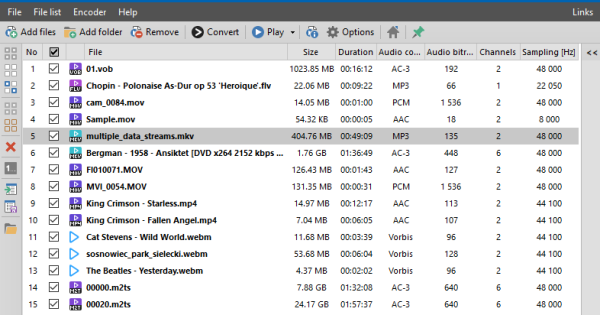
Adding a file or multiple files is super simple. Click the button labeled Add Files, or the one labeled Add Folders. You should now see your added files, which you can do with whatever you please, at least within the limitations of the tool.
Edit your stuff
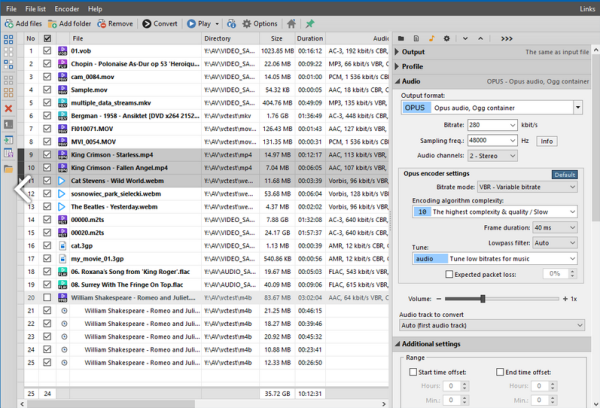
From the right pane of Pazera, users can make several changes to the file before converting or extracting. Changes can be made to the video and audio with relative ease; therefore, with the right mindset, one should have little problems getting things done.
Extract and convert
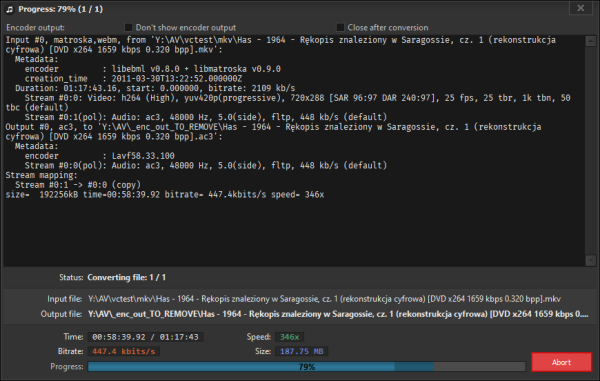
OK, so now its time to extract audio or convert to a different platform. This is super easy to get done, so here’s the thing. After adding the files to the program, simply tick each file then click on the button at the top that says Convert.
From that section, you can both convert to a different format or extract audio. Everything you need is right there at your fingertips; therefore, you should worry about nothing.
Options
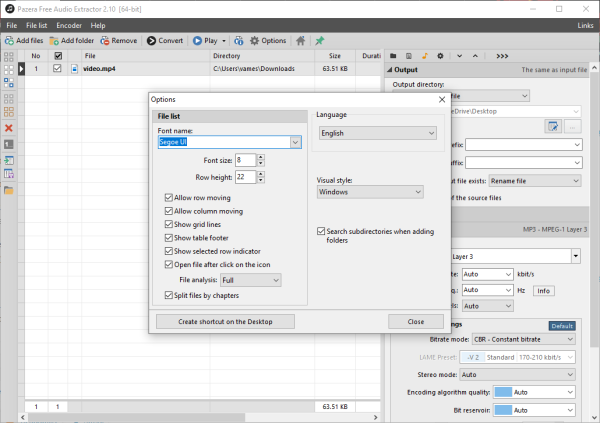
OK, so when it comes down to the Options section, there isn’t much to do here, really. The user can change the font and the size, among other things. Furthermore, if one wants to change the window’s style, this can be accomplished via the Visual style section.
You can download Pazera Free Audio Extractor software directly via the official website.
So, these are the free services and software that help capture audio from video. While all of them produce good output, Audacity has some advanced features you might want to try first.
Can I change the audio quality or bitrate when extracting audio with PowerToys?
PowerToys does not currently allow customization of audio output settings like bitrate or quality when transcoding. It uses default settings optimized for general use. If you need more control over audio quality, tools like FFmpeg or Audacity would be better suited.
Does PowerToys require an internet connection to extract audio from videos?
PowerToys performs audio extraction entirely offline. Once installed, it uses local processing to transcode video files, so no internet connection is needed for this feature to work.
