
The Task Manager is a really powerful tool that does you do a lot of things, including managing your start-up items. It also keeps a history of the resources being used by your Microsoft Store apps.
Delete Usage History of Apps in Windows 11/10
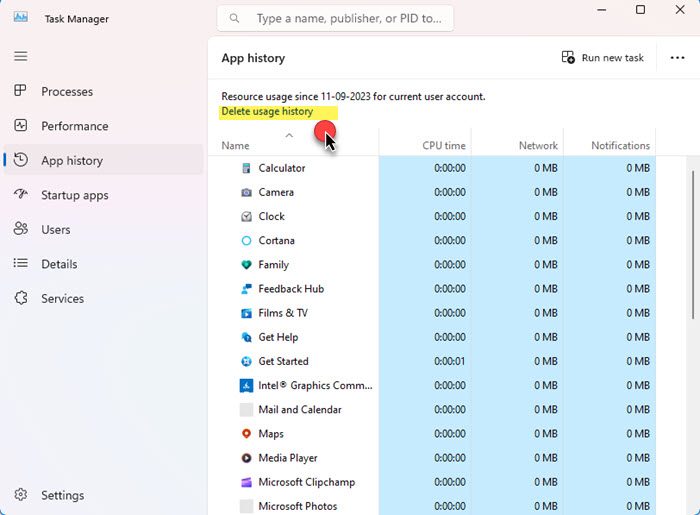
Over a period of time, this history may get outdated, and you may want to clear up all the figures. If you want to delete Windows Apps data usage, do the following:
- Click Ctrl+Shift+Esc to open the Task Manager.
- Next click on the App history tab.
- Here you will get to see:
- CPU time,
- Network usage,
- Metered network usage and
- Tile updates figures.
- If you wish to clear all these counters, click the Delete usage history link.
All the figures will be reset to zero.
Tablet owners who want to watch the bandwidth used by the apps may find this information especially useful. Looking at the CPU will also give them an idea of how much battery power each app consumes.
I hope this helps.
Read next: How to view and clear Activity History on Windows PC.

