
The Windows Timeline feature tracks everything you do on your PC i.e., apps you open, files you had accessed, etc. All the data is stored on your Windows 11 and Windows 10 PC, under your Microsoft account. This makes it easy to access them back and start working from your left. This is known as Activity History.
NOTE: The option to send activity history to Microsoft has been deprecated from Windows 11 23H2. In earlier Windows 11 versions, the option was still available on the activity history page, and if enabled, activity history data would still be sent to Microsoft. You can either turn this option off or update to the latest Windows version to get the most recent updates.
Activity History in Windows 11/10
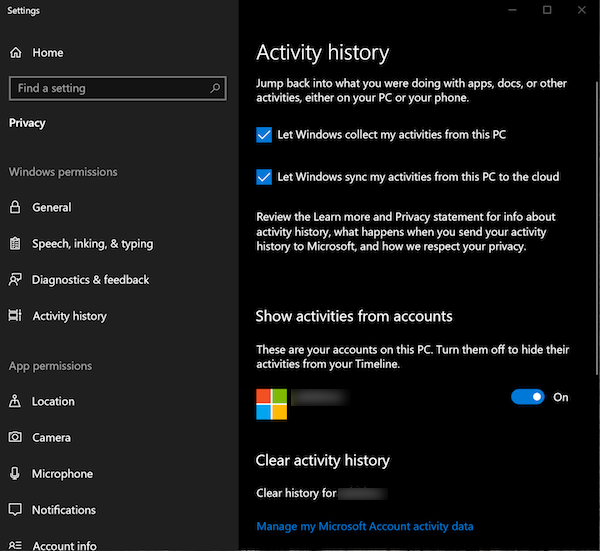
Keeping Windows Privacy in mind, Microsoft offers you to manage your activity history, and restrict Windows to keep track. Just before we start, there are a few things you should know about Timeline and Activity History:
- It collects activities from the PC you are using.
- It can sync your activities from this PC to the cloud.
- You can access this history when you switch PC
All these are linked with the Microsoft Account you sign in to the PCs.
To manage everything, go to Settings > Privacy > Activity History.
How to remove your account from Activity History
Under Activity History, look for the section listing all the accounts on that PC. There is a toggle button; choose to turn it off. Windows 10 will not track any activity and create a timeline for that account.
Prevent Windows 11 from sharing Activity History data
Press Win+I in combination to open Windows Settings. From the left side panel, select the Privacy & security heading.
Move to the right side and locate the Activity History tile. When found, click it to expand its menu of options.
In the new page that opens, scroll down to the Clear Activity History section and hit the clear button below the desired account.
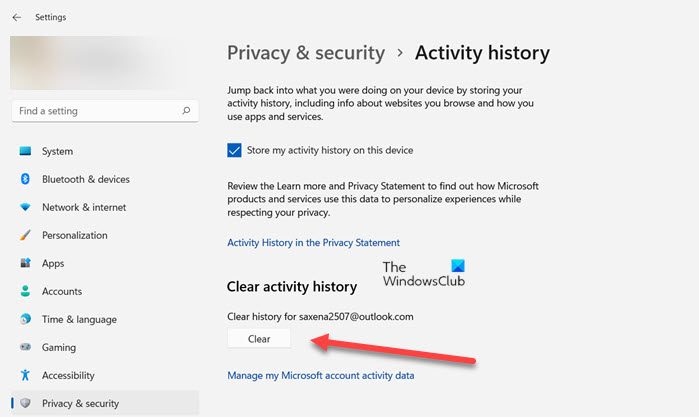
Next, uncheck the Store my activity history on this devices box under the Activity History privacy page.
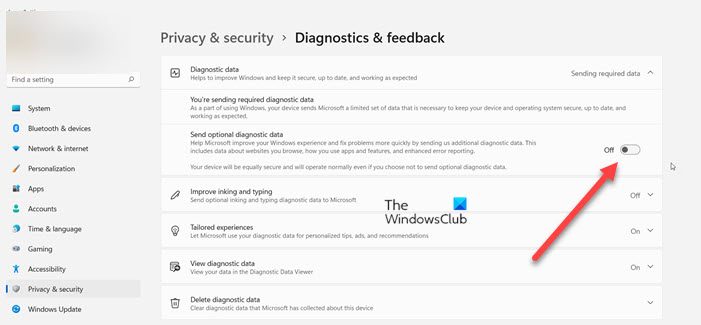
Similarly, go back to Privacy & security page, choose Diagnostics & feedback tile and under the page settings, slide the toggle next to the Send optional diagnostic data heading to the off position.
How to clear Activity History from Windows 11 PC
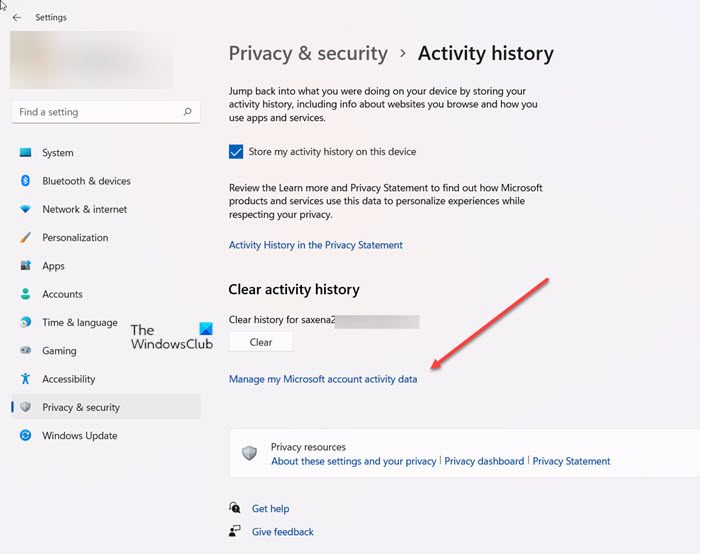
Under section Clear Activity History, you can choose to clear the history for your account. To manage & clear all your history, click on the link that says Manage my Microsoft Account activity data.
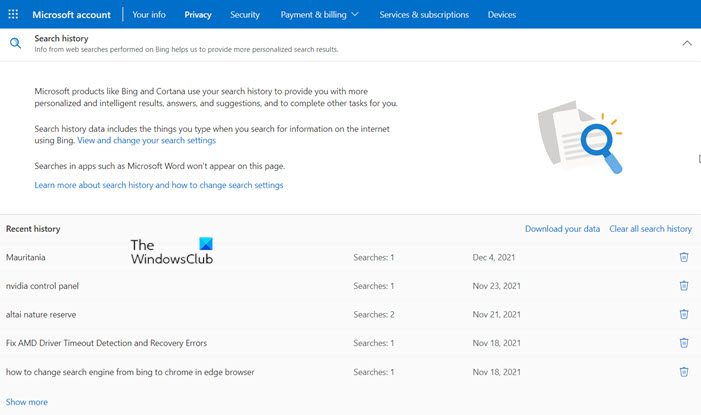
This will take you to the Microsoft Privacy website, which may ask you to sign in. Once you are into your account, switch to the activity history page. Clear your history.
Read: How to Delete Usage History of Apps in Windows
Prevent Windows 10 from sharing Activity History data
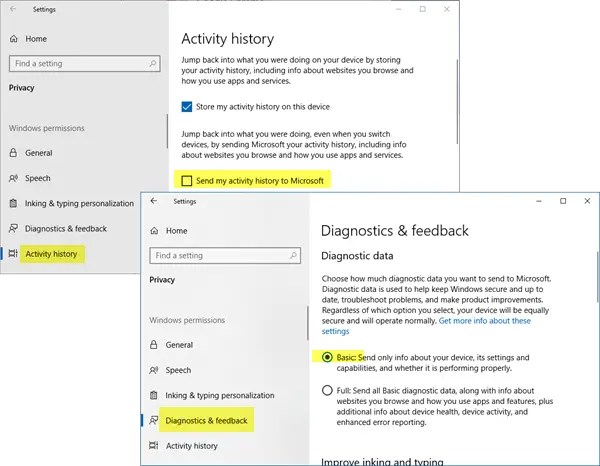
To prevent Windows 10 from sharing Activity History data, you need to do the following:
- Open Settings > Privacy > Activity history > Uncheck ‘Send my activity history’.
- Open Settings > Privacy > Diagnostics & feedback > Set ‘Diagnostic data’ to Basic.
Read: How to disable Windows Active History permanently using REGEDIT or GPEDIT.
How to clear Activity History from Windows 10 PC
In the Clear Activity History section, you can clear the history for your account. To manage & clear all your history, click the link labeled “Manage my Microsoft Account activity data”. This will take you to the Microsoft Privacy website, which may ask you to sign in. Once you are in your account, switch to the activity history page.
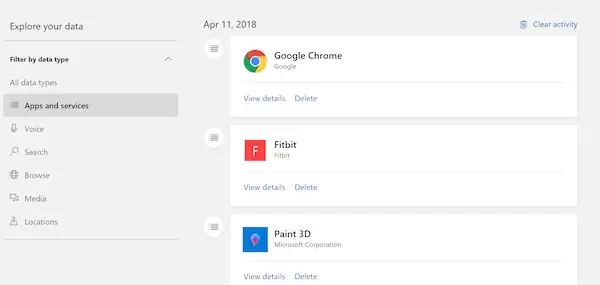
Here you can see the collected data based on Apps, and Services, Voice, Search, Browse, Media, and locations. That said, you can always go to Microsoft’s Privacy Settings for your account, and directly do it from there even when you are not on your PC. The Privacy Section of your Microsoft Account can be accessed by following this link.
Microsoft has clearly stated here that the information on that page represents the most relevant personal data they store with your MS account to help improve your experience with products and services. So, if you use Timeline on multiple PCs, it delivers a great experience.
Since this page is related to you, the data is visible only to you, and you can clear it at any time by selecting a data type from the filters on the page. The Privacy Dashboard also offers you to download your data, access Cortana’s notebook, change ad settings, and so on.
Where is Activity History in Windows 11?
Activity History in Windows 11 could be found under the Privacy & Security Settings section. However you should know that the option to send activity history to Microsoft has been deprecated from Windows 11 23H2. In earlier Windows 11 versions, the option was still available on the activity history page, and if enabled, activity history data would still be sent to Microsoft. You can either turn this option off or update to the latest Windows version to get the most recent updates.
How do I open Optional diagnostic data?
To open optional diagnostic data in Windows 11, go to Settings > Privacy & security > Diagnostics and feedback. Here, you can delete diagnostic data for your device. Note that selecting this option does not delete the diagnostic data that is associated with your Microsoft account, nor does it stop your diagnostic data from being sent to Microsoft.
