
Microsoft has made some changes to how it collects users’ personal data, and how users manage what the company collects. It’s a whole new web-based Privacy Dashboard that works and probably works better than what was available before.
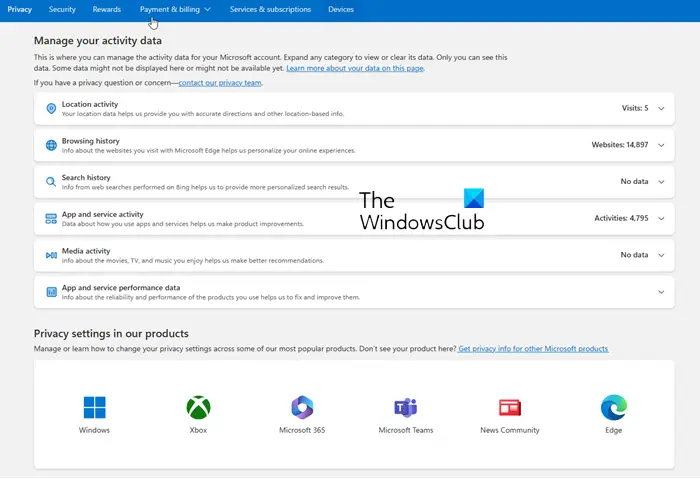
For quite some time, computer users have been asking Microsoft for more control over their data and for the company to make it easier to understand how data is collected. Microsoft says there are benefits to having the corporation gather data, but not everyone knows what these benefits are.
Microsoft Privacy Dashboard
The new Microsoft Dashboard lets you manage your Rewards, Shop with smart limits, Add money anytime to your kids’ Microsoft accounts, Use phones to keep tabs on everyone, Check in on kids’ online activity, View and clear your browser, Clear your search history, View and clear information about your Bing search activity, Review your location data, See and clear location data that we collect when you use Microsoft products and services, Edit Cortana’s Notebook, Manage what Cortana knows about you to provide personalized recommendations, Change your password or make it stronger, See when and where you’ve signed in, Manage payments, services, renewals & subscriptions, Redeem gift cards and codes, Find lost devices, Schedule a repair and more!
Let us take a look at how to manage Data with this web-based Privacy Dashboard. From our point of view, the whole process is easy, and as such, anyone should be able to take advantage of it.
First, users will be required to visit account.microsoft.com/privacy to have a look at the data Microsoft has collected. From here, folks can look at their Browsing history, Search history, Location activity, Cortana’s Notebook, and Health activity.
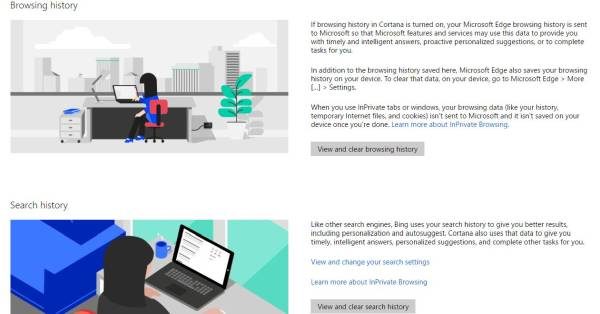
Beside each privacy option, there’s a description explaining what it’s all about, along with a button that lets the user view and erase their history. For example, if the user clicks on “View and clear browsing history”, they’ll see a list of websites visited when using Microsoft Edge.
It also shows how long a user has visited a website in a single day.
To remove the entire history, click on the “Clear browsing history” button on the right. Remember that if this button is clicked, Microsoft won’t be able to provide intelligent answers for quite some time until your browsing history is populated again.
When it comes down to clearing your Location History, just follow the same instructions and all should be well.
Edit Cortana’s Data
Editing data here is a one-way street; let’s be clear. It’s only possible to delete information one-by-one or in full, but not to add it. Those who want to add things to Cortana, will have to launch Cortana via their Windows computer or supported smartphone.
Remember that clearing Cortana’s data on you will make it difficult for the service to provide recommendations and other relevant information.

In terms of the Health Activity option, just do things as if you were editing and or deleting the Cortana data. Bear in mind that the Health activity option might not be around for long, seeing as the Microsoft Band has been canceled.
Let’s Talk About Search History
Whenever the user makes web searches through Bing, whether they are using Edge or another web browser, it is saved on the web. This will only happen if the user is logged in to their Microsoft account when searching. Now, not everyone wants to keep their search history on the web for a long time, which is why Microsoft lets you delete it.
To clear your search history click on the relevant button, then select “Clear Search History” to move forward. Bear in mind that clearing your search history will make it difficult for Bing to provide relevant search results.
Overall, this is a great thing Microsoft has done. It’s easy to understand, and there are even animated images to make the experience that much better. You can use this dashboard to harden Microsoft Account Privacy Settings.
Now read: Microsoft Account protection login and security tips.
