Windows describes a ‘Power Plan‘ as a collection of hardware and system settings that manage how your computer uses power. The plan, to a great extent, helps your system save energy, maximize its performance, or balance the two.
We have already seen how to manage Windows Power plans using Command-Line, the pros and cons of the different Power Plans and how to troubleshoot Power Plans in the Windows operating system. Today, we will show you how to change Power Plan, Settings & Options in Windows 11/10/8/7, and create a Custom Power Plan.
Change Power Plan in Windows 11/10
To start, click on the battery icon visible on the taskbar of your Windows computer screen and choose ‘More power options‘.
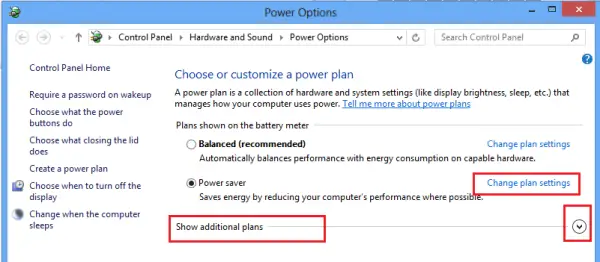
The ‘More Power Options’ screen opens, and from there you can select from the three predefined plans – Balanced, Power saver, or High performance, and change their plan settings by clicking on the ‘Change Plan Settings‘ link. The last one, i.e., High-performance plan option remains hidden. You need to click on the drop-down arrow adjacent to ‘show additional plans’ to access it.
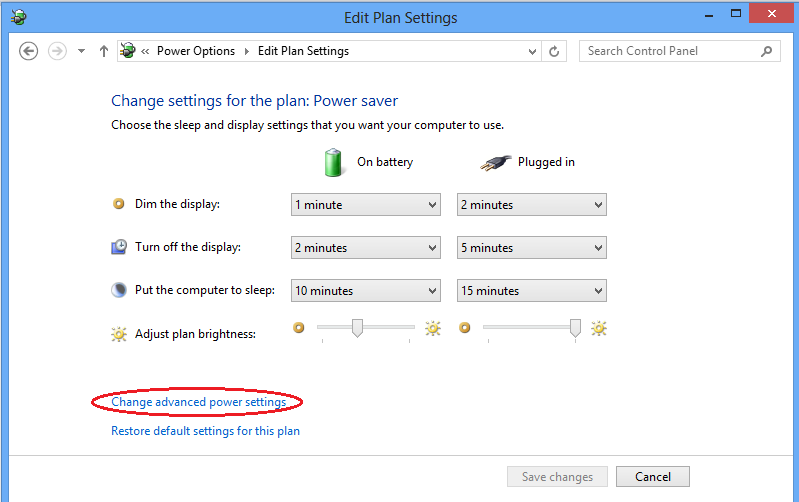
Now, you can change the settings of the selected Power Plan (Power Saver). Here, you can also change the SLEEP and DISPLAY power-plan settings. For instance, you can set the time for turning off the display, decide the time to put the computer to sleep, and so on.
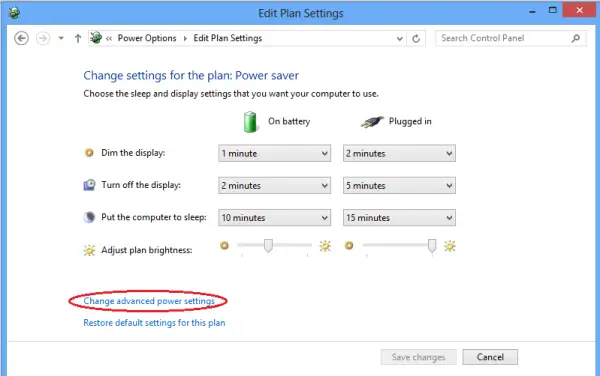
If you want, you can change the advanced power settings too. To do this, click on ‘Change advanced power settings‘ link. Check the screenshot above.
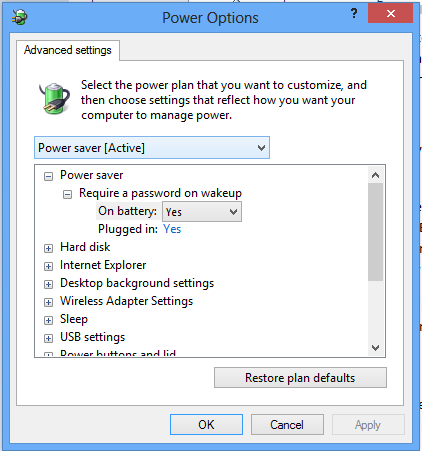
Then, click on the ‘Change settings that are currently unavailable link‘. This option allows you to fine-tune several power plan settings. Make the changes as per your requirements.
Read: Turn off Windows laptop screen with ScreenOff.
Create Custom Power Plan in Windows 11/10
If you wish, you can also create a Custom Plan. However, for this, you need to go back to step 2 to access ‘More Power Options’ screen. There in the left pane, you can find the option – Create a Power Plan.
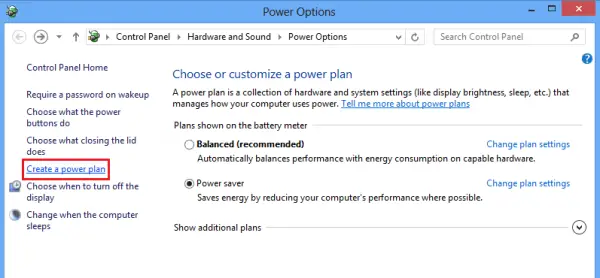
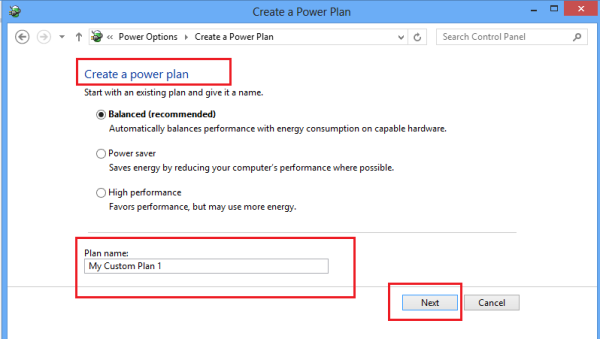
Click on the option to go to the Create a power plan window. There you can give your power plan a name and click ‘Next’.
On the next screen, you can choose the Sleep and the Display Settings you want to use and click the Create button.
That’s it!
You will now be able to see your custom power plan under the Preferred Plans list.
Read next:
- Can’t change or create a new Power Plan in Windows 11
- How to enable Ultimate Performance Power Plan in Windows.
- How to restore missing Default Power Plans in Windows.
These answers to the common Windows Power Plan FAQ may also interest you. Go here to learn how to Customize, Rename, Backup, Restore Power Plans in Windows.