
If the Show desktop button on the Windows 11/10 Taskbar is missing or not working, then this post shows ways on how you can fix the problem. There is a Show desktop button present on the bottom right corner in the taskbar of Windows 11/10. Placing the mouse cursor on that button helps to peek at the desktop or preview the desktop – and clicking on that button minimizes all applications and folders to the taskbar to view the desktop. If that Show desktop button is missing, not working, or available, then this post might be helpful.
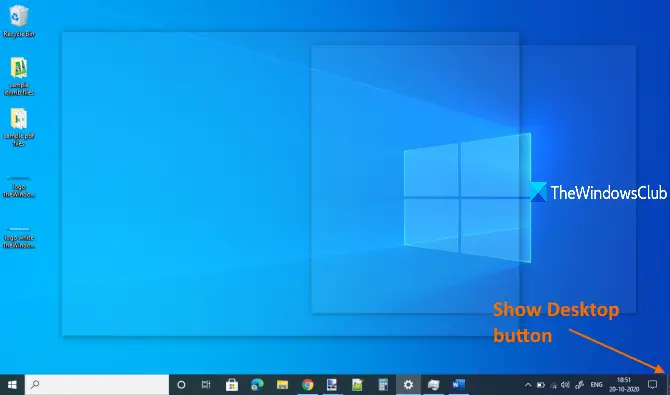
Aero Peek or Show desktop button not working or missing in Taskbar in Windows
There is no specific reason for this issue. It might have happened after updating Windows 11/10 or due to some other causes. But if you are facing such an issue, then you can try some helpful tips covered in this post.
- Turn on the feature using the Settings app
- Enable Peek via Performance Options
- Turn off Tablet mode
- Restart File Explorer
- Create a desktop shortcut
- Re-register this DLL
- Go back to the previous version
- Reset Windows 11/10.
1] Turn on the feature using the Settings app
Windows 11
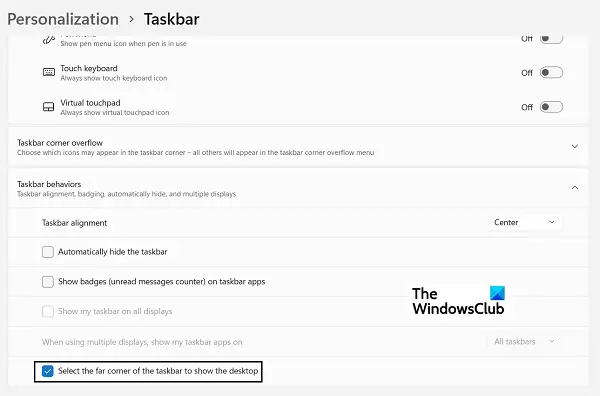
- Open Windows Settings by pressing the Windows and ‘I’ key combination
- From the options tab on your left, click Personalization and click on the Taskbar option
- You’ll see several options here, all of which have subsequent drop-downs. Here, click on Taskbar behaviors
- From the resultant drop-down, locate the option that says ‘Select the far corner of the taskbar to show the desktop’.
- Toggle it ON.
Windows 10
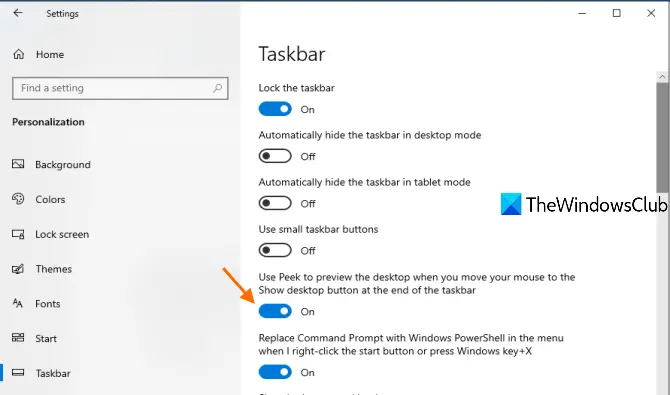
It might be possible that Peek to preview the desktop option is turned off because of which you’re facing this issue. In that case, you can simply access taskbar settings in Windows 10 Settings app and turn on that option. The steps are as follows:
- Open Settings app using Winkey+I hotkey or Search box
- Select Personalization category
- Select Taskbar page
- Turn on Use Peek to Preview the desktop…. option available in the right section.
Now place the mouse cursor on the Show desktop button. It should help you peek at the desktop.
2] Enable Peek via Performance Options
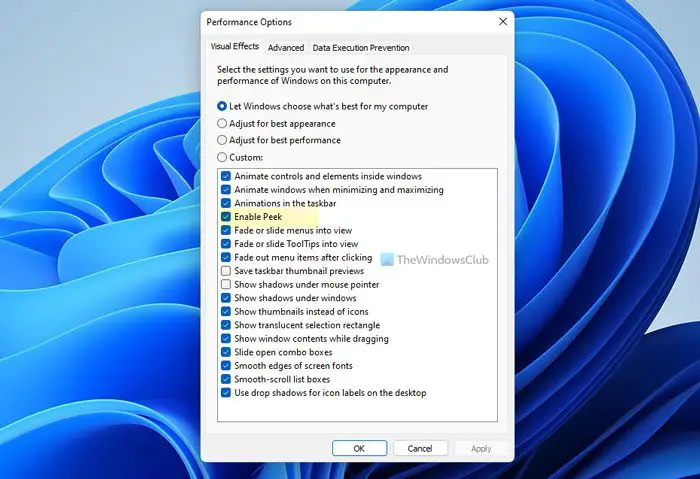
Open Control Panel > Performance Information and Tools > Adjust Visual Effects.
Ensure that the Enable Aero Peek box is checked.
Also, ensure that:
- Enable desktop composition &
- Use visual styles on windows and buttons
is checked. Clicked Apply > OK.
Better still, select Let Windows choose what’s best for my computer and click Apply/OK.
You could also copy-paste the following command in the CMD window, and hit Enter.
rundll32.exe Dwmapi.dll,DwmEnableComposition
This will flush the Aero cache. Even if you find that your Flid3D is not working or disabled, you may try this.
If this does not help, maybe your Desktop Manager Session Manager Service and the Desktop Window Manager has been disabled. Open Service Manager and check.
3] Turn off Tablet mode
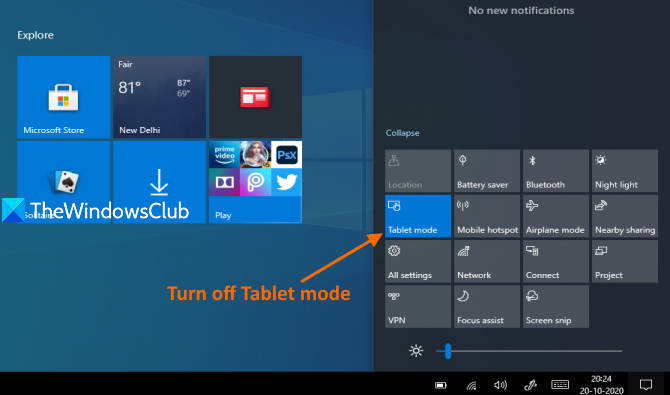
Windows 10 not showing desktop error may also occur if Tablet mode is turned on. So, you need to turn it off using the following steps:
- Open Action Center by clicking on its icon available on the taskbar
- Click on the Expand option
- Click on the Tablet mode button to turn it off or on.
If you are stuck in Tablet mode and not able to turn it off using this method, then you can check other ways to turn off Tablet mode in Windows 10.
Bonus Tip: You can also use Winkey+D hotkey to show the desktop.
4] Restart File Explorer
You might have noticed that sometimes the Start menu, Taskbar, or other applications become unresponsive, and restarting File Explorer (or Windows Explorer) helps in fixing that problem. The same might also work to make the Show desktop button work again. So, try to restart File Explorer and see if the problem is fixed.
5] Create a desktop shortcut
Create a new shortcut using this for Path and pin it to the taskbar:
explorer.exe shell:::{3080F90D-D7AD-11D9-BD98-0000947B0257}
6] Re-register this DLL
If Aero Peek is not working, open Taskbar settings and ensure that the Use Peek to preview the desktop etc… setting is set to the On position.
Re-register the concerned DLL file by using the following command and see if that works for you:
regsvr32 /i shell32.dll
Restart PC and check.
7] Go back to the previous version of Windows 11/10
As we mentioned earlier, this Show desktop, not working issue might also occur after updating to Windows 11/10. In this case, you can go back to the previous version of Windows.
However, this option is available only if the Windows.old folder (that contains a copy of the previous version or build of Windows) is present in your PC and your PC was updated less than 10 days ago.
8] Reset Windows 11/10
Another option to resolve show desktop error is reset Windows. Before you reset your PC, you also have the option to remove all apps and settings and keep your files or remove everything, including your personal files.
Read: How to troubleshoot & Fix Aero issues in Windows.
How do I get the Show desktop button back on the Taskbar in Windows 11?
In order to get the Show desktop button back on the Taskbar in Windows 11, you need to enable it manually. For that, open the Windows Settings by pressing Win+I. Then, go to the Personalization tab and click on the Taskbar menu. From here, you need to expand the Taskbar behaviors section and tick the Select the far corner of the taskbar to show the desktop checkbox.
How do I fix my desktop icons not showing in Windows 11?
If you cannot find icons on the desktop, you need to check the Desktop Icon Settings panel first. Following that, you can open the Task Manager and restart the Windows Explorer process. Also, it could help if you could rebuild the icon cache on your Windows 11 PC.
How do I enable Aero Peek in Windows 11/10?
To enable Aero Peek in Windows 11 or Windows 10, you need to open the Performance Options panel first. You can search for it and click on the individual search result. Then, tick the Enable Peek checkbox. Finally, click on the OK button to save the change.
Why is my peek at desktop not working?
Although the Aero Peek option is enabled by default on Windows 11 or Windows 10 computers, at times, it could be disabled. In such situations, this functionality won’t work on your PC. That is why you can follow the aforementioned steps when Aero Peek doesn’t work on your system.
