
While most of us simply click the taskbar button to launch the program, using the keyboard to do the same is also available in Windows 11/10. You can use the keyboard to launch your favorite programs, which may have been pinned to your Windows taskbar.
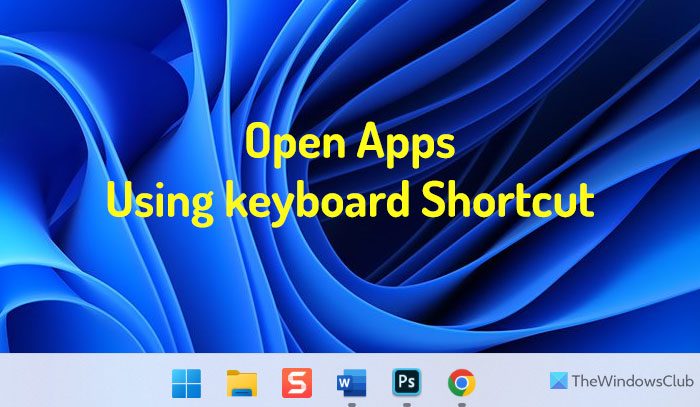
Launch Taskbar Programs using the keyboard in Windows 11
To do so, simply press the Windows key and the number key, which corresponds to the position of the program icon from the left, in the taskbar.
The program will open.
For example, to launch Notepad, in my case, I will have to press WinKey+2.
A small but useful tip to launch pinned programs quickly.
How do I open apps in Taskbar without mouse?
To open apps in the Taskbar without a mouse, you can use the keyboard shortcut. It is possible to open any app using predefined keyboard shortcuts. For example, if you have five apps pinned to the Taskbar and you want to open the fifth app, you can press Win+5 to open the selected app.
How do I open programs from the Taskbar in Windows 11?
There are two ways to open programs from the Taskbar in Windows 11 and Windows 10. First, you can use your mouse to click on an app’s icon to open it on your PC. Second, you can use the keyboard shortcut. For example, to open the third app, press Win+3.
While most of us are familiar with the usual Windows Keyboard Shortcuts there are some useful Win+X keyboard shortcuts – which not many of us may be familiar with.
