
You may not want to clutter up your desktop with a Recycle Bin. Perhaps you also do not want to pin it to your Start Menu, yet want easy access to it. You could display it in the taskbar or add it to the Notification Area. You can also place it in the This PC or (My) Computer folder, as I always prefer to do. In this post, we will show how to display the recycle bin in the Computer or This PC folder in Windows 11/10
Display Recyle Bin in This PC folder of Windows 11
Make sure to create a system restore point so you can always restore it in case something goes wrong.
Since Windows doesn’t offer a direct way to add the Recycle Bin to the File Explorer, we will use the registry hack.
Open Windows Run prompt using Win + R, type regedit and press the Enter key
You will be prompted with the UAC; make sure to press Yes. Navigate to the path mentioned below:
HKEY_LOCAL_MACHINE\SOFTWARE\Microsoft\Windows\CurrentVersion\Explorer\MyComputer\NameSpace
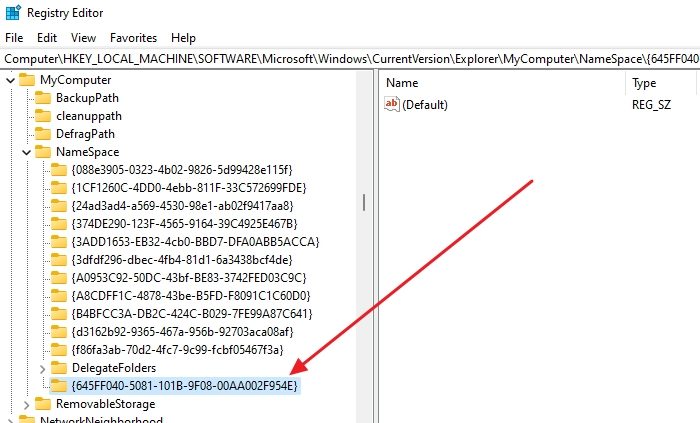
Here, right-click on the NameSpace key, and create a new key under it with the following name:
{645FF040-5081-101B-9F08-00AA002F954E}
Hit F5 to refresh the registry. Exit registry.
You will see that the Recycle Bin has appeared in your Computer folder or This PC
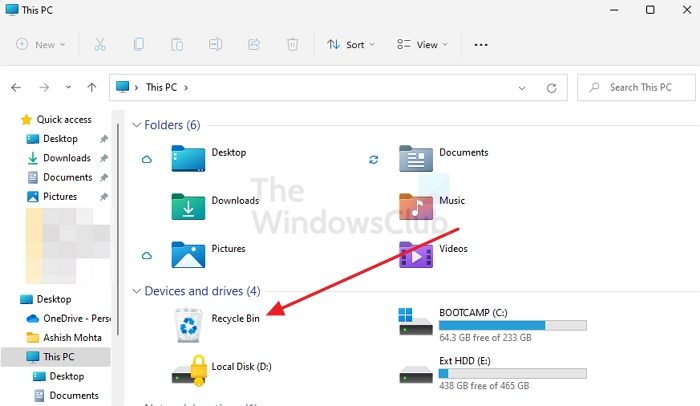
If you wish, you may download this Registry fix and double-click on it to add it to your Computer folder. This tip works in Windows 11/10. You can also easily add a display Recycle Bin in This PC folder using our Ultimate Windows Tweaker.
If your Explorer opens to Quick Access, you can also pin Recycle Bin to Quick Access in Windows 11/10.
Read: Display any file, folder, or program in This PC folder.
How do I empty Recycle Bin in Windows?
You can right-click on the Recycle Bin and then choose to empty it. However, if it’s too much to do every time, use Shift + Delete to permanently delete the file instead of sending it to the Recycle Bin and then removing it from there. However, once you do that, you will have no chance to recover those files.
Read: How to pin Recycle Bin to Taskbar in Windows
How to hide the Recycle Bin?
Click on the Start button, then select Settings. Then go to Personalization > Themes > Desktop icon settings. Here, select the Recycle Bin check box > Apply. Remember, it will only hide and delete the Recycle bin in Windows.
Read: How to remove Recycle Bin from Desktop in Windows 11.
