
Quick Access was introduced in Windows 11/10, enabling us to conveniently open folders that require frequent access. This is pinned to the top of the left navigation pane in File Explorer. When you access certain folders quite frequently, those are automatically listed under Quick Access. In this guide, we will exhibit the steps to Pin the Recycle Bin to Quick Access.
The Recycle Bin is a very useful folder in Windows that stores files you delete. As the name suggests, it saves you the trouble if you accidentally delete an important file. You can easily restore it from the Recycle Bin. If you need to access the Recycle Bin, pinning it to Quick Access makes sense.
Pin Recycle Bin to Quick Access in Windows 11/10
To pin the Recycle Bin to Quick Access in Windows 11/10, press Windows Key + E on your keyboard to launch File Explorer.
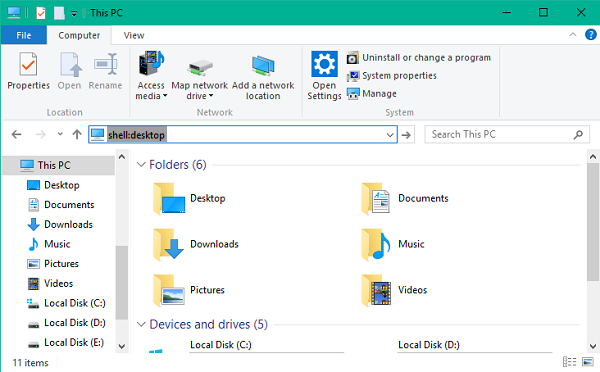
Now enter shell:desktop in File Explorer address bar and hit enter. It should open up the all the icons, folders, and files that are present on your desktop.
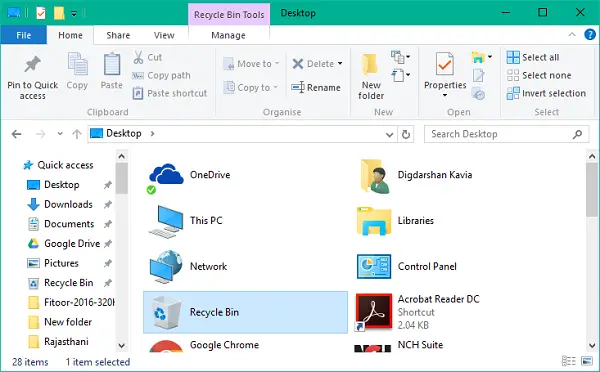
Assuming that you have pinned Recycle Bin to your desktop, double-click on its icon to open Recycle Bin contents.
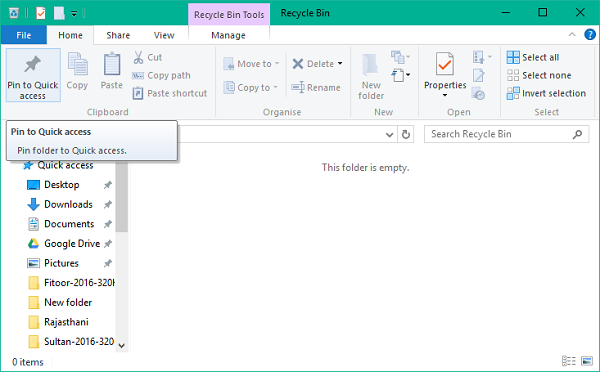
Navigate to the Home tab and click on the Pin to Quick Access button on far left in the ribbon menu, as shown in the below image.
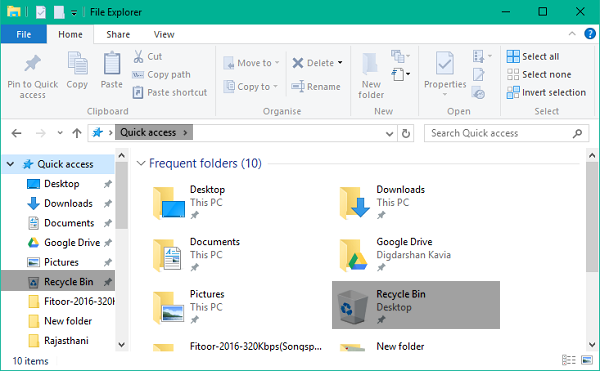
The Recycle Bin will get pinned to your Quick Access items, and now you can quickly access it from the left navigation bar in File Explorer window.
I hope this helps!
NOTE: If you have set File Explorer open to This PC instead of Quick Access, you can also make the Recycle Bin display in the This PC folder.
Do these posts interest you?
