
Quick Access is a useful feature in Windows 11/10 File Explorer navigation pane. In Windows 8.1 Explorer Navigation Pane, you had Favorites, but now Quick Access seems to have replaced it. This feature is useful, as it helps users quickly navigate to locations that are frequently used by you, as well as those that you recently used.
Windows users may have noticed that by default, File Explorer opens to Quick Access. Windows 11/10 allows power users to fine-tune the operating system to their liking, rather easily. It seems a majority of the user feedback to Microsoft centered around users demanding the ability to easily enable or disable different UI elements. So if you wish, you can make Explorer open to This PC instead of Quick Access.
If you wish, for privacy reasons, you can also disable Quick Access in the Navigation Pane. What you can do is stop Explorer from displaying the recently and frequently used files and folders there. Let us see how to do it.
Where is Quick Access in Windows 11 File Explorer?

Microsoft has renamed Quick Access to Home in Windows 11 now. If you open File Explorer and click on Home, you will see Quick Access. It displays frequently accessed folders, recent files, and your favorite files.
Enable or Disable Quick Access – Do not show folders in Windows 11/10
To disable Quick Access in File Explorer of Windows 11 or Windows 10:
- Launch Explorer
- Click open Folder or File Explorer Options from the Ribbon
- Locate Privacy under General tab
- Uncheck the two checkboxes that disable this feature.
- Show recently used files in Quick Access
- Show frequently used folders in Quick Access
- Click Apply and restart Explorer.
What you need to do is disable the showing of recently and frequently used files and folders in File Explorer.
To remove frequent folders and recent files list from Quick Access, open File Explorer, click on the View tab in Ribbon and then click on Options, and then and then Change folder and search options, to open Folder Options.
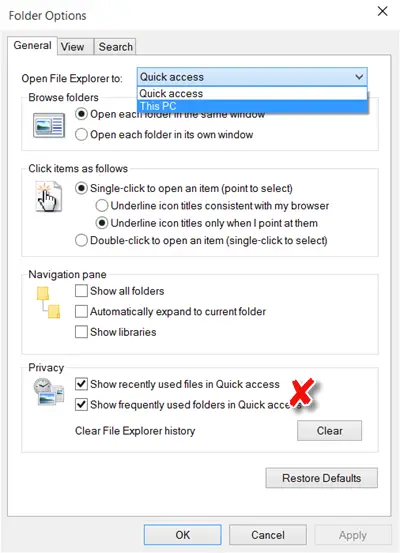
You’ll have to uncheck the following two check boxes present under the Privacy section:
- Show recently used files in Quick Access
- Show frequently used folders in Quick Access
Click Apply and Exit. The action will instantly remove these two sections from Quick Access in File Explorer.
Quick Access not showing in Windows 11
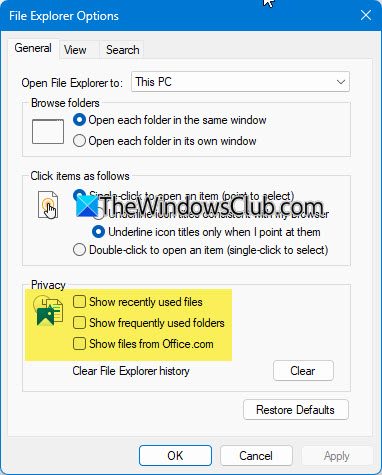
If Quick Access is not showing in Windows 11, open File Explorer Options, and under the General > Privacy section, select Show recently used files, Show frequently used folders and Show files from Office.com. Click Apply and exit. Quick Access has been renamed to Home in Windows 11 now.
Clear Quick Access History in Explorer
To clear your Quick Access history press the Clear button against Clear File Explorer History.
You can also Unpin the pinned items like Desktop, Downloads, etc. from the left side of the navigation pane.
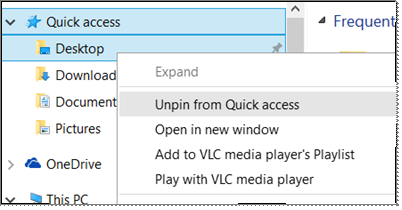
In this way, you can prevent Windows 11/10 from displaying the recently and frequently used files and folders, in Quick Access and hence maintain your privacy.
See this post if Quick Access is not working or broken.
What is the difference between Quick Access and This PC?
This PC and Quick Access are quite different in the way that This PC displays connected devices and drives. On the other hand, the Quick Access view provides access to frequently used folders and recently used files.
Why does Explorer open to Quick Access?
It’s meant to make it easier to access your recent work. Thus, it’s kept as the Default view of File Explorer in Windows 11. However, if you don’t use it, you can change this default setting.
