
With Windows 11/10, Microsoft has tried to make the PC experience easy and clutter-free for its users. It has many auto-optimizing features to make your PC run smoother. Still, you must know some basic computer optimization tips to improve Windows 11 performance and make your computer work efficiently.
It doesn’t matter how fast or shiny computers might be when they’re new; they all seem to get slower over time. That state-of-the-art PC you bought last year might not feel like such a screamer after you install a dozen programs, load it with antispyware and antivirus tools, and download untold amounts of junk from the Internet. The slowdown might happen so gradually that you hardly notice it until one day, you’re trying to open a program or file and wonder, “What happened to my PC?” This slowdown is known as Windows Rot; although Microsoft has made significant efforts to reduce it since Windows Vista.
Optimize Windows 11 for better performance
Whatever the cause, there are several ways to help speed up Windows and improve your PC’s performance, even without upgrading your hardware. Here are some very easy and basic tips to help you Tune-up Windows and optimize it for faster performance:
- Use Performance Troubleshooter
- Remove programs you never use
- Manage your startup programs
- Defragment your hard disk
- Use Disk Cleanup to clean Hard Drive
- Run only the necessary programs at the same time
- Turn off Visual Effects
- Restart your PC occasionally
- Add more Memory
- Check for viruses and spyware.
1] Use Performance Troubleshooter
The first thing that you can try is the Performance troubleshooter, which can automatically find and fix performance problems. The Performance troubleshooter checks for issues that might slow your computer’s performance, such as the number of users currently logged on and whether multiple programs are running simultaneously. To run the Performance Troubleshooter, follow these simple steps:
Open Control Panel > All Control Panel Items > Troubleshooting
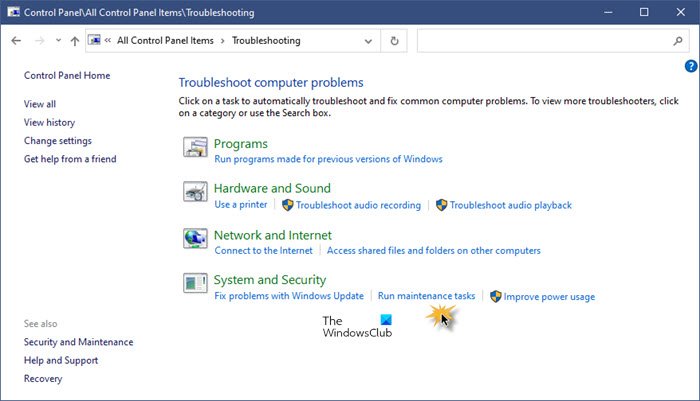
Click on Run maintenance tasks to open the Performance Troubleshooter.
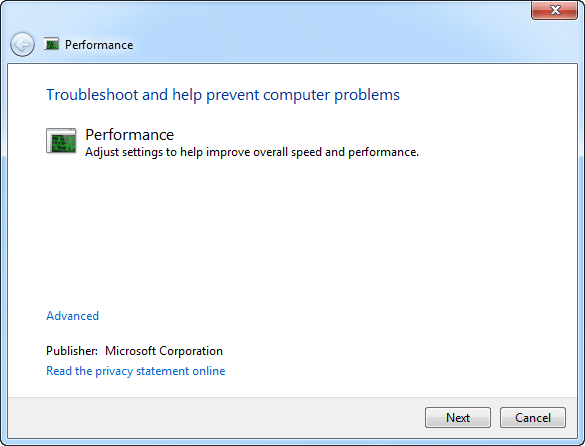
Follow the steps provided in the wizard to resolve performance-related issues.
2] Remove programs you never use
Many PC manufacturers preinstall unwanted software programs that you may never use. These are often limited or trial versions of software or adware that become unusable after a set period. Utilities and programs you install may be of no use, as many software packages bundle numerous unwanted options, such as toolbars, registry scanners, and web browsers. Keeping unnecessary software installed can adversely affect PC performance, so it’s better to uninstall it and free up disk space.
3] Manage your startup programs
Many programs are designed to start automatically when Windows starts. Software manufacturers often set their programs to open in the background, where they can’t be seen running. That’s helpful for programs you use frequently, but for programs you rarely or never use, this wastes precious memory and slows Windows startup.
To manage your startups, Windows 11/10 users need to open the Task Manager > Startup tab.
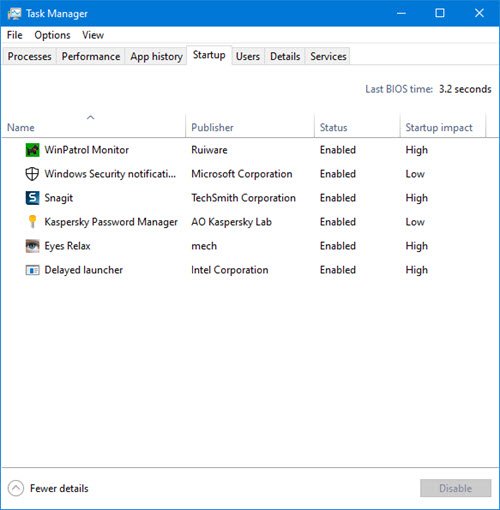
Highlight the entry and right-click and select Disable/Enable.
Read: How to stop Background Processes in Windows 11
4] Defragment your hard disk
Fragmentation makes your hard disk do extra work that can slow down your computer. Disk Defragmenter rearranges fragmented data, allowing your hard disk to work more efficiently. Disk Defragmenter runs automatically on a schedule, but you can also defragment your hard disk manually. To use Windows inbuilt Disk Defragmenter utility, navigate to Accessories folder in Start menu, then click on System Tools and run Disk Defragmenter.
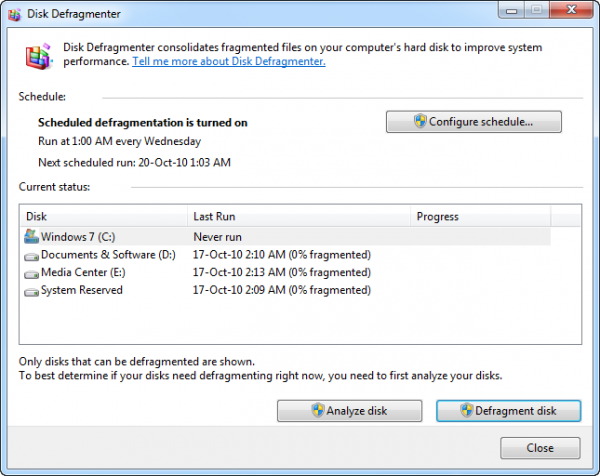
There are several other free Disk Defragmentation software that you can make use of.
5] Use Disk Cleanup to clean Hard Drive
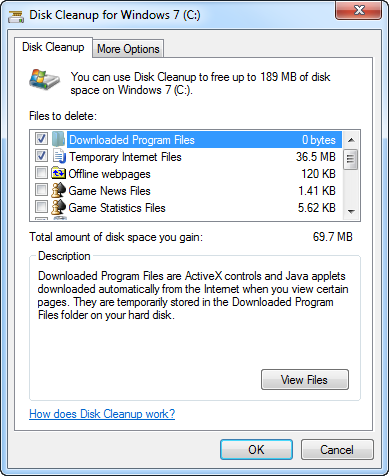
Unnecessary files on your hard disk take up disk space and can slow down your computer. The Disk Cleanup Utility removes temporary files, empties the Recycle Bin, and removes a variety of system files and other items that you no longer need. To use Disk Cleanup, follow these steps:
- Open Computer, Right-click on Hard Disk partition for which you want to run Disk Cleanup.
- Then click on the Disk Cleanup button. It will take some time to start as it will analyze for Junk files.
- Check the boxes for files which are useless and click Ok.
CCleaner is my personal favorite for junk cleaning.
6] Run only the necessary programs at the same time
Many times, we keep running several programs at the same time, and more often, half of them remain open without any use. Sometimes, changing how you use your PC also improves performance. If you find your PC slowing down, ask yourself if you need to keep all your programs and windows open at once. Find a better way to remind yourself to reply to email messages rather than keeping all of them open. Make sure you’re only running one antivirus program. Running more than one antivirus program can also slow down your computer. Fortunately, if you’re running more than one antivirus program, the Action Center notifies you and can help you resolve the issue.
Read: How to maintain Windows in good running condition.
7] Turn off Visual Effects
If Windows is running slowly, you can speed it up by disabling some of its visual effects. It comes down to appearance versus performance. Would you rather have Windows run faster or look prettier? If your PC is fast enough, you don’t have to make this tradeoff, but if your computer is just barely powerful enough for Windows 11/10, it can be useful to scale back on the visual bells and whistles.
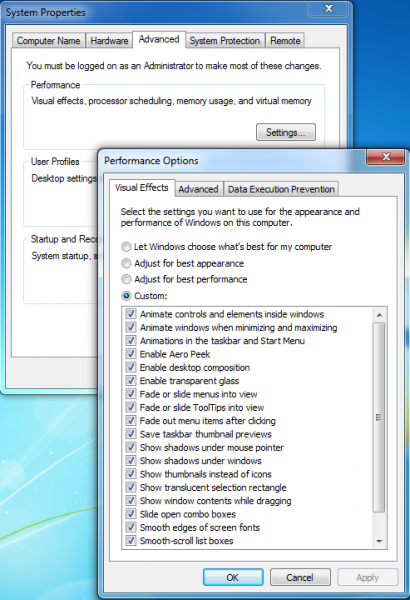
You can choose which visual effects to turn off, one by one, or you can let Windows choose for you. There are 20 visual effects you can control, such as the transparent glass look, the way menus open or close, and whether shadows are displayed.
To adjust all visual effects for best performance:
- Right-click on the Computer icon and click on Properties.
- In the left pane, click on Advanced Settings. If you’re prompted for an administrator password or confirmation, enter the password or confirm.
- Click on settings in performance and then check or uncheck options to adjust for best performance and then click OK. (For a less drastic option, select Let Windows choose what’s best for my computer).
8] Restart your PC occasionally
This tip is simple. Restart your PC at least once a week, especially if you use it a lot. Restarting a PC is a good way to clear its memory and ensure that any errant processes and services that have started running are shut down. Restarting closes all the software running on your PC, not only the programs you see running on the taskbar but also dozens of services and drivers that might have been started by various programs and never stopped. This step refreshes your Windows OS.
Read: How to fix Performance issues in Windows 11.
9] Add more Memory
This isn’t a guide on how to buy hardware that will speed up your computer. However, no discussion of how to make Windows run faster would be complete without mentioning adding more random-access memory (RAM) to your PC.
If a computer running Windows seems too slow, it’s usually because the PC lacks sufficient RAM. The best way to speed it up is to add more. Windows 7 can run on a PC with 1GB of RAM, but it runs better with 2 GB. For optimal performance, 3 GB or more would be preferred. Another option is to boost the amount of memory by using Windows ReadyBoost.
TIP: You can use Windows Boot Performance Diagnostics to detect Windows Boot Performance problems.
10] Check for viruses and spyware
If your PC is running slowly, it may be infected with a virus or spyware. This is not as common as the other problems, but it’s something to consider. Before you worry too much, check your PC using anti-spyware and antivirus programs. A common symptom of a virus is a much slower-than-normal computer performance. Other signs include unexpected messages appearing on your PC, programs that start automatically, or your hard disk constantly spinning.
Spyware is a type of program that’s installed, usually without your knowledge, to monitor your Internet activity. You can check for spyware using Windows Defender or other antivirus and antispyware programs. The most effective way to deal with viruses is to prevent them from occurring in the first place. Always run antivirus software and keep it up to date. Even with such precautions, however, your PC can still become infected.
Windows 11 can boost system performance. It optimizes resource allocation by focusing on foreground apps and minimizing background processes. This streamlined approach can enhance system efficiency, especially on PCs with limited RAM and CPU capabilities, resulting in a smoother user experience.
To increase boot speed in Windows 11, disable unnecessary startup programs via Task Manager, optimize your drive using the ‘Defragment and Optimize Drives’ tool, and ensure Fast Startup is enabled in Power Options. Also, upgrading to an SSD and increasing RAM can significantly enhance boot times.
Want more?
- How to make Windows Start, Run, Shutdown faster may interest Tweak enthusiasts!
- You might want to also read our Basic Windows Troubleshooting Tips for Beginners.
