
Intel Optane is a physical memory module used to speed up the hard drives and reduce Windows boot time. It is installed in the M.2 slot and configured to accelerate the hard drive using the Intel Optane Memory and Management application. Some users encountered the “Your Intel Optane memory module is starting to degrade” notification on their Windows computers. If you receive such a notification on your system, the solutions provided in this article will help you.
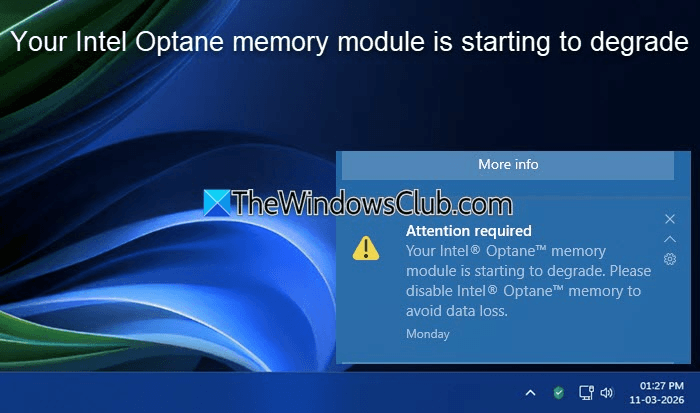
The complete notification message is:
Your Intel Optane memory module is starting to degrade. Please disable Intel Optane memory to avoid data loss.
Your Intel Optane memory module is starting to degrade
Windows shows the “Your Intel Optane memory module is starting to degrade” notification when an internal hardware failure is detected on the Intel Optane memory module. Since Intel discontinued the Intel Optane memory module and its support, the only way to fix this issue is to disable the Intel Optane memory.
Is ignoring this Intel Optane memory warning safe?
Ignoring this warning is not safe, as you may lose your important files. Intel Optane memory is a non-volatile memory module used to cache data, thereby increasing disk speed. It stores frequently used blocks of data from your hard drive. When the module starts failing, it may corrupt the cached data. When Windows reads the corrupted cached data, it may lead to application errors and system file corruption. It also leads to an incomplete read and write operation, which ultimately results in file corruption or permanent data loss.
Moreover, if the Intel Optane memory module fails while drive acceleration is enabled, it causes boot issues. Therefore, it is important to fix this issue to avoid data loss.
How to disable Intel Optane memory?
To fix this issue, you have to disable System Acceleration with Intel Optane memory. You can do so through any of the following ways:
- Using the Intel Rapid Storage Technology (Intel RST) application
- Through your system BIOS
Both these methods are explained below. Before proceeding, it is recommended to back up all your data.
1] Using the Intel Rapid Storage Technology (Intel RST) application
To disable Intel Optane Memory, you need to use the Intel Rapid Storage Technology (Intel RST) application. You can install it from the Microsoft Store. Once you install it, follow these steps:
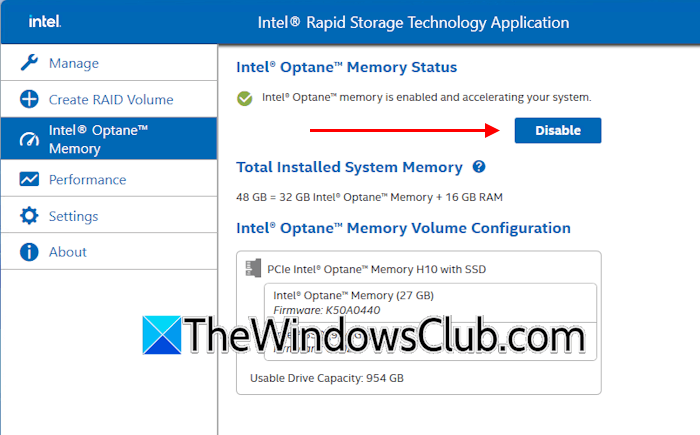
- Launch the application.
- Click on the Intel Optane Memory tab on the left side.
- Click Disable.
- Click Disable again in the confirmation box. The disabling process will start.
- Once the process is completed, click Restart to restart your computer.
If you cannot disable the Intel Optane Memory through the Intel RST application, download the latest Intel RST driver from the official website of your computer manufacturer. Alternatively, you can download the updated driver from the official Intel website, based on whether you have 8th and 9th-generation platforms or 10th and 11th-generation platforms.
2] Through your system BIOS
You can also disable Intel Optane Memory through your system’s BIOS. The steps to disable Intel Optane Memory in the BIOS vary by brand. Therefore, visit your computer manufacturer’s support website for the correct process. Usually, this option is named as Reset to non-Optane or Deconcatenate.
I have explained the steps to disable Intel Optane Memory in the BIOS of Lenovo Desktops and ThinkCenters.
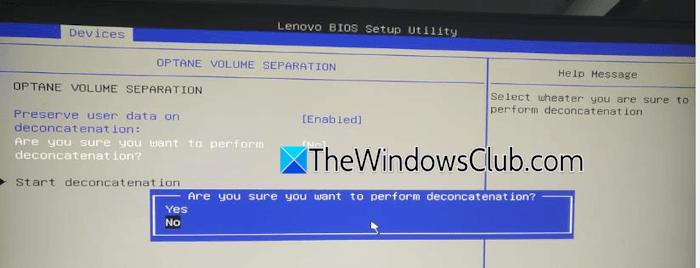
- Enter BIOS.
- Navigate to Devices > ATA Drive Setup > Intel Rapid Storage Technology.
- Select Deconcatenate and then select Yes.
- Now, select Start Deconcatenation.
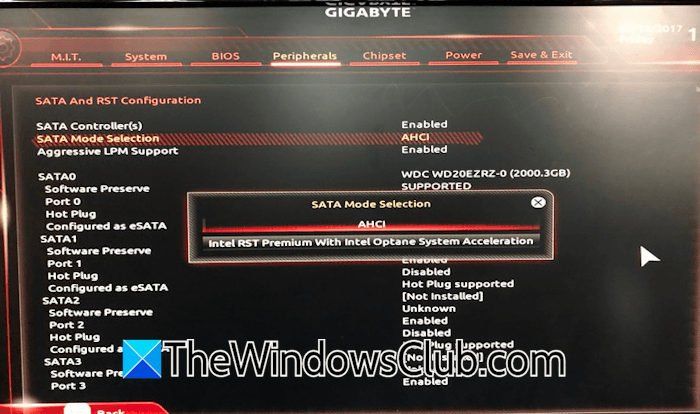
If your BIOS does not have the Deconcatenate option, you have to disable Intel Optane Memory through the Intel RST application. Some motherboards do not have the Deconcatenate option to disable Intel Optane Memory. Instead, you will find the SATA Mode Selection option. When you set up Intel Optane Memory, the SATA Mode switches from AHCI to Intel RST or a similar option in BIOS.
Now, in this case, if you think that switching the SATA Mode back to AHCI mode will disable the Intel Optane Memory, you will put yourself in trouble. This is not the correct way to disable Intel Optane Memory. Instead of disabling the Intel Optane Memory, it may make your system unbootable. Additionally, it may cause data loss.
AHCI and Intel RST are both different controller modes. Intel RST is especially designed for Intel Optane Memory. The AHCI mode does not support Intel Optane Memory. Therefore, switching from Intel RST to AHCI mode only changes the controller mode. This causes issues because Intel Optane is already active on your system, and you have suddenly changed the controller mode. Now, your system is in AHCI mode, which does not support Intel RST. This will cause boot issues.
After disabling Intel Optane Memory, you can change the SATA mode from Intel RST to AHCI in BIOS. After doing that, you can safely remove the Intel Optane Memory module from your system and install a new one.
To confirm whether the Intel Optane Memory is disabled, open the Device Manager and expand the Disk drives branch. You will not see the Intel Optane drive there.
Intel Optane Memory is damaged or removed
Removing the Intel Optane Memory module from the M.2 slot without disabling the Intel Optane Memory through Intel RST software causes data loss and boot issues. The same problem also occurs if the Intel Optane Memory is damaged. In such a case, clearing metadata can help you boot into Windows again.
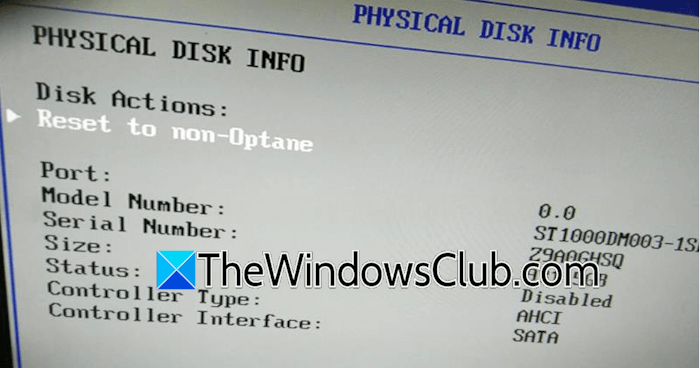
I have explained the steps to do this for the Lenovo BIOS.
- Enter the Lenovo BIOS.
- Navigate to Devices > ATA Drive Setup.
- Select your Non-RAID physical disk and then select Reset to non-Optane.
- Press Enter to clear metadata.
Your system drive is starting to degrade. Disable Intel Optane Memory to avoid data loss
You may also encounter the error that says “Your system drive is starting to degrade.” In this case, first, back up all your data, then disable the Intel Optane Memory. The error message indicates that your system drive has begun to fail. Therefore, the next step is to run the Chkdsk scan to scan your hard drive for bad sectors and logical errors. If this tool finds any errors on your disk, it will repair them.
You can use free software to check your hard drive health. If it is failing, it is recommended to back up data and replace it.
Is it OK to disable Intel Optane Memory?
Yes, it is OK to disable the Intel Optane Memory. The main purpose of the Intel Optane Memory module is to speed up your hard drive by storing cached data. If you disable it, you will experience performance issues.
I hope this post helps you.
Read next: Intel Rapid Storage Technology Service not working.
