
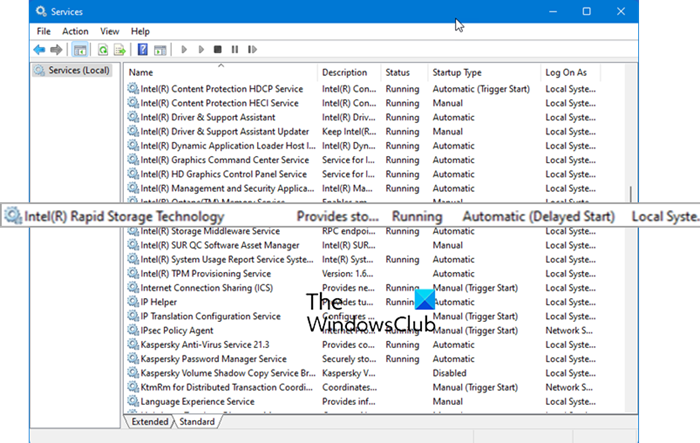
If Intel Rapid Storage Technology Service is not working on your Windows 11 or Windows 10 computer, then this post offers suggestions that are sure to help you. Intel Rapid Storage Technology (IAStorDataMgrSvc) provides storage event notification and manages communication between the storage driver and user space applications.
What is Intel RST service?
Intel Rapid Storage Technology (IRST) is a service that monitors and manages storage on your PC. It also helps in improving PC performance and power consumption. Intel Rapid Storage Technology ensures storage is responsive and expandable, with higher speeds. Whatever the type of drives you use, such as ATA (SATA) or PCIe, IRST enhances their performance while reducing power consumption.
Intel Rapid Storage Technology stores the files and folders you frequently use on a high-performance SSD to improve your PC’s overall performance. The IRST service can also protect data from corruption and enable faster, easier recovery.
Fix Intel Rapid Storage Technology Service not working
If you find that the Intel Rapid Storage Technology Service on your PC is not working, you can fix it with the following solutions.
- Set Startup type to Automatic
- Update Intel Rapid Storage Technology driver
Let’s get into the details of each process.
1] Set Startup type to Automatic
Intel Rapid Storage Technology service might have been set to Stop by mistake. You can set it to Automatic to make it run automatically when you use your PC. To do that,
- Open Run command, type services.msc, and hit Enter.
- Locate Intel Rapid Storage Technology services, and then double-click it.
- Change the Startup type from Automatic (Delayed) to Automatic.
- Click on Apply and then OK to save the change.
- Exit the Services window and restart your PC.
Check if the problem has been resolved.
Related: Fix High CPU usage by IAStorDataSvc on Windows.
2] Update Intel Rapid Storage Technology driver
Another reason for the Intel Rapid Storage Technology service not running on your PC is due to the corrupt or outdated driver. You can fix it by updating the Intel RST driver to the latest version.
After updating the driver, check the Startup type of Intel RST service in the Services and set it to Automatic if it is set otherwise, and restart your PC.
These are the two ways to fix the issue if the Intel Rapid Storage Technology service is not working properly.
Read: Download, install, update Intel Drivers with Intel Driver & Support Assistant.
UPDATE: The Intel Rapid Storage Technology and Intel Optane Memory applications have reached End of Life. It is best to update drivers via System manufacturers website or Windows Update now.
Is Intel RST service necessary?
Yes, Intel Rapid Storage Technology is necessary for better SSD and PC performance. Without it, storage management may degrade your PC’s overall performance.
Related reads:
