
For us folks who work from our computers or are writing up an essay for class, we tend to get distracted at times by social media and other things on the web. If you lack a strong mentality, then chances are you won’t get enough done in 24 hours. The question is: is it possible to stay focused while working despite the temptation of social media, with the help of a Windows tool? The answer to that is a resounding yes. The program we’re discussing right now is called WorkTime Personal, and it’s pretty good.
Free Computer Monitoring Software for Windows PC
Bear in mind that this software is not capable of forcing you to stop from getting yourself distracted, but it can help deliver information on the amount of time you’ve chosen to go off the rails. With it, you’ll learn how many minutes are wasted on social media.
How to use WorkTime Personal
1] Start and Stop
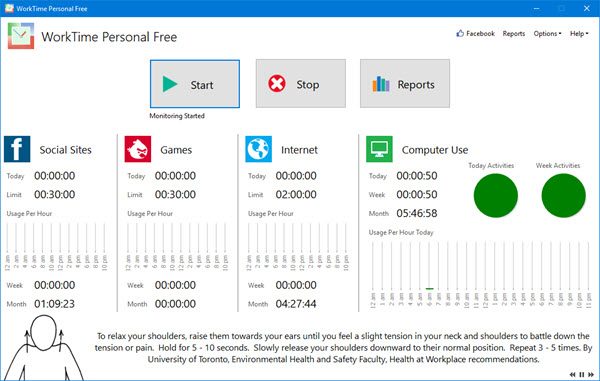
OK, so once the app is launched for the first time, you’ll notice it starts tracking your movements right away, because tracking is set to automatically start at startup. If you want, you can stop it by clicking on the Stop button, and resume by selecting the Start button.
Bear in mind that WorkTime Personal can only track social media websites such as Facebook, Twitter, and other minor platforms. Once you’ve visited the sites via your web browser, the tool will kickstart the counter. Unfortunately, there’s no way to reset counters and trust us, we’ve tried.
2] Reports
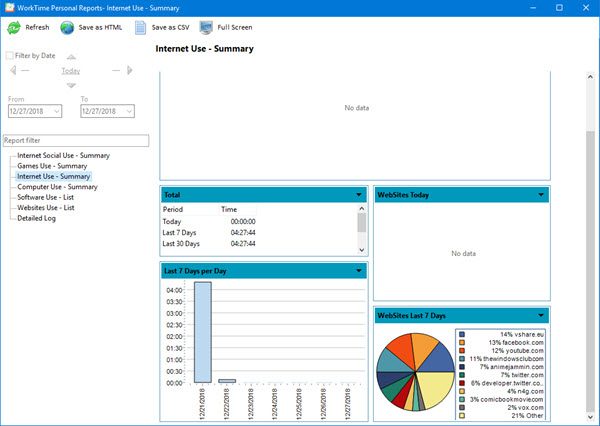
To get a deep understanding of what is going on, you should click on the button that says Reports. It delivers a detailed rundown on the amount of time you’ve been wasting on social media among other things. You’ll get to see the websites you’ve visited, along with the top websites used in a 7-day period.
You can also see the top apps you’ve been using on your computer. For us, that’s Firefox, for you, it’s likely Facebook.
Additionally, users can track the games they’ve been playing and those that get more playtime than others over a 7-day period.
3] Options
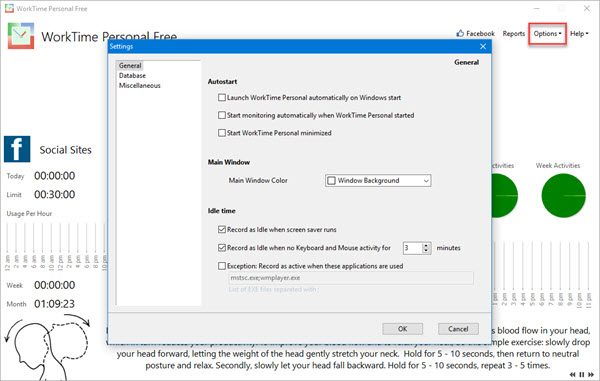
The options tab is located at the top-right corner. If you click on it, you’ll see Settings, so select that. From here you can set WorkTime Personal to launch at Windows startup, tell what to do during certain periods when the computer is idle, and manage the database.
For us, that’s pretty straightforward, but if you want more options throughout the entire program, then you’ll have to upgrade to the paid version. We haven’t done that, but from what we’ve seen, it’s more powerful, although, not by much.
Overall, we’re pleased with WorkTime Personal and what it brings to the table. However, users must realize that this tool won’t help with focus if the need isn’t there in the first place.
Download the free version of WorkTime Personal from the official website. The free version is limited to 3 employees and stores two weeks of data history.
To download it, you have to click on the Subscribe button. After that, you have to create an account on its website. Its web version is also available. You can use its web version by signing in to the account that you have created. The download link is provided in your account.
It is available in both free and paid plans. The free plan has limited features. When you sign up, you will get access to all its features for 14 days, which is the trial period. After the trial period ends, you will be automatically moved to the free plan.
That’s it.
What is computer monitoring software?
Computer monitoring software tracks user activity on a computer system on which it is installed. Organizations that offer work-from-home usually use these types of computer programs to track employees’ computer activity during office hours.
Which is the best software for monitoring?
There are many monitoring software available online. Some of these are free, and some are paid. At the same time, some offer both free and paid plans. It depends on you which features you are looking for in monitoring software that make it the best for you. Monitoring software has many different categories, like Game Monitoring Software, Time Monitoring Software, Hard Disk Health Monitoring Software, etc.
Read next: Best Free Ping Monitor Tools for Windows PC.
