
If Word is stuck in an unknown language and all the options are changed to another language, here is how you can get it back to your native language. Also, if you are unable to change the language through the Word Options wizard, this article will guide you through some solutions to get back to the original language that you are familiar with.
Word stuck in unknown language
If Word is stuck in an unknown language, follow these solutions:
- Identify the language
- Change Office display language
- Remove language pack
- Repair Microsoft 365
To learn more about these solutions, continue reading.
1] Identify the language
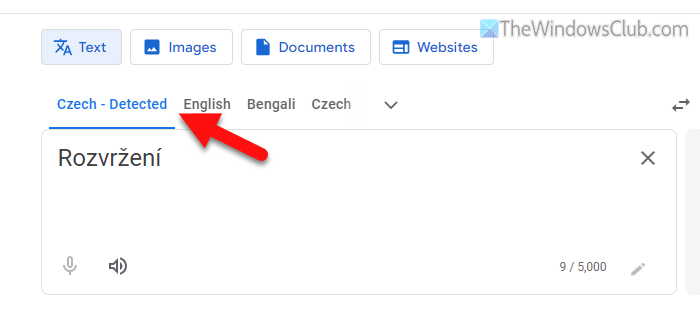
No matter whether your Word is stuck with German, Spanish, French, or any other language, you must identify the language first. Only then will you be able to change it to something that you know. However, you cannot copy any option name from Word.
That is why you can simply open the Google Translate website, translate.google.com, in your browser and type one option name in the left-hand box.
If it detects the language automatically, you can find out the name of the language. Otherwise, click on the Detect language button.
Once you know what language you are stuck with, you can convert the option names to your native language and go through the following solution.
Read: How to translate Google Docs documents into any language
2] Change Office display language
If you are familiar with English but your display language has been changed to another language, here is how you can get English back.
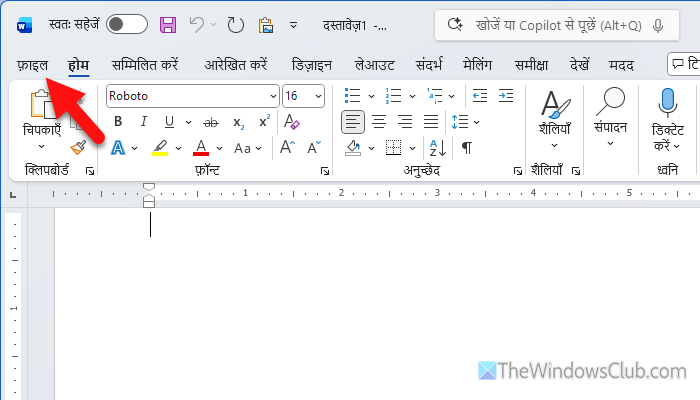
First, open Microsoft Word on your computer and click on the top-left option in the top menu bar.
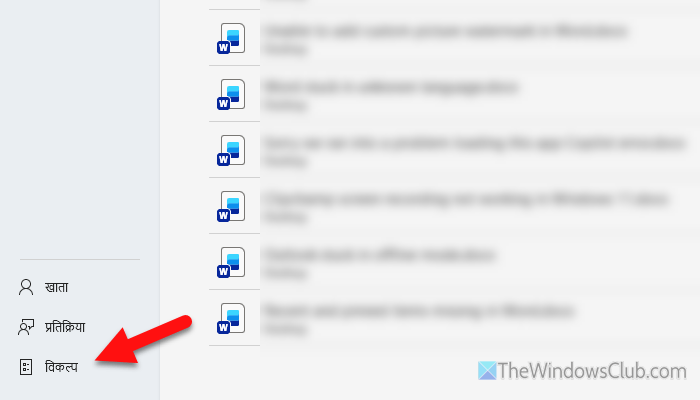
Then, head to the left side option panel and click on the bottom-most option. In other words, it opens the Word Options wizard.
After that, go to the sixth (6th) tab from the left side. If you can find English in the first box, click on it and click on the second button on the right side until your preferred language appears at the top of the list.
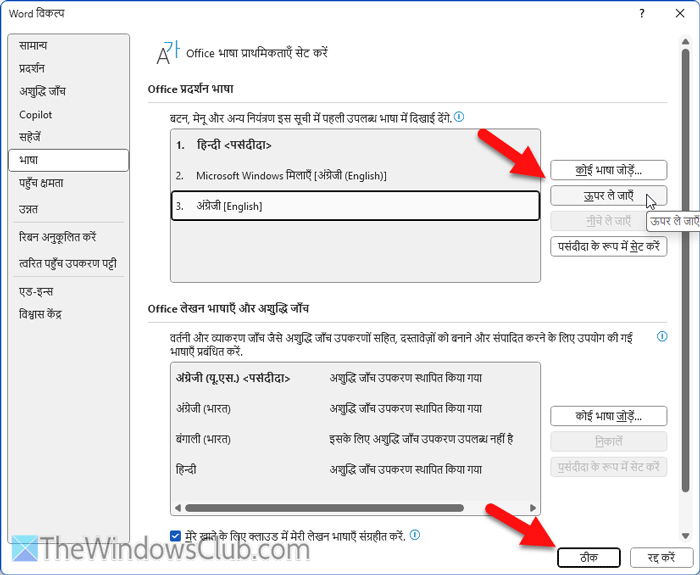
However, if you cannot find English, click on the first button on the right-hand side, find English, and click on the first button on the left side. It will install English. Then, you must move English to the top of the list by following the same steps as mentioned above.
Once done, you can find two buttons at the bottom of that window. Click on the left button.
Following that, close all the windows and restart Word.
Nonetheless, if you are NOT familiar with English but you are stuck with English, here is how you can find the same options as above. To change the Office display language, follow these steps:
- Open Word on your computer.
- Go to File > Options > Language.
- If you find the desired language, select it and click on the Move Up button.
- If you cannot find the language, click on the Add a Language button and install the language.
- Finally, choose the language and click on the Set as Preferred button.
- Click the OK button to save the change.
Read: How to change Spell Check language in Outlook
3] Remove language pack
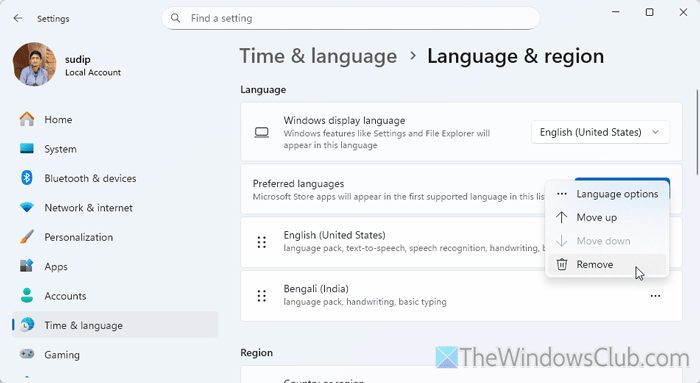
If Word keeps changing the default language, you can remove the language pack from your computer and check if it resolves the issue or not. To remove a language pack, follow these steps:
- Open Windows Settings.
- Go to Time & language > Language & region.
- Choose the language you want to remove.
- Click the three-dotted icon and select the Remove option.
- Click the Yes button.
Read: How to Install and Uninstall Languages in Windows 11
4] Repair Microsoft 365
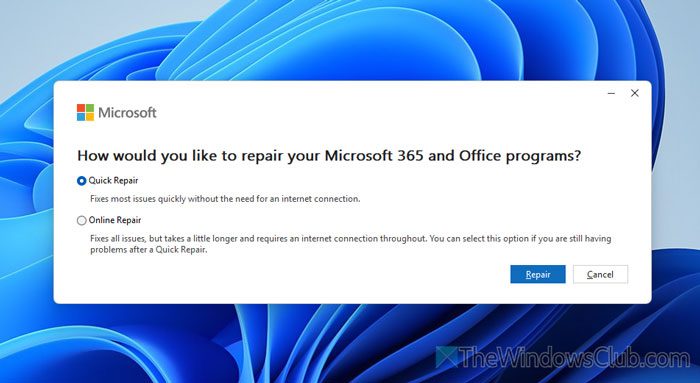
To repair Microsoft 365, follow these steps:
- Press Win+I to open Windows Settings.
- Go to Apps > Installed apps.
- Find Microsoft 365 > click on the three-dotted icon and select Modify.
- Select the Quick Repair option and click the Repair button.
- If it does not fix the issue, choose the Online Repair option and click the Repair button.
For your information, the second option may take a few minutes. Do not interrupt the process.
Read: How to Repair Office on Windows 11
How do I reset Word back to normal?
To reset Word back to normal, you need to press Win+R > type %appdata%\Microsoft\Templates and click the OK button first. Then, find the Normal.dotm and name it something else. Finally, open Word on your computer.
Read: How to change Windows language back to English
How do I switch my Word back to English?
To switch Word back to English, go to File > Options > Language. Choose English from the list and click the Set as Preferred button. Also, choose the same language and click the Move Up button.
