
Like Windows and Mac, Android users can also use Microsoft Word, Excel, and PowerPoint on their mobiles. If you use these apps on your Android mobile but now they are suddenly freezing, crashing, or not working, this guide will help you fix the issue. Whether you are using Stock Android, MIUI, One UI, or another platform, the process is generally the same, with minor changes to the user interface and options.

Fix Word, Excel, PowerPoint freezing and crashing on Android
To fix Word, Excel, and PowerPoint freezing, and crashing issues on Android, follow these steps:
- Restart phone
- Leave beta testing
- Update app
- Clear cache/storage
- Remove SD card
- Install OS updates
- Clear storage on the phone
- Uninstall and reinstall the app
Let’s check out more about these solutions in detail.
1] Restart phone
The first step in resolving the issue on your mobile is to check if freezing and crashing issues occur at times due to a system file issue or corrupted files from other apps. When you restart the phone, all those background services get rebooted. Most of the time, such a practice fixes common problems like this one. Therefore, if you are getting a freezing or crashing issue on Android mobile, restart your phone and check if it resolves it or not.
2] Leave beta testing
If you are a beta tester of Word, Excel, or PowerPoint app on your Android mobile, it is recommended to leave the program to fix such problems. Beta version users often get problems while using the app on a newly updated mobile. If the app’s version doesn’t comply with the mobile OS, you may encounter this issue. Therefore, it is suggested to leave the beta program and install the stable release of those Office apps.
3] Update app
If you have recently updated your phone to the latest version of Android and after that, those apps stopped working, it is better to search for the update and install it. On Android, it is very easy to find and install available updates via Google Play Store. Therefore, open the Google Play Store and tap on your profile picture > select Manage apps & device.
Then, tap on the Updates available option and check if Word/Excel/PowerPoint is there on the list.
If yes, tap on the corresponding Update button to download the update.
4] Clear cache/storage
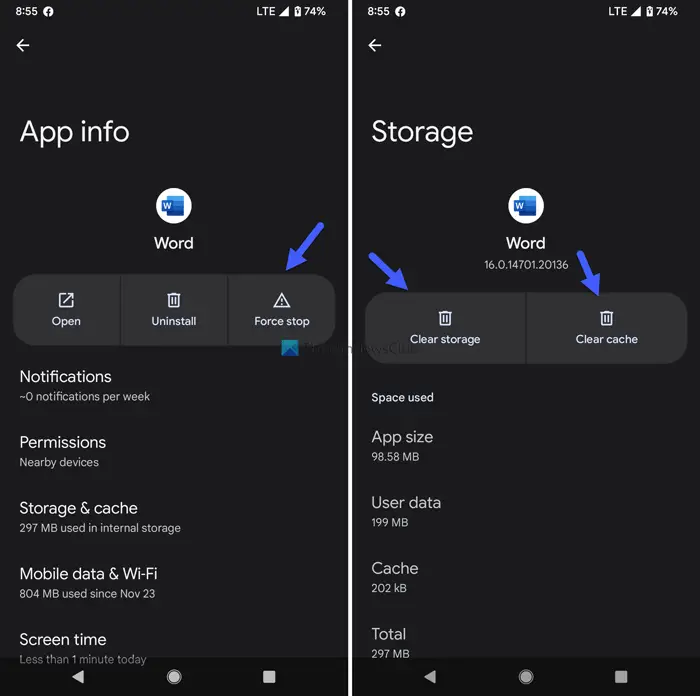
If there are some internal issues, resetting the app might fix it within moments. As you are using an Android mobile, it is very easy to clear the cache and storage of any app, including this one. Follow the following steps to clear cache and storage of Word/Excel/PowerPoint:
- Tap and hold on to the app icon.
- Select App info option.
- Tap on the Force stop button.
- Go to the Storage & cache section.
- Tap on the Clear cache option.
- Tap on the Clear storage option.
Once done, reopen the app and check if you can use it or not.
5] Remove SD card
If you have a low-quality SD card installed on your mobile, it could cause an issue with Word, Excel, or PowerPoint app. On the other hand, if your SD card has issues with its file system, you will encounter the same problem. Whether you are using the latest processor or an older one, the same issue may occur on any phone. Therefore, it is suggested to remove the SD card and check if you can use those apps regularly or not.
6] Install OS updates
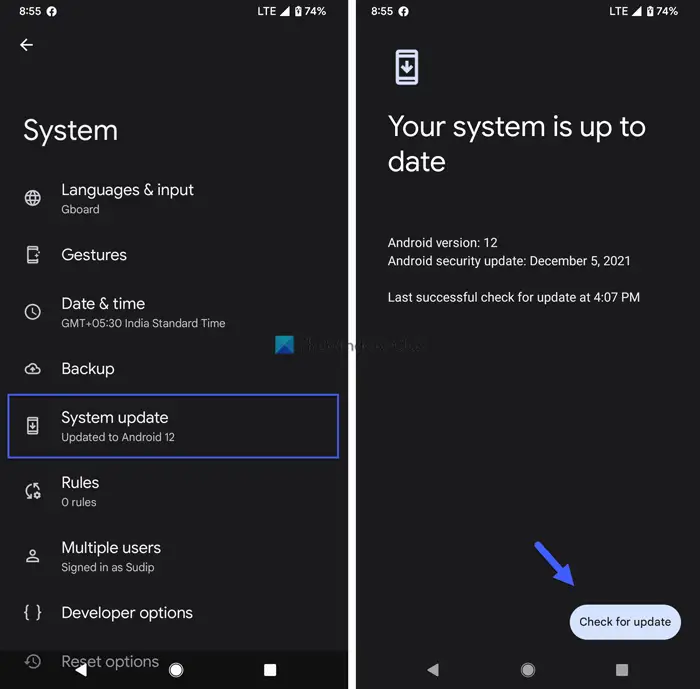
At times, Microsoft might ditch the old version of Android. If you are trying to use those apps on an extremely old mobile device with an outdated version of Android, such problems may occur. That is why it is recommended to check if your mobile manufacturer has released an OS update or not. If yes, install the update as soon as possible. To check if you have an OS update on Stock Android, follow these steps:
- Open Settings and go to System.
- Tap on the System update option.
- Tap on the Check for update option.
If any update is available, install it accordingly.
7] Clear storage on the phone
If your phone’s storage is almost full, some apps might freeze or crash at times. Therefore, check if you have enough storage left on your mobile. If not, you may need to uninstall unnecessary apps, delete large files, and so on. Once done, you will be able to use those Microsoft Office apps without any problem.
8] Uninstall and reinstall the app
It is the last thing you need to do when nothing is working. You can uninstall Word/Excel/PowerPoint using the Settings panel and reinstall it from the Google Play Store. After that, you should not get any issues.
Read: How to create a Sunburst chart in PowerPoint
Why does Microsoft Word keep crashing?
There could be various reasons why Microsoft Word keeps crashing or freezing on Android mobile. For example, if there are internal file issues, this app may not function properly. On the other hand, if your phone’s storage is almost full or you are using an old version of the app or OS, you may encounter the same issue.
What causes apps to freeze on Android?
Whether you use game apps, Office apps, etc., the apps may freeze or crash on Android mobile when you do not have sufficient storage left on your mobile. Additionally, if there are issues with the SD card or internal storage, you will encounter the same problem. Running too many apps together could also be a reason for it. Additionally, there may be an issue with the app itself that can be resolved by updating it.
That’s all! Hope this guide helped.
Read Next: List of Microsoft Apps available for Android.
