
When using Windows 11/10 regularly, one can easily see that the OS is a mix of various background tasks and processes. To complete a huge number of background processes, Windows uses a Task Scheduler. The core function of Task Scheduler is to manage, schedule, and prioritize tasks. In this article, we cover some basic and useful steps to fix the issue of the Task Scheduler not running in Windows 11/10.
Task Scheduler Tasks not running Tasks
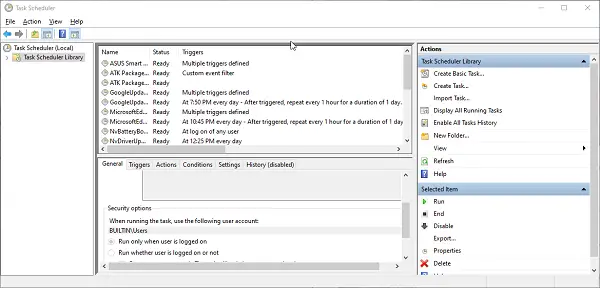
Task Scheduler stops automatically
The OS uses Task Scheduler to schedule and manage all background processes and applications. The method used is that the scheduler calculates all the resources required by any process to complete. It creates a queue of such processes based on their requirements and priorities. Once everything is set, all the tasks are sent to the processor for execution. It works based on time and memory consumption. In addition, anyone can create their own tasks and schedule them.
By now, you may have understood that proper Task Scheduler operation is a necessity. If you are facing a certain error, such as Task Scheduler not working, then it might be a problem for you. It is because all your background, ongoing, and upcoming tasks are clashing, causing your machine to freeze repeatedly.
Scheduled Tasks not running
Let us now understand why it isn’t working and what the possible solution is.
Before we start, let’s assume you have installed a driver or application from an unreliable source. Now, possible reasons for the error include a faulty registry entry or a corrupted application. Other reasons could be a disabled Task Scheduler service, a lack of admin rights, or a corrupted tree cache used by the scheduler.
You may not know which of the abovementioned reasons is behind the error in your system. This means you may have to follow each and every method mentioned in the article below. Please keep in mind that you have to restart your system after completing each method. And before you begin, remember to create a system restore point first.
Task Scheduler not running, triggering or starting programs in Windows 11
If the Task Scheduler stops automatically or is not running or working on your Windows 11/10 system, you need to do the following things:
- Check and start Task Scheduler service
- Change the Service configuration
- Start Task Scheduler using Command Prompt
- Run System File Checker
- Delete the corrupted Task Scheduler Tree Cache.
Task Scheduler failed to start task for user
1] Check and start Task Scheduler service
This is the simplest step one can perform. Checking Windows Services, restarting them is one of the basic things that even your system admin will also perform without a doubt.
Press Win + R keys. The Run dialog box will appear.
Type services.msc and press enter. The Services Manager window will open up.
In the list of Services, search for Task Scheduler.
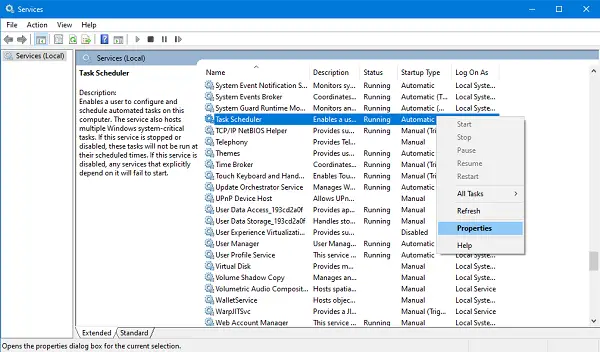
Right-click on it and select Properties. A new window will open up.
Check the new window to see whether the Service status is set to Running and Startup type is set to Automatic. If not then change it to the same. Next press the Start button.
Click on Apply then on OK.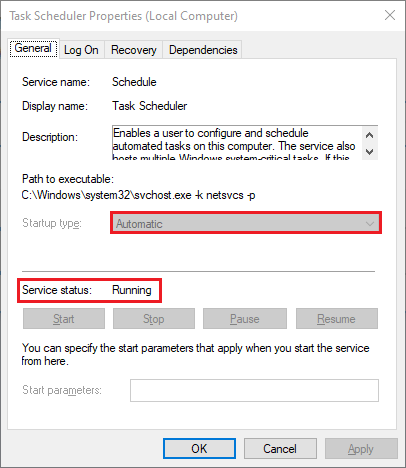
Your error should be resolved. But if your service was already running, as shown in the screenshot, then move to the next method.
Related: Task Scheduler service is not available
2] Change the Service configuration
If the above method fails to start the Service, then try this method.
Open Start Menu and type cmd. Select Run as administrator from the menu.
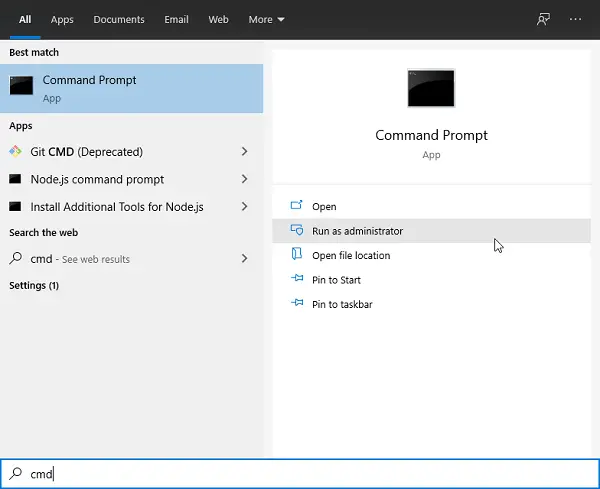
Type “SC config schedule start= auto” and press Enter.
If the final message you get is [SC] Change Service Config SUCCESS then the scheduler will start working.
Restart your system and you are good to go.
Read: Scheduled Tasks running forever, randomly, or multiple times
3] Start Task Scheduler using Command Prompt
If the above method didn’t work and your service is still not working then you can enable it using Command Prompt or Windows PowerShell too.
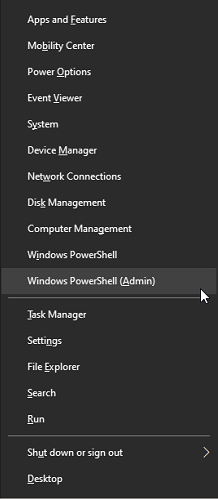
Press Win + X keys. A Quick Access menu will open up.
Select Windows PowerShell (Admin) or Command Prompt (Admin) from the list.
Type “net start task scheduler” and press Enter.
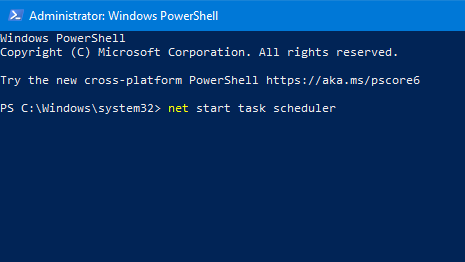
This should get things started.
4] Run System File Checker
Now that you know the service is running properly, you can go with this method. Running System File Checker looks for potentially corrupted system files, repairs and maintains them.
Press Win + X keys. A Quick Access menu will open up.
Select Windows PowerShell (Admin) or Command Prompt (Admin) from the list.
Type “sfc /scannow” and press Enter.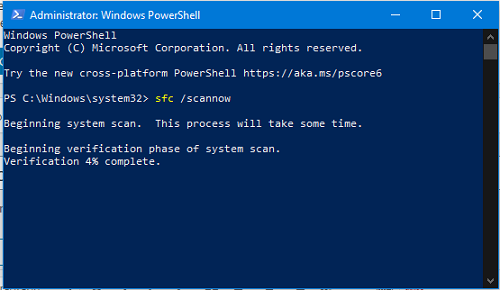
You will know when the process is completed and check whether the scheduler is running now or not. If not then you may go to the next method.
Read: No permission to disable, create, run or change Task Scheduler task
5] Delete the corrupted Task Scheduler Tree Cache
This method is a bit lengthy, go through the steps one by one and you may find that the error is no more.
Press Win + R keys. The Run dialog box will open up.
Type regedit and press Enter.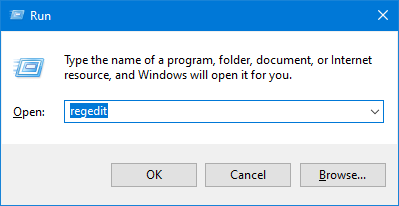
Go to the following Registry key:
HKEY_LOCAL_MACHINE\SOFTWARE\Microsoft\Windows NT\CurrentVersion\Schedule\TaskCache\Tree
Right-click on the Registry and rename it as Tree.old. 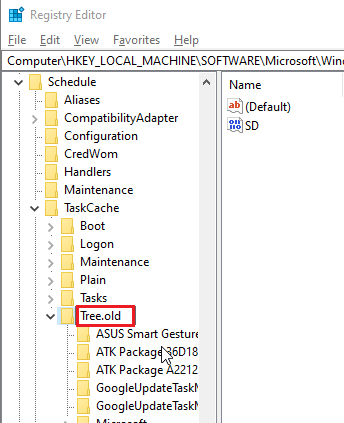
Go to Start search and type Task Scheduler. Click on the application, it should work now. If it does then go through the following steps to find out what was stopping it.
Revert the changes you made previously. Rename the registry as Tree.
Now, open the Registry hierarchy. Start renaming each key to keyname.old. Now try running the Task Scheduler.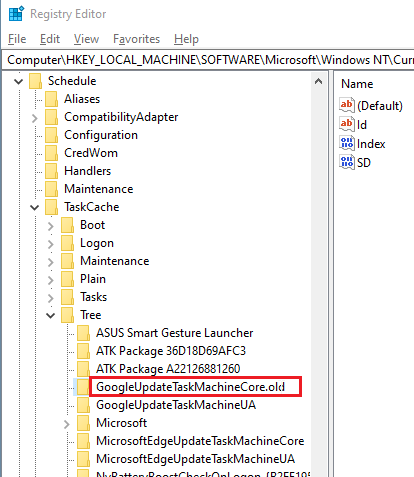
Keep doing Step 2 until you find the key due to which the scheduler was showing error.
Once the culprit is found, right-click on it and select Delete.
Restart your system and see.
These were some of the methods you can try to overcome the problem of Task Scheduler. Make sure to revert any changes you made to the system if any of the methods didn’t work for you.
Task Scheduler shows successfully finished but nothing happens
When Task Scheduler shows “Successfully finished” but nothing happens, it usually means the task ran but didn’t trigger the intended action. First, check that the Action is correctly set. Second, ensure the Start in (optional) field is filled with the program’s directory if required. Third, verify the task has the right permissions. Run with the highest privileges if needed. Fourth, confirm the Conditions
Does Task Scheduler work on Windows 11?
Yes, Task Scheduler works on Windows 11. It is a built-in app in both Windows 11 and Windows 10 operating systems. You can launch it via Windows Search. Task Scheduler is used to schedule tasks in Windows 11. You can also use it to open programs or files on system startup.
How do I manually trigger a task in Task Scheduler?
To manually trigger a task in Task Scheduler, the task’s status should show as Ready. If it is Disabled, right-click on it and select Enable. After this, its status will start showing Ready. Now, right-click on that task and select Run to manually trigger that task.
Related: Startup Program not starting on startup.
