
Windows maintains a list of programs that can launch themselves as soon as you log in to the system. It comes in handy for those programs which should be ready to use right away. However, it may happen that even after adding an entry here, the program still does not start. In this post, we will see what you can do if your Program in the Startup folder is not launching or starting on startup in Windows 11/10.
Program in Startup folder not starting on Windows startup
If a program in the Startup folder is not starting or launching on startup in Windows 11 or Windows 10, follow any of these methods to resolve the issue:
- Check the Task Manager for startup entries
- Add the Program to Startup Folder
- Add Program in the Startup using Registry
- Force the elevated Program with Task Scheduler
- Add Exception to Default Firewall
- Setup Batch File to Launch Programs.
Some of them will require admin permissions to complete the setup.
1] Check Task Manager for Startup entries
- Right-click on the taskbar and select Task Manager
- Switch to the Startup Tab and locate the Program in the list
- Check if the status is disabled.
- If yes, then right-click on it, and choose Enable from the menu
Restart the computer, and see if the Program is now available as soon as you log in to the computer.
2] Add the Program to Startup Folder
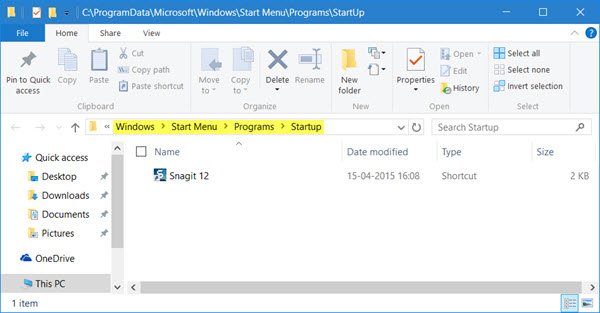
There are two Startup folders locations—Current User Startup and All Users Startup Folder. Once you place a shortcut inside it, the programs will be launched automatically. To do this:
- Open Run prompt (Win + R)
- Type shell:common startup and press the Enter key
- It will open the Startup Folder
- Next, drag and drop the shortcut of the Program you wish to launch in the folder.
Read: How to make a Program run on startup.
3] Add Program in the Startup using Registry
The Registry is the highest authority on a Windows PC; all the settings you change and anything you do affect it. All settings for the Windows Native apps, as well as all third-party software, are present in the Registry. You must not play with Registry unless and until you know and are sure of what you are doing.
Follow the steps to sort the Startup folder issue:
- Open Registry Editor by typing Regedit in the Run prompt, followed by pressing the Enter key.
- Navigate to
HKEY_LOCAL_MACHINE\Software\Microsoft\Windows\CurrentVersion\Run
- Right-click on the empty space in the editor and make a new String value entry.
- Name the string value as the Program you want to run.
- Edit the entry and set the value to the path to the Program’s executable file.
- Save and restart the PC.
Read: Windows Registry Startup Locations.
4] Force the elevated Program with Task Scheduler
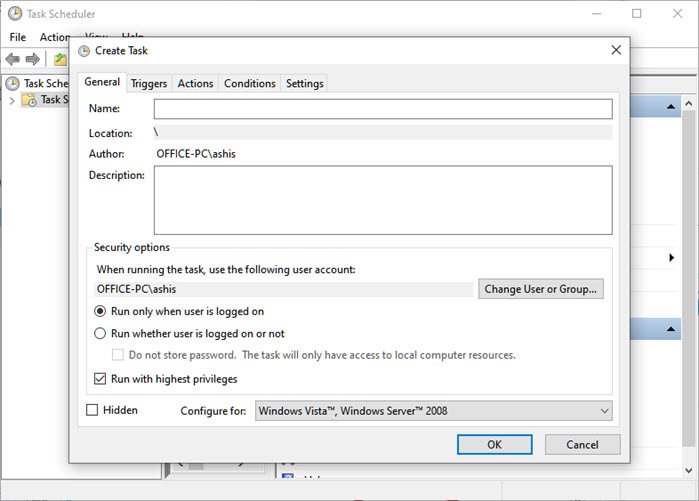
Some programs require admin permission to start every time. The UAC feature in Windows will block if the Program doesn’t have the correct permission. You may try to change the UAC to ascertain that, and if that’s the case, it is best to create a shortcut that will allow it to launch with admin permission all the time.
- Press the start menu, and click on the Search bar.
- Type UAC and open Change User Account Control settings
- Move the slider to the bottom and confirm changes.
- Reboot the computer to check if the Program can launch.
If yes, then you can create a task and launch the Program with admin permission. That way, you will not have to face the UAC every time.
- Open Task Scheduler by typing taskschd.msc in the Run prompt followed by pressing the Enter key
- Create a new Task and make sure to select two options — Run only when the user is logged on, and check the box which says Run with Highest Privileges.
- Name the task, and save it.
Next time you log in to your account, the Program will automatically launch.
5] Add Exception to Default Firewall
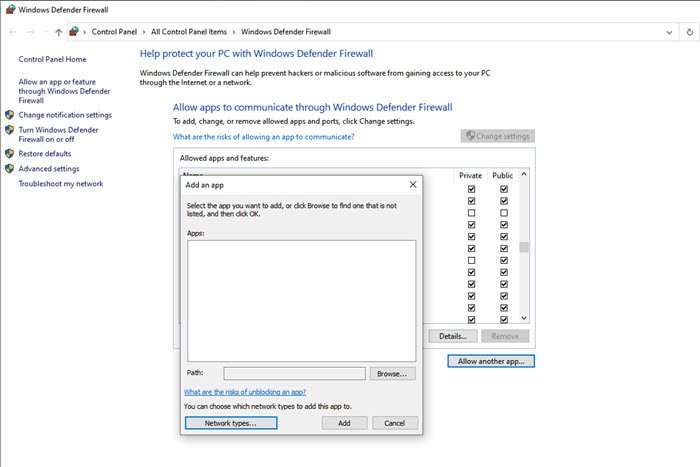
Some Programs need to connect to an intern as soon as they start. If the Firewall is blocking such programs, then the Program may not launch or get blocked. If the Program you wish to launch has such a requirement, make sure to add it as an exception to the Firewall.
Type firewall in the start menu, and select Windows Defender Firewall from the list.
- Click on Allow an app or feature through Windows Defender Firewall
- Then click on Change Settings and then on Allow another app button
- Use the browser button to add the Program
- You can also configure the Network types to allow it to work through only private network
6] Setup Batch File to Launch Programs
If you want to launch a bunch of programs at Startup and need a simple method, you can create a batch file and set it to run on Startup. However, stay warned that it will attract UAC, and you will have to allow each of them manually.
- Open Run prompt (Win +R) and type notepad. Press the Enter key to open it
- Copy the code below and save it as a BAT file
@echo off

“<Path of the program>\<Programname>.exe”

exit
So, for example, if I want to launch Snagit, the path I need to center will be
C:\Program Files\TechSmith\Snagit 2025\Snagit.exe
You can add more, but each of them should be listed in a new line. Finally, create a shortcut of the BAT file, and place it in the Startup Folder.
If the Program you want to use doesn’t start as you log in to the computer, you can use any of the methods to make sure it starts.
How to add Programs to Startup in Windows 11?
To make a Program run on startup in Windows 11, you can use Windows Settings, place a program shortcut in the Startup folder, set the program to run at Windows boot via the Registry, use the Task Scheduler to run programs at startup, or use freeware to add it to the startup list.
How do I see all startup programs?
You can view all startup programs in the Task Manager. Open the Task Manager (Ctrl + Shift + Esc keys) and then go to the Startup tab. There you will see all the startup apps. You can manage your startup apps here. If you want to prevent a particular startup app from starting automatically on system startup, right-click on it and select Disable.
How do I force an application to start on startup?
You can make any application start on startup by placing its shortcut in the Startup folder. In addition to this, there are other ways by which you can make an application to start a startup. You can use free software, modify the Windows Registry, and use the Task Scheduler app.
Read: Task Scheduler not running or starting programs.
