
We have noticed a very peculiar issue where the window resizes or moves positions unexpectedly when waking the screen from sleep or after it turns off. In this case, windows shrink when the resolution stays the same. In this post, we are going to see what to do when Windows 11/10 is resizing or moving windows after Sleep.

Fix Windows 11 resizing or moving windows after Sleep
This issue typically arises due to Windows 11/10’s handling of monitor disconnections during sleep or input switching, where the OS fails to persist window positions and sizes when displays are temporarily perceived as disconnected. This is exacerbated by multi-monitor configurations, outdated monitor driver remnants in the system, DisplayPort-related quirks (especially with 4K monitors at 60Hz), or conflicting snap features that trigger after sleep. However, we can resolve this issue with ease. Let’s see how to.
If Windows 11/10 resizes or moves windows after sleep, follow the solutions mentioned below.
- Disable Snap windows
- Adjust Multi-Monitor Persistence Settings
- Switch from DisplayPort to HDMI
- Edit Fallback Resolution
- Disable Panel Self Refresh (PSR) via Registry
Before you begin, run Windows Update and check if any Optional Updates to update the Display drivers are available; and if so, kindly install them.
1] Disable Snap windows

The Snap Assist feature constantly monitors window positions to enable its auto-arrangement functionality. After sleep/wake cycles in your computer, this feature misinterprets the display reconnection as a new desktop layout, forcibly resizing and relocating windows to fit its predefined snap zones, even when you haven’t triggered snapping. Disabling it stops this automated interference. To do so, follow the solutions mentioned below.
- Open Settings by Win + I.
- Go to System > Multitasking.
- Now, toggle off Snap windows
Do keep in mind that this only stops automatic snapping behavior. You can still manually snap windows by dragging them to the screen edges using Win + Arrow keys. Test by putting your laptop to sleep, then waking it, the window should retain its original size/position.
2] Adjust Multi-Monitor Persistence Settings
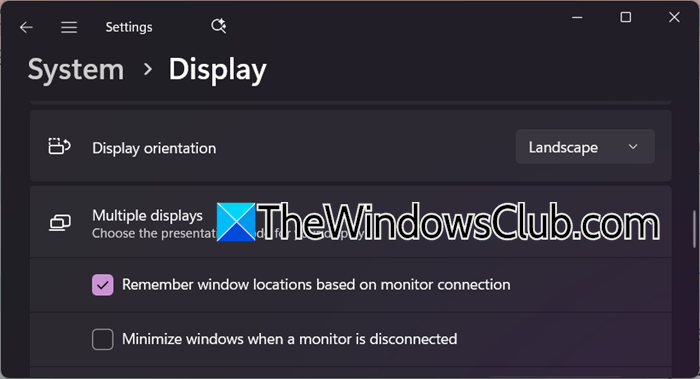
Windows 11 views sleep and wake cycles as temporary monitor disconnections, even on single-monitor laptops. Enabling Remember window locations based on monitor connection lets Windows restore apps to their original positions after waking. Disabling Minimize windows when a monitor is disconnected prevents aggressive window movement during these false disconnections, avoiding disruptive rearrangements. Let’s just make these adjustments.
- Open Settings by Win + I.
- Go to System > Display.
- Scroll down and click on Multiple displays.
- Turn on Remember window locations based on monitor connection and turn off Minimize windows when a monitor is disconnected.
- Now, close Settings.
Finally, check if the issue is resolved.
3] Switch from DisplayPort to HDMI
DisplayPort (DP) cables often send a full disconnect signal to Windows when the monitor enters sleep mode, making the OS believe the display was physically unplugged. This triggers Windows to forcibly relocate/resize windows as if a monitor vanished. HDMI cables, however, maintain a persistent standby connection during sleep, fooling Windows into thinking the display is still connected, thus preserving window positions/sizes when waking.
4] Edit Fallback Resolution
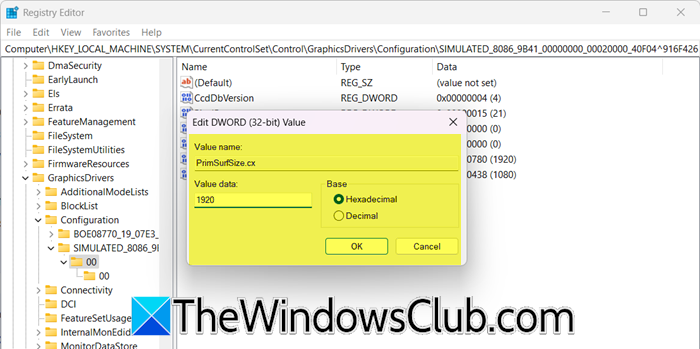
Windows 11 uses a fallback resolution when it misdetects display disconnections during sleep. If this fallback value is incorrect (e.g., 1024×768), Windows virtually resizes all open windows to fit that resolution. When the monitor wakes, windows snap back to native resolution but retain their resized positions. Setting the registry’s PrimSurfSize.cx/cy to your native resolution forces Windows to use the same resolution during sleep disconnections, eliminating disruptive rescaling.
You can follow the steps mentioned below to do the same.
- Open the Registry Editor.
- Create a backup using File > Export.
- Now, go to the following location.
HKEY_LOCAL_MACHINE\SYSTEM\CurrentControlSet\Control\GraphicsDrivers\Configuration
- Look for the following folders with names like:
- SIMULATED_XXXX
- XXXXXX_XX_XXXXXX_XXXXXXXX (long alphanumeric strings)
- Expand each folder, and open its 00 subfolder (represents primary display).
- Double-click PrimSurfSize.cx, set Value data to your horizontal resolution (e.g., 3840 for 4K).
- Now, double-click PrimSurfSize.cy, set Value data to your vertical resolution (e.g., 2160 for 4K). We are basically changing the length and width of the window.
- Check every folder under Configuration (even if they look inactive) and prioritize folders containing 00 or 01 subfolders.
Finally, check if the issue is resolved.
5] Disable Panel Self Refresh (PSR) via Registry

Windows 11 uses Panel Self Refresh (PSR) is a feature where the display controller enters ultra-low power states during static screens. During sleep/wake transitions, PSR can cause the GPU driver to lose synchronization with the display’s timing controller (TCon), resulting in Windows misinterpreting the wake-up as a new display connection. This triggers the window relocation bug. Therefore, we will disable PSR to force proper hardware handshaking. To do so, open the Registry Editor and go to the following location.
HKEY_LOCAL_MACHINE\SYSTEM\CurrentControlSet\Control\GraphicsDrivers
Now, right-click in the right pane, and select New > DWORD (32-bit) Value. Name it PSREnable exactly (case-sensitive). Now, double-click on it and set the Value data to 0. Create another DWORD named PSRFeatureEnable, and set it to 0.
Finally, check if the issue is resolved.
Read: How to change Sleep settings on Windows 11
Why do windows move positions after waking up from sleep?
Windows repositions after sleep because Windows 11 often misinterprets the monitor’s temporary sleep state as a disconnection. This issue, especially common with DisplayPort connections or after the 24H2 update, occurs when monitors lose their EDID signal during sleep. The operating system then thinks the display has been unplugged, causing it to lose window position data. Upon waking, Windows treats the monitor as a new display, leading to unexpected window movements and Snap Assist layout adjustments before the display system fully reinitializes.
Read: Windows 11 enables Sleep Mode instead of locking screen
What happens when Windows 11 sleeps?
When Windows 11 sleeps, it enters a low-power state that pauses all activity but keeps your current session (open apps, files, etc.) alive in RAM. The display turns off, background processes freeze, and hardware (CPU, drives) reduces power draw to a trickle. It wakes almost instantly when you press a key, move the mouse, or press the power button, restoring your exact workspace.
Also Read: Sleep option missing in Windows 11; How to restore it?
