
Running an AI agent locally on Windows has several benefits. It ensures complete data privacy because all your files stay on your PC. Moreover, you can integrate these AI Agents with your system to build AI-powered desktop automation workflows on your Windows 11 computer. But installing and setting up an AI agent locally on Windows 11 is not as simple as it sounds. Sometimes, you may encounter errors while installing or using AI agents locally on Windows 11. In this article, we will discuss the top 10 Windows AI Agent Installation errors and their solutions.

Windows AI Agent Installation errors and their solutions
The first thing to consider when installing an AI agent locally on Windows 11 is whether your system’s hardware meets its requirements. If so, you can proceed with the installation. However, you may still encounter issues installing or running an AI agent locally on Windows 11, even if your system has sufficient hardware resources. Here, we will discuss the top 10 Windows AI Agent Installation errors and their solutions:
- WinError 193
- Command is not recognized as an internal or external command
- UnicodeDecodeError
- Max retries exceeded
- AI model not found
- API key not found
- Local setup fails
- Chinese / Japanese / Arabic characters show as ? in the CLI
- curl: (56) Failure writing output to destination
- The assignment expression is not valid
Top 10 Windows installation pitfalls for AI Agents and how to fix them
1] WinError 193
This error usually occurs when an AI agent, such as Claude, fails to initialize. This happens when the SDK attempts to spawn the CLI subprocess. For example, the Claude Code CLI subprocess. Windows searches for the executable file but accidentally picks up a Linux-style shell script instead of a proper Windows batch file. When Python tries to run this incompatible shell script as a background process, Windows can’t read it. This triggers the error.
The complete error message is:
OSError: [WinError 193] %1 is not a valid Win32 application
To fix this error, you can update the SDK. If you use the _find_cli() command, make sure to mention the correct executable batch file for Windows along with the global npm installation path in the command. For example, in the case of the Claude AI agent, use claude.cmd instead of claude. The latter is a POSIX shell script, which Windows does not support.
As a workaround, you can also specify the CLI path manually.
2] command is not recognized as an internal or external command
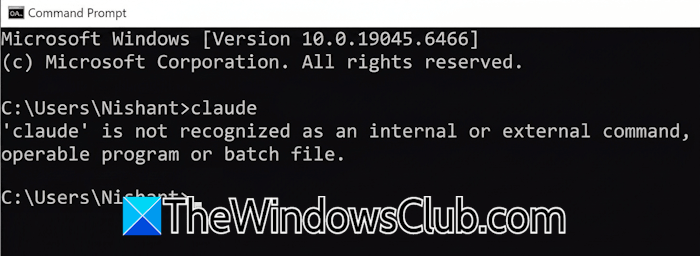
This error means that Windows cannot find the executable file for the command you typed. When you encounter this error while installing or running an AI agent, first ensure that there are no typing errors in the command. It is a path error. If you encounter this error while running an AI agent, you need to add its executable path to the Environment Variables.
3] UnicodeDecodeError
This error usually occurs when the encoding of the file you’re trying to load doesn’t match the encoding specified in the TextLoader or the default system encoding if no encoding is specified. To fix this error, specify the correct encoding when initializing the TextLoader.
4] Max retries exceeded
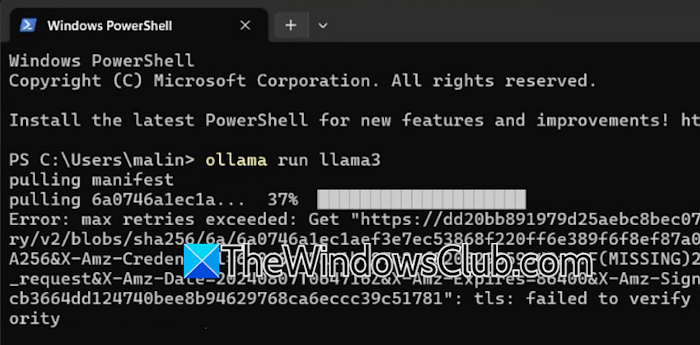
The Max retries exceeded error is usually associated with Ollama. It usually occurs when downloading or running an AI agent through Ollama. The most common cause of this error is an unstable internet connection. Therefore, if you encounter this error, check your internet connection. If possible, connect to another available network. If you encounter this error despite having a high-speed internet connection, try changing your IP address. You can use a VPN for this. If you are already using a VPN, disconnect it.
5] AI model not found
You may encounter this error with different AI agents, such as Cursor, Ollama, etc. Multiple causes can trigger this error. For example, with Cursor, this error usually occurs because your version is outdated. In this case, updating or reinstalling Cursor can help. If you encounter this error with Ollama, it means the required AI model isn’t downloaded on your machine.
6] API key not found
This error occurs when the agent code runs but can’t find the API key. This can happen when setting up an AI agent locally on a Windows machine. Most local AI agents do not have a brain. Therefore, you need to connect an AI model by providing an API key. To fix this error, provide the correct API key. Visit the platform where you generated the API key and validate it. If the API key has expired, generate another one.
7] Local setup fails
Setting up an AI agent locally on a Windows machine may fail if the prerequisites are not met. For example, the OpenClaw setup may fail due to any of the following conditions:
- WSL is disabled
- Blocked or disabled virtualization
- Network failure while installing a gateway package
- Corrupt or leftover WSL data from the previous setup
To fix this issue with OpenClaw or any other AI agent, open its log file to know the exact cause. Once you identify the issue, apply the appropriate fixes.
8] Chinese / Japanese / Arabic characters show as ? in the CLI
Non-English characters appear as question marks instead of proper text in the command-line interface. This error usually occurs when the agent cannot activate the UTF-8 stdio shim. To fix this, check the UTF-8 encoding status. Make sure that it is not disabled. For example, for Hermes Agent, make sure that HERMES_DISABLE_WINDOWS_UTF8 is not set to true. For this, you can execute the following command:
Get-ChildItem env:HERMES_DISABLE_WINDOWS_UTF8
The output should be empty. If you still get question marks in the CLI even if the output is empty, the console host may not support UTF-8 at all. In this case, switch to Windows Terminal.
9] curl: (56) Failure writing output to destination
This error is associated with Claude Code and occurs when Bash does not receive the complete script. The Exit code 56 means that the download was interrupted. The most common cause of this error is an unstable internet connection. Therefore, check your network stability. Claude Code binaries are hosted at downloads.claude.ai. Test that you can reach it by executing the command: “curl -sI https://downloads.claude.ai/claude-code-releases/latest”
The output HTTP/2 200 means you reached the server. Now, run the installation command again and see if the error persists. The other results that you may receive are:
- 403: This output means Claude Code is not available in your region. However, if you are connected to a VPN, disconnect from it and try again.
- 5xx: This output indicates a temporary issue. Wait for a few minutes and try again.
- Could not resolve host: This means that your network is blocking the download.
You can also use the alternate method to install Claude Code by executing the following command:
winget install Anthropic.ClaudeCode
10] The assignment expression is not valid
This error is associated with the Hermes agent and occurs when the Hermes installer script install.ps1 contains invisible UTF-8 BOM (Byte Order Mark) headers. The irm | iex command automatically strips the BOM characters during script execution. But if you execute the [scriptblock]::Create((irm ...)) command, PowerShell fails to parse the hidden BOM characters and displays the “The assignment expression is not valid” error.
To resolve this issue, use the irm | iex command, or download the script manually and save it without a BOM via [IO.File]::WriteAllText($path, $text, (New-Object Text.UTF8Encoding $false)) command.
That’s it. I hope this helps.
What are the problems with AI agents?
Security risks are among the biggest concerns with AI agents. These include agent goal hijacking, tool misuse and exploitation, unexpected code execution, memory and context poisoning, and prompt injection. Other issues with AI agents include hallucinations, API failures, and latency.
What are the 5 types of agents in AI?
The five types of AI agents are Simple reflex agents, Model-based reflex agents, Goal-based reflex agents, Utility-based agents, and Learning AI agents. A learning AI agent is the most advanced agent that can acquire knowledge from its interactions and adapt its behavior to improve its performance over time.
Read next: How to run Mistral with Ollama on Windows.
