
When we increase or decrease volume on Windows 11, a volume bar appears. The bar stays there for a few seconds and disappears when we are done adjusting the sound. The volume bar does not appear randomly while you are working. However, if the volume bar on Windows 11 is stuck or keeps popping up on its own, there might be an issue. When it pops up, the sound on your PC increases or decreases abruptly without your control. It can be a frustrating experience. Follow this guide to know how to fix it easily.
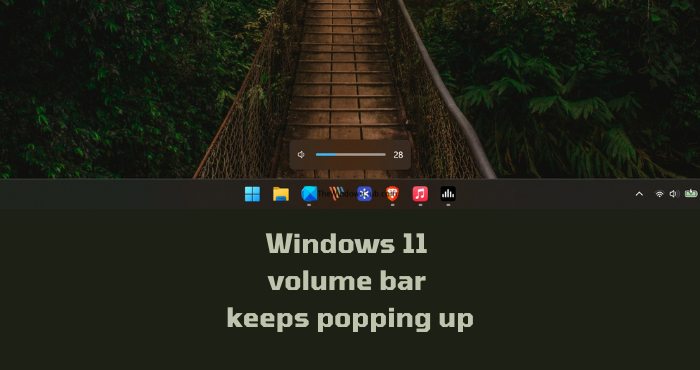
Windows 11 volume bar keeps popping up
If the volume bar shows up randomly or behaves erratically without any intervention in Windows 11/10, you can use the methods below to fix the issue.
- Check your keyboard
- Close programs that control audio devices
- Disconnect all the external audio devices, keyboard & mouse
- Disable Hardware media key handling on web browsers
- Run the Audio troubleshooter
- Update or reinstall audio drivers
- Troubleshoot in Clean Boot State.
Let’s get into the details on how to fix the issue.
1] Check your keyboard
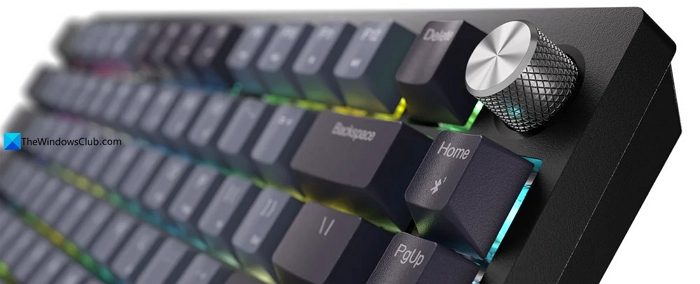
Check for stuck buttons on your keyboard. Make sure to clean the keyboard of dust and debris. If you use a mechanical keyboard with a volume knob, that might be causing the volume bar to pop up randomly. Over time with regular use, the knob becomes too delicate with dust and all. Even if you use it to control volume, you can see its erratic behavior. Make sure it’s clean to get rid of the issue.
2] Close programs that control audio devices
If you use free sound and volume booster programs like FxSound to enhance and improve audio on your PC, they might be causing the issue with the volume bar. Closing the program completely will fix the issue.
Open Task Manager on your PC, and find the app that you use to enhance your audio. Right-click on it and select End task.
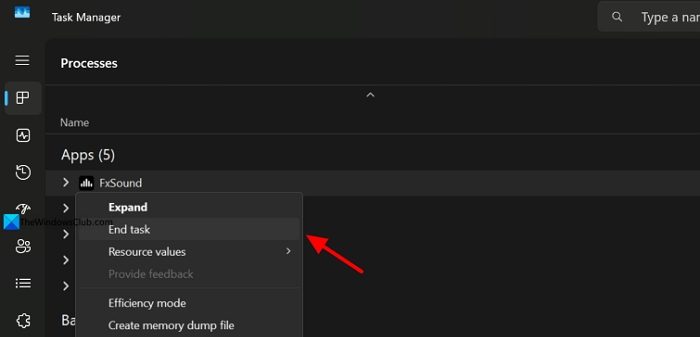
If the issue is actually caused by those programs, you will not see it again. If you want to use those apps, uninstall and reinstall the app you use again.
3] Disconnect all the external audio devices, keyboard & mouse
If you have connected any audio devices to your Windows PC, disconnect them for a short while. Along with them, disconnect the external keyboard and mouse. Then, see if the volume bar stops popping up. If it has stopped, start connecting one device at a time, and see if it changes anything. It shows what device is really causing the issue. Then, you can get the device checked for any issues.
4] Run the Audio troubleshooter
Windows comes with a built-in troubleshooter for audio issues. The volume bar popping up randomly can also be fixed by running the troubleshooter available in the Settings app. Open the Settings app, click System, go to Troubleshoot, and click Other troubleshooters. Click Run beside Audio to run the troubleshooter.
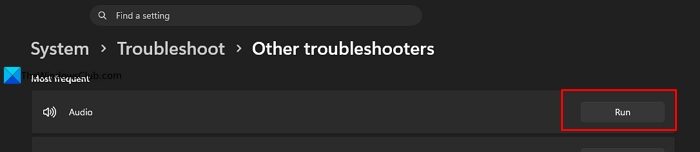
It will show you any issues and fix them to get rid of the volume bar issue.
5] Disable Hardware media key handling on web browsers
If you primarily use Google Chrome or Microsoft Edge to consume any kind of media, the issue might be due to hardware media key handling enabled in your browser. It lets you use the media keys on your devices to control media playback in the browser. The feature is enabled by default.
Open Google Chrome or Microsoft Edge on your PC and type the following paths for your browser.
chrome://flags
edge://flags/
Then search for “Hardware media key handling,” click the drop-down next to it, and select Disabled.
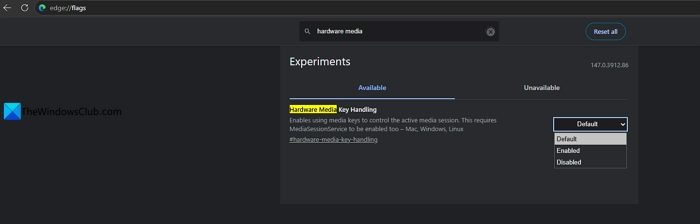
Restart your browser and see if the issue is resolved.
6] Update or reinstall audio drivers
If there are any issues with the audio drivers or the components that power them are corrupted, the volume bar may behave erratically. The only way to fix the issue is by updating the audio drivers. The simplest way to find updates for audio or any drivers on Windows 11 is to check for Windows updates. Your system will install missing or corrupted drivers along with the Windows updates.
Open the Settings app, click Windows Update. Then, click Check for updates. If it shows you any updates, click Install all.
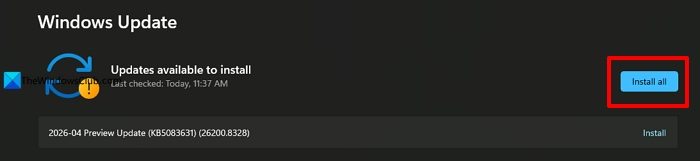
It will fix the issues with your audio drivers, too. If there are no updates available to install, uninstall audio drivers, and restart your PC. Windows will automatically reinstall the audio drivers.
To uninstall the audio driver, click Start and search for Device Manager, and open it from the results. Expand Sound, video and game controllers. Then, right-click on your audio device and select Uninstall device.
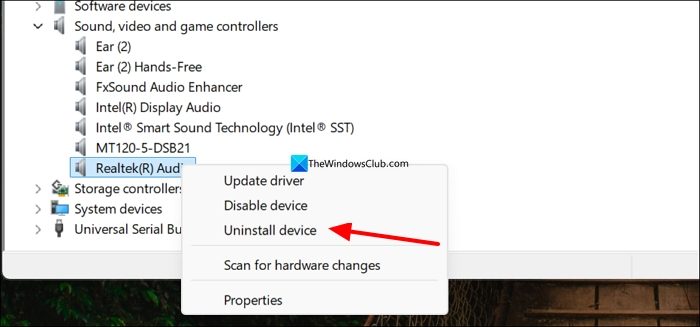
Confirm uninstalling the device on the prompt that appears. Then restart your PC so Windows can install the device driver automatically.
7] Troubleshoot in Clean Boot State
If the issue is not fixed yet, you need to perform a Clean Boot on your PC to find the program responsible for it. Click the Start and search for System Configuration, and open it. Click the Services tab. Check the button beside Hide all Microsoft services. Then, click Disable all.
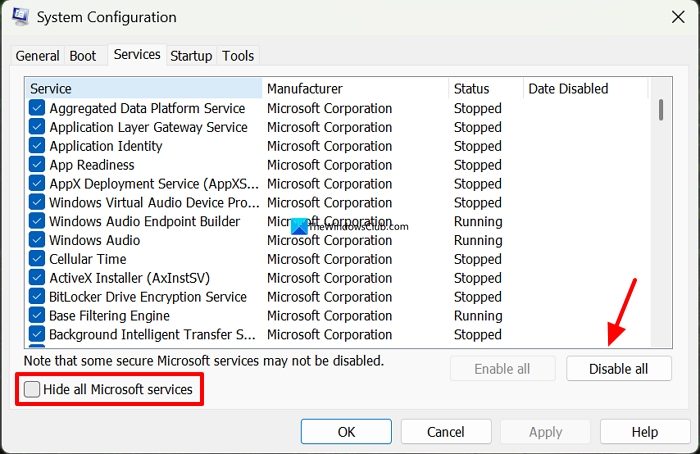
Apply the changes. See if the volume bar appears in the Clean boot state, where only Microsoft services are running. If the issue is not present, enable the third-party services or programs one by one to identify the cause. After you find it, uninstall the responsible program.
If you have found the volume bar issue in the Clean boot state without enabling the third-party services and programs, run an SFC scan on the Command Prompt (administrator) to find and fix the issue automatically.
Read: Volume too loud on the lowest setting on my computer
Why won’t my volume bar go away in Windows 11?
The reason the volume bar does not go away in Windows 11 is that there is constant activity of managing volume on your PC. Even if you are not doing it manually, a stuck key, a damaged or old volume knob, or any audio management program installed on your PC might be causing the issue.
Why is my volume bar stuck on my screen?
If the Volume bar is stuck on your screen, it could be a glitch. Refresh your desktop or restart Explorer and see. You can also check for any stuck keys or movement on the volume knob or media keys on your keyboard. Close the volume management app and restart your PC to see if the issue persists.
Related read: Volume Mixer not opening on Windows 11.
