
While Windows allows users to download files from almost anywhere, it can also block websites or downloads for various reasons. Windows 11, like its predecessors, comes with built-in security features. It is designed to ensure consumers are safe from malware, viruses, and other files that could steal or lock data on the PC. However, if you feel Windows 11 is incorrectly blocking websites or downloads, follow this guide to resolve the issue.
Why is Windows 11 blocking websites or downloads?
When downloading a file or visiting a website, most modern browsers and security software check for safety. If the software or website is known to cause trouble, including distributing viruses and hijacking the system, it will be blocked.
So, before we go ahead, first ensure that what you are downloading is safe. Check if you have misspelled the website name or if the source of the file is not trusted. Did you click on the link in an email that is not trusted?
There may be more questions like this, and you need to ensure your source is safe before proceeding with these solutions. Some of these solutions can allow you to add the file or website as an exception, so make sure you are sure when adding it to the allowed list.
Windows 11 blocking websites or downloads
If Windows 11 is blocking websites or your downloads, then you need to check up on the following security settings:
- Browser’s Security Settings
- Microsoft Security
- Internet Connection Troubleshooter
- Incoming Connections Troubleshooter
- DNS Server
You will need to use an administrator account to execute most of these suggestions. Since these are security settings, we recommend that you consider disabling them temporarily only.
1] Browser’s Security Settings
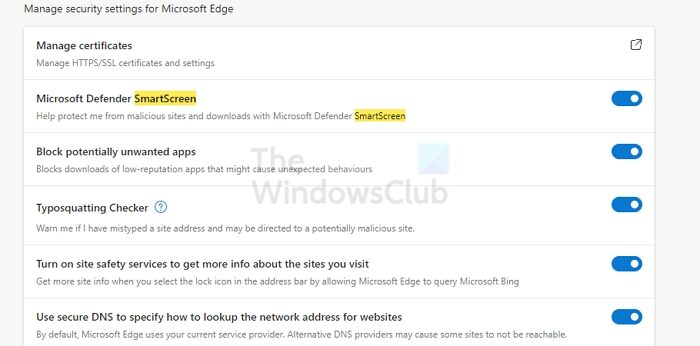
Malicious websites often attempt to infect users’ computers or interfere with their browsing and Internet connections. When users visit these websites, they are commonly asked to “install” or “run” software, such as a browser add-on. In some cases, the software may be offered as free software or cost little or nothing, but the website’s operators earn money from users’ data or malware that infects their computers.
Modern browsers offer built-in security that protects malware downloads and websites that distribute such files. For example, if you open Edge settings and go to the Security section, it has these options— Microsoft Defender SmartScreen, Block potentially unwanted apps, Site Safety, and secure DNS.
If you are sure of the source and think it’s a false positive, turn them off and then download the file or visit the website.
Read: Microsoft Defender SmartScreen prevented an unrecognized app from starting
2] Windows Security
All Windows computers have Windows Security built in to help protect from viruses and other malicious software. Once the file is downloaded, the software instantly scans it, and if it’s bad, it is immediately quarantined.
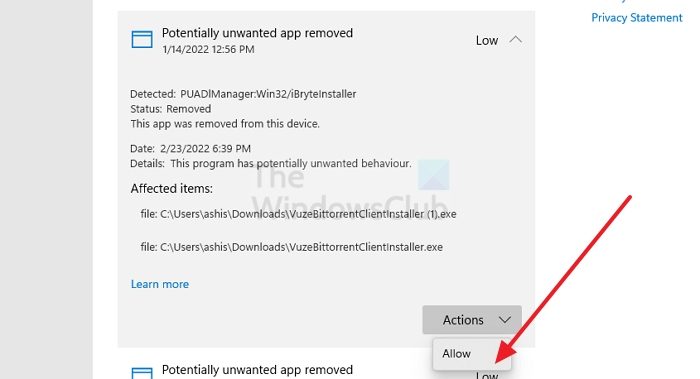
Open Windows Security and go to Virus and Threat Protection to check if the file has been blocked.
Here, you can look at the protection history to determine if any of the files were blocked. If you are sure about the file, you can click on the listing and then you can manually unblock it.
3] Internet Connections Troubleshooter
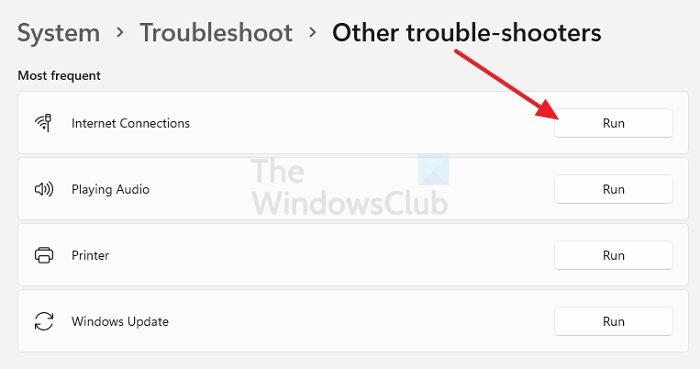
If the file download abruptly stops, it may be due to an unstable internet connection. If your router is working as expected, then you can run the Internet Connection Troubleshooter to let Windows fix a few things, such as resetting the adaptor, DNS, reconnecting, and so on.
Open Windows Settings and navigate to System > Troubleshoot > Other troubleshooters. Locate and run the Internet Connections troubleshooter. Once it’s done, try downloading the file again and see it works this time.
Read: Fix Network & Internet connection problems
4] Incoming Connections Troubleshooter (Windows Firewall)
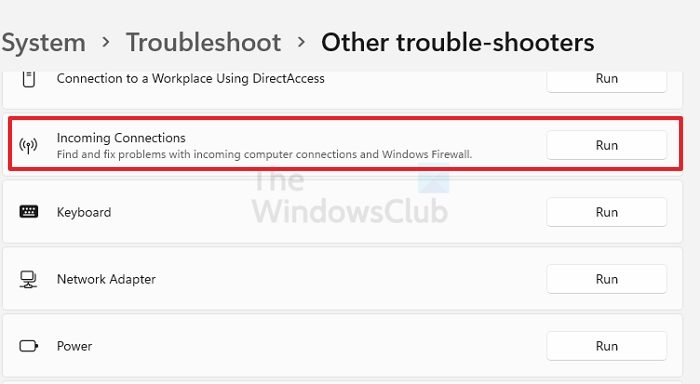
If Windows Firewall is causing the problem, you can run the Incoming Connections troubleshooter. It can find and fix issues with incoming computer connections and Windows Firewall.
Open Windows Settings and go to System > Troubleshoot > Other troubleshooters. Locate the Incoming Connections troubleshooter and click on the Run button next to it. Once the process completes, try downloading the file again.
Read: Cannot download a file from the Internet? Do this!
5] DNS Server
Have you configured an extra-secure DNS? If yes, you can switch to a less-strict DNS server or use the ISP DNS and try downloading again.
You can follow this guide to change DNS to override the DNS configured in the router. If you can download the file and it is not blocked by the browser or the security software on your PC, the issue is resolved.
Related:
- Cannot open particular website in Chrome, Edge or Firefox
- How to unblock and access Blocked or Restricted Websites.
Why do browsers block software even from a trusted website?
If multiple users report an app, it is classified as a Potentially Unwanted App. They are not harmful to the PC directly, but they might be forced to download, or the software contains something annoying to the user experience.
How do I unblock an app downloaded but cannot be used?
It is possible that the file is marked as blocked in its Properties. If you right-click on the file and go to its properties, look for a checkbox next to Unblock. Check it, and then apply the changes. Once done, you should be able to run the application or the installer.
