
When upgrading Windows to a new version, such as from Professional to Enterprise or Home to Professional, and you receive error code 0x800f0805 during Activation, this post will help you. You can also get the error during Windows Update. We will share the best possible solution to fix the problem.
Depending on which situation you got this — Error 0x800f0805— follow the suggestions below to resolve it. While the activation issue can be easily resolved, the problem becomes more complex with the update error.
Fix Windows Activation Error 0x800f0805
When you try to upgrade the Windows version from, for example, Home to Education or Professional, and encounter this error, follow the steps below. The Error occurs when you go to Settings > Update & Security > Activation. Try activating Windows using a new product key.
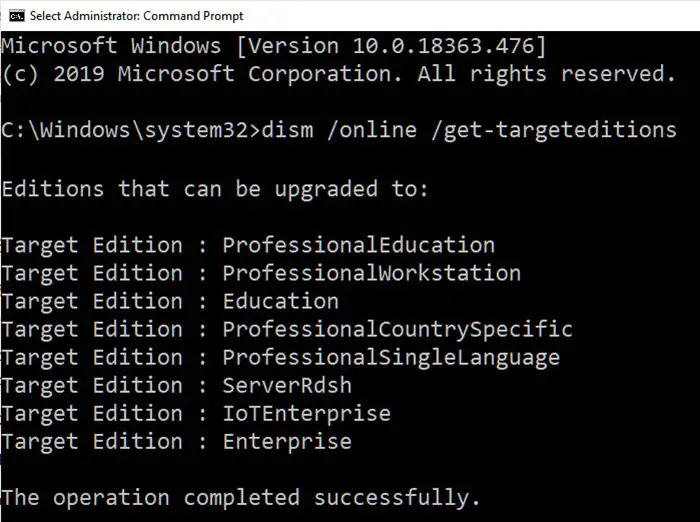
Open Command Prompt with admin permission by typing CMD in the Run (Win + R) prompt, followed by pressing the Enter key. Then execute the command dism /online /get-targeteditions and it will reveal the list of Windows editions you can upgrade to from the current version.
C:\Windows\system32>dism /online /get-targeteditions
Editions that can be upgraded to:
Target Edition : ProfessionalEducation
Target Edition : ProfessionalWorkstation
Target Edition : Education
Target Edition : ProfessionalCountrySpecific
Target Edition : ProfessionalSingleLanguage
Target Edition : ServerRdsh
Target Edition : IoTEnterprise
Target Edition : EnterpriseThe operation completed successfully.
Next, to activate, we will use the SLMGR tool (Software Licensing Management Tool) from Microsoft to activate Windows from the command prompt. Type the command prompt:
slmgr.vbs /ipk <your 25-digit product key>
If the process is a success, go back to the Activation tab, and check if your version has changed. In case you get an error message—
Error: 0x800f0805 . The Windows edition was not detected. Check that the specified image is a valid Windows operating system image
All you need to do is restart your computer and try activating it again; it should then work.
Most of the time, a restart can solve a lot of problems.
Fix Windows Update Error 0x800f0805
Many times, Windows fails to update, and if you encounter Error code 0x800f0805, you can follow the methods below. These are standard methods that can resolve most Windows Update issues. Follow these methods one by one, and check if the issue has been resolved.
- Windows Update Troubleshooter
- Run DISM and SFC tools
- Clear or Delete Windows Update Download Folder
- Restart Windows Update Services
Unless the problem is specific to a driver, these steps should help you resolve the Windows Update Error.
I hope the post was easy to follow, and you were able to resolve the update or activation error 0x800f0805.
