
Some Windows 11/10 users are reporting an error when they open an image with the Photos app, the app crashes and they are unable to view that image. The app may simply crash or you may see a File system error followed by some numbers. So, let us see how to fix this issue using some simple solutions.
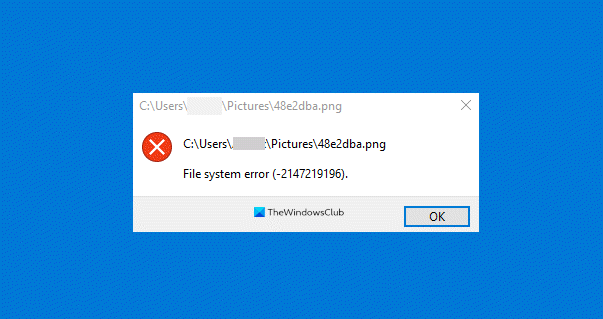
Windows Photos App keeps crashing or closing with File system error
These are the things you can do if Windows 11/10 Photos App keeps crashing or closing with or without File system error:
- Use Windows Store Troubleshooter
- Repair or Reset Photos app
- Completely Reinstall Photos app
- Restore Default Libraries
- Use a different Image Viewer
Let us talk about them in detail.
1] Use Windows Store Apps Troubleshooter
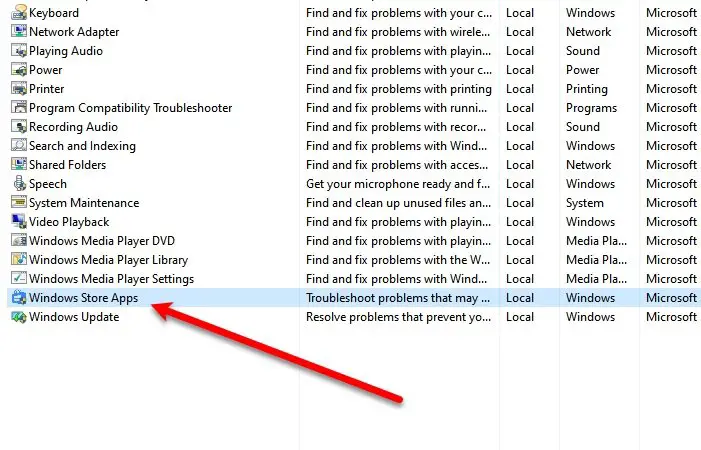
Microsoft built a troubleshooter into Windows to help users fix minor issues. So, if you are facing any issues with the Photos app, try running the Windows Store Apps Troubleshooter to fix it.
To do that, you need to follow the given steps:
- Launch Control Panel from the Start Menu.
- Click Troubleshooting > View all.
- Now, click on Windows Store Apps and follow the on-screen instruction to troubleshoot the issue.
Hopefully, this error will fix the issue for you.
2] Repair Photos App
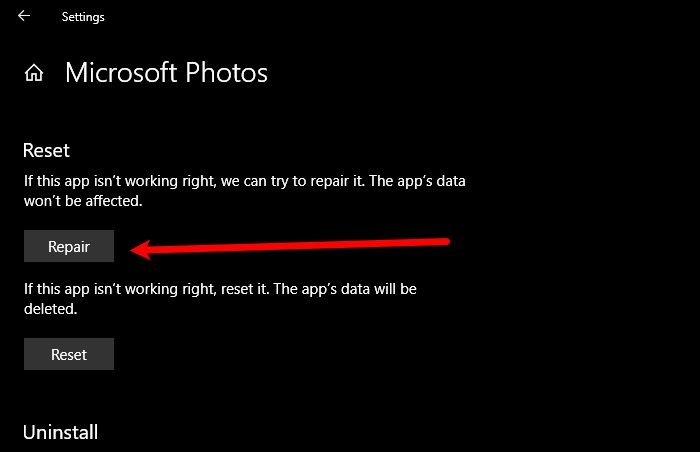
If the Photos app on your Windows computer has malfunctioned, try repairing it to fix the app crashing issue. To do that, launch Settings by Win + I, click Apps, search for “Photos”, select it, and click Advanced options.
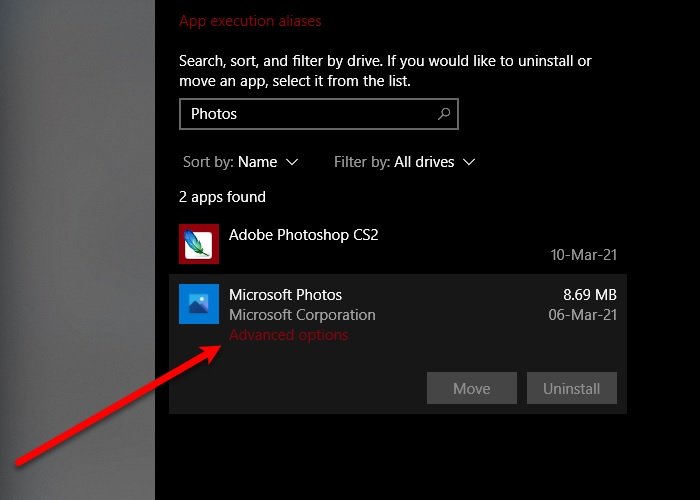
Now, scroll down a bit and click Repair. Wait for a few minutes as your computer will automatically repair the app and hopefully, fix Windows Photos App crashing error.
3] Reinstall Windows Photos
If repairing didn’t fix the issue, try reinstalling the Windows Photos application to fix the issue. You may not be able to uninstall the Photos app by the conventional method; however, with the help of some commands, you can easily uninstall Windows Photos.
Launch Windows PowerShell as an admin from the Start Menu, type the following commands and hit Enter.
Get-AppxPackage -AllUsers
Now, note the PackageFullName of “Microsoft.Windows.Photos” and type the following command.
Get-AppxPackage <PackageFullName> | Remove-AppxPackage
If you are not comfortable with Windows Command-line interpreter, try 10AppsManager to uninstall the application.
Once done, remove all its residual files and folders if any.
Now, you can reinstall the application from the Microsoft Store.
4] Restore Default Libraries
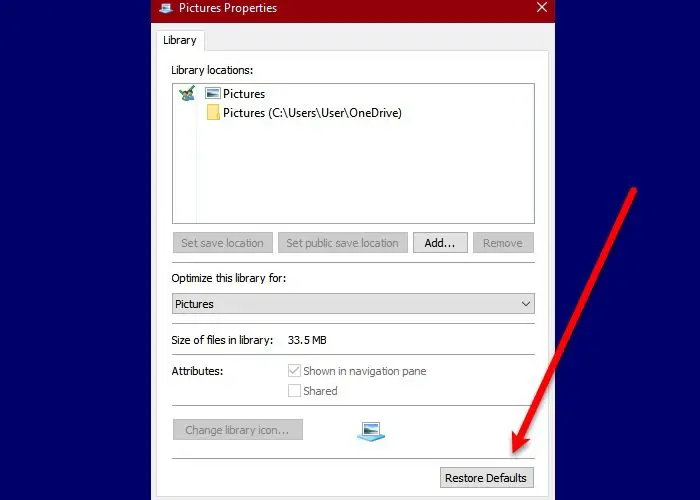
You can fix the issue by restoring default Libraries. To do that, follow the following steps:
- Launch File Explorer by Win + E.
- Click on Libraries folder from the left panel of the window.
- Now, right-click on Pictures and select Properties.
- Finally, click Restore Defaults and follow the on-screen instructions to restore default Libraries.
Restart your computer and check if the issue persists.
5] Use a different image viewer
The Windows Photo application is one of the best and simplest image viewers for Windows devices, but it is not the only one. This problem can be because of a bug and Microsoft will eventually release an update to fix the issue, however, in the meantime, you can use another free Image and Photos viewer.
Hopefully, you are able to fix the Windows Photos app crash issue using these solutions.
How do I fix File system error in Windows 11?
File System errors on Windows 11/10 can occur due to system file corruption, a corrupted hard disk or other issues. Improper shutdown and power surges are some common causes of system file corruption. To fix file system errors on your system, you can try repairing your system files and scanning your hard drive for errors.
Why does the Photos app keep crashing Windows 11?
One of the most common causes of the Photos app crash is an outdated version. You can check whether an update is available in the Microsoft Store. In addition, glitched-out system processes can cause crashes. We suggest you repair your system files. If this does not work, repair or reinstall the Photos app.
Helpful reads:
- Photos app is slow to open or not opening
- Photos app is missing, not working or crashing
- There’s nothing to show here error in Photos app.
