
If your Windows 11 doesn’t recognize your Android phone even after connecting it via a USB cable, here are some troubleshooting tips to help. There are several reasons an Android user may be unable to access phone data on a Windows 11/10 computer. Let us explore the causes and solutions so you can resolve the issue quickly.
There are several ways to transfer files from Android to Windows and vice versa. However, the USB cable method is probably the fastest and most efficient way for any user. The problem starts when people do not see their mobile in This PC or File Explorer.
The root causes why your Android phone is not recognised by Windows 11:
- You haven’t changed the connection type from Charging only to file transfer or something else.
- The USB cable is damaged.
- The USB port of your computer is not working.
- Your PC has some driver-related issues.
Windows 11 doesn’t recognize Android phone
If Windows 11/10 won’t recognize your Android phone, follow these steps-
- Check the connection type
- Change USB cable and port
- Uninstall device from Device Manager
- Install MTP USB Device driver
- Enable USB debugging
To learn more about these solutions, continue reading.
Android phone not recognised by Windows 11
1] Check the connection type
When you connect your phone to your computer, it doesn’t allow you to access all files, by default. It happens because a change is caused by your Android device. The default setting is set as Charging only, which does what it defines. In other words, if you connect your phone to your computer with a USB cable, it charges your device rather than displaying files.
Therefore, unlock your phone, locate the File Transfer icon in the status bar, and select it. For your information, this specific setting name may differ on your mobile device.
2] Check the USB cable and port
Since you are using a USB cable and two USB ports, it is recommended to verify that they are working without issues. If any of them has a problem, there is a high likelihood of encountering such an issue. You will do these-
- Use the USB cable with another mobile device to check if it is working.
- Change the USB port on your computer to ensure it isn’t causing issues.
- Try charging your mobile device with the same USB cable to confirm that the MicroUSB or Type-C port is working properly.
3] Uninstall device from Device Manager
If your PC still doesn’t recognize your Android device even after selecting the File Transfer option, it is time to remove the device from your computer. In other words, it resets everything related to the device so that your computer clears all existing cache and re-identifies the device.
To get started, you need to open the Device Manager. It is possible to do that using the Taskbar search box, or you can press Win+X to find the Device Manager option. After opening the Device Manager, connect your phone to your computer and select the File Transfer option, as mentioned in the first solution.
Now, expand the Portable Devices option, right-click on your device name, and select Uninstall device option.
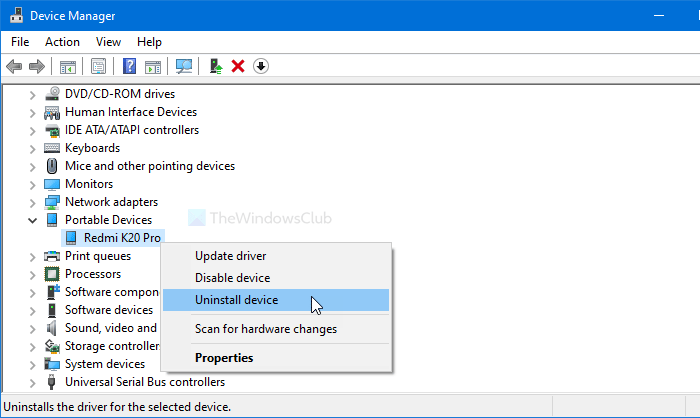
Following that, it asks you to confirm the change. You can do that by clicking the Uninstall button.
Now reconnect your device using the USB cable and check whether it appears in File Explorer.
4] Install MTP USB Device driver
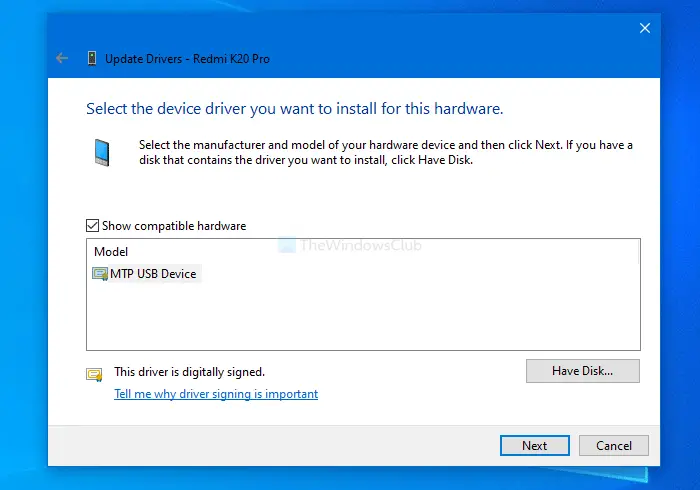
To do it, open the Device Manager first. For that, press Win+X, and select Device Manager from the list. Now, right-click on your device and select the Update driver option.
Then, click on Browse my computer for drivers and Let me pick from a list of available drivers on my computer options. After choosing them, make sure that the MTP USB Device option is selected. If so, click the Next button to start the installation process.
Once it is done, open File Explorer to find your device.
5] Enable USB debugging
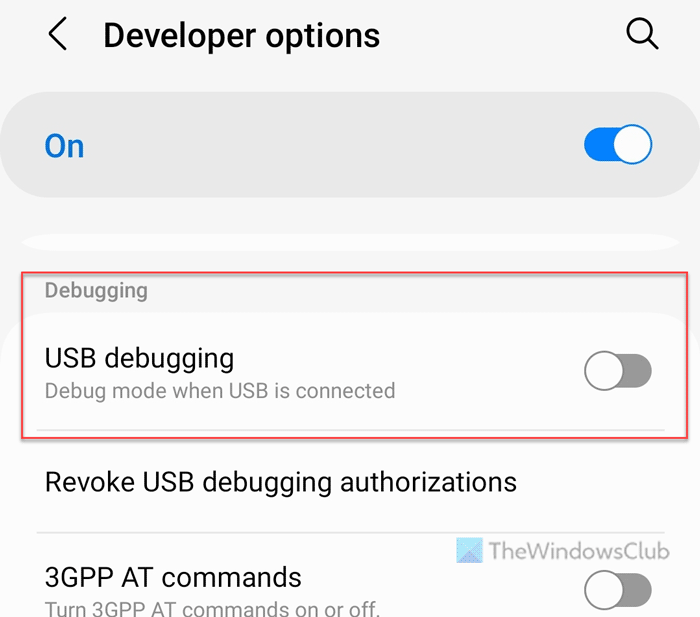
To enable USB debugging on Android mobile, follow these steps:
- Open the Settings app on your mobile.
- Go to Developer options.
- Toggle the USB debugging
However, this option needs to be enabled beforehand. That said, you need to enable Developer options first. Also, you can follow these exact steps on a Samsung mobile but the steps might be different on your mobile if you use another company’s mobile.
Let us know if this helps.
Read: Unable to start Windows Subsystem for Android on Windows 11
Why won’t my computer recognize my Android phone?
Your computer might not recognize your Android phone because you haven’t set the correct connection type. This problem might also occur due to a broken cable or faulty USB port, or a software glitch.
How to get Windows to recognize an Android phone?
You need to set the correct connection type for Windows to recognize an Android phone. However, if you have already done so, you need to check the driver first. On the other hand, you should install the MTP USB Device driver to resolve the issue.
Read: How to reset the Windows Subsystem for Android (WSA) on Windows 11.
