
You’ve probably heard this a thousand times already, but let me just say it one more time: Google is the most popular search engine worldwide. There’s no doubt about that. Rather, you don’t need me to tell you how important Google is to fulfill your hunger for curiosity. Whether it’s a news event, sports coverage, or gossip about your not-so-favorite celebrities, Google is a gateway to finding anything you need on the Internet in the blink of an eye.
Bing Search features that make it stand out
Well, Google is not the only search engine after all. There’s Microsoft Bing, DuckDuckGo, Yandex, and many more. In fact, you can check out this interesting article about search engines to consider if you no longer want to use Google.
Talking of Google Search alternatives, Microsoft Bing comes pretty close to being the perfect alternative to Google search and for various reasons, of course. With my fair bit of understanding of both Google and Microsoft Bing, I can finally say one thing. Although comparing Google to Microsoft Bing is like comparing Apples to Oranges, there are certain areas where Microsoft Bing does a lot better than Google. Let’s take a look:
1. Search engine captcha
While Bing-ing for results with the Microsoft search engine, you will never encounter a captcha wall, which is a regular problem with Google Search. This is one of the reasons why some people now prefer Microsoft Bing over Google. If you are a compulsive search engine user, you should be extra careful about how frequently you ask Google for help. The reason is simple: Google doesn’t want to entertain bots on its search engine. So, if Google observes an abnormal amount of traffic from a single IP address, the platform may assume it’s a bot.
You must have experienced how frustrating it is to keep proving to Google you are not a bot. This is where Microsoft Bing saves users time and welcomes your excessive searches with open arms. Don’t you want to give it a try?
Read: How Bing delivers smarter Search results
2. Image search scrolling
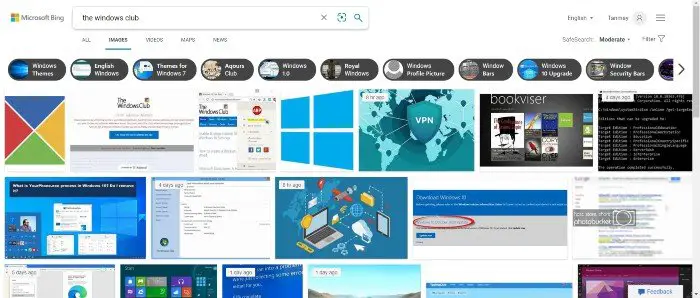
Another area where Bing is more organized than Google is the image search scrolling experience. Bing had originally introduced horizontal image scrolling, something Google has already replicated in Image Search. But there are a few differences. Google’s horizontal images open in a side panel that occupies almost half the screen, so users can preview only five or six images without scrolling further. The worst part with Google’s image search is when you click on an image, it first directs you to the host’s website. You then have to manually scroll down to locate the image. This clearly defeats the whole purpose of image previews.
With Bing, on the other hand, searching for good images takes far less effort. Bing’s horizontal scrolling panel occupies the entire screen, making it feel more like a slideshow. You can quickly return to the thumbnail view by clicking the close button on top. Once you click on an image, you’ll view a full-size version in a separate tab, rather than being forced to visit the website first, unlike on Google.
Read: Bing vs Google.
3. Advanced video search
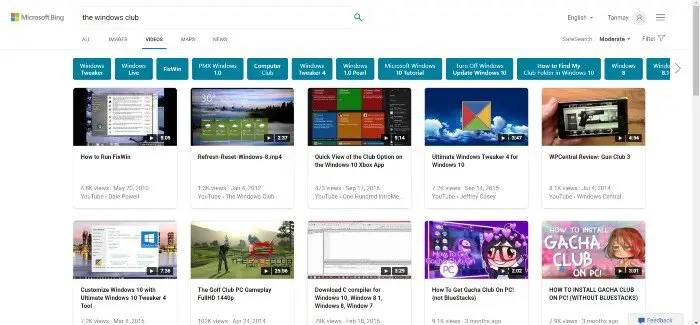
Have you ever tried searching for videos on Bing? It’s time you should give it a try. Frankly speaking, I was surprised at how developed Bing is as a video search platform and how it looks and feels. All the video search results are organized with neat thumbnails that can be scrolled through by clicking the preset stops beneath each image. To view the same number of videos in Google’s video search, you’ll have to scroll much more. However, the story doesn’t end there.
You can play Bing videos in full-screen mode without visiting YouTube, Facebook, or any website hosting that particular video. Now that’s a major deal-breaker for Google’s video search. Unlike Bing, Google will always direct you to YouTube or other sites to watch the videos. Bing videos also give superior results to Google video search. It’s at least as good as YouTube for algorithmic suggestions.
Once you start using Bing to search for videos, you don’t even need to visit YouTube (unless you want to read the comments, of course).
Read: How to use Microsoft Rewards and Give with Bing.
4. Bookmark your Bing search queries
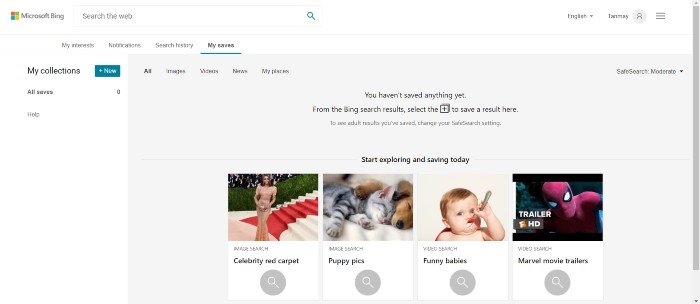
Being able to bookmark search queries on Bing is a feature not many people are aware of. Bing clearly displays an option called My Saves, which allows you to save all search results in one place. Once you save your interests, you will see search suggestions for your favorite topics. Once you start using Bing’s ‘My Saves’ option, you might want to say goodbye to saving bookmarks or favorites.
5. More privacy options
Bing allows you to completely disable interest-based advertising from the other privacy settings menu. While it is well integrated with Windows, Xbox and Office, you have the option not to use your Microsoft account. As a user, you are also in complete control of your privacy. Unlike Google, Microsoft does not use content-based targeting, so your emails, chats, files, and other personal data are not tracked for advertising. What’s more, you can also delete all search history.
Since we are on the topic of privacy, don’t forget to check our previous article on how Bing is more private than Google.
