
Many apps built into Windows 11/10 contribute to making it a powerful operating system. The Windows Sound Recorder, formerly known as Windows Voice Recorder, is one such useful app that is not as well-known, but which can be of great use as it allows you to record a voice sample on your Windows 11/10 computer. The app can be very useful even for school children as it combines interactive technology (recording) with educational material (class lectures) that can help accelerate learning and encourage innovative methods of retention. You can record audio files of over 2 hours in length. You can also use it for recording music while it is being played on a media player.
How to use Sound Recorder in Windows 11/10
Type ‘Sound Recorder‘ in the search box and click on the result to open the Sound Recorder app in Windows 11/10.
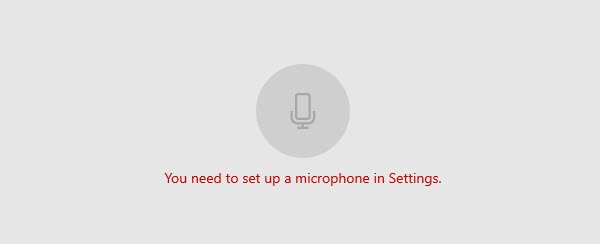
To use the app, you first need to set up the Microphone. Else you may see this screen.
Having done that, read on.
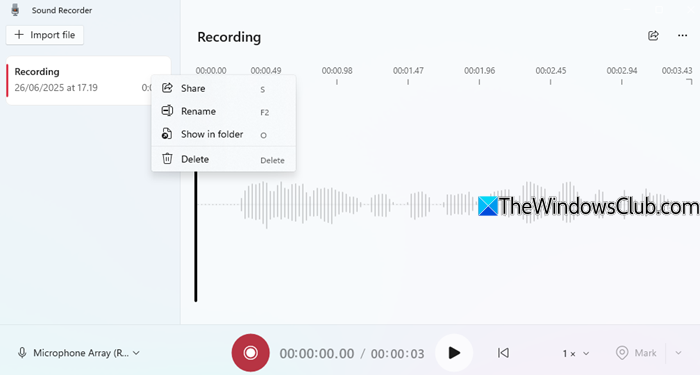
Now, if you are attending a lecture or have just come across your favorite music track and would like to record it, click the red ‘Record‘ button, clearly visible at the bottom, to enter voice recording mode.
When you have finished recording sound using the Sound Recorder app, you can go to the main software screen to get access to editing options for the voice recordings, like:
- Share
- Rename
- Show in folder
- Delete
- Trim, Mark and so on
The recordings are autosaved and stored in your Documents folder for easy access.
Right-click the voice recording, and you will find an option to open the folder where all your audio recording files are saved as an m4a file format on your Windows computer.
You can start, pause, and resume recording in one click. You can playback, trim, rename, and delete your recordings, as well as mark key moments within them. You can also easily share your recordings with friends and family or send recordings to other apps.
Via its settings you can change the recording format, audio quality, and app theme.
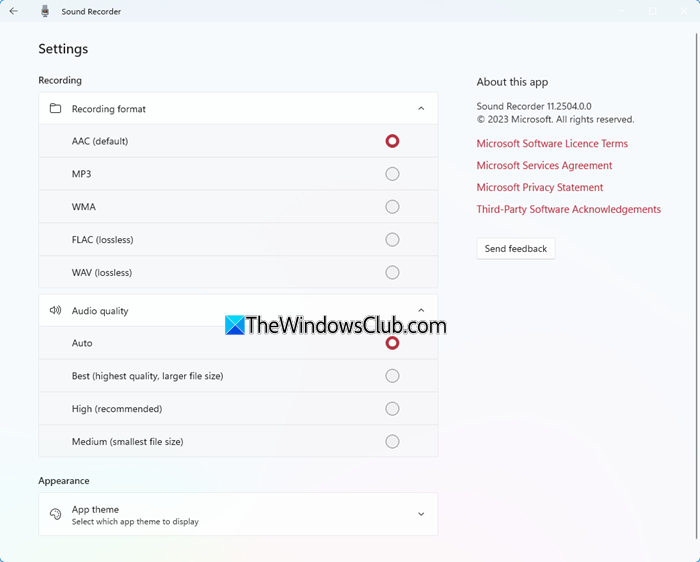
You should, however, note that the Sound Recorder for Windows does not come with an option to change the audio output format. You’d need to use an audio converter if you like to transcode m4a to wav format, for instance.
Related error: Sound Recorder couldn’t save this recording.
In all, the app is pretty easy to use and features the ability to autosave and bookmark.
This app for PC and Tablet is also available for download at the Microsoft Store.
Related posts:
